
























How to Set Up the Meta Pixel Integration
The Meta Pixel integration connects your ordering site and mobile apps to Meta Ads Manager, so you can track orders back to your ads and build retargeting campaigns. You only need credentials for the channel(s) you actually use, web, mobile, or both.
- From your dashboard, go to Integrations and find the Meta Pixel card.
- Click Configure.
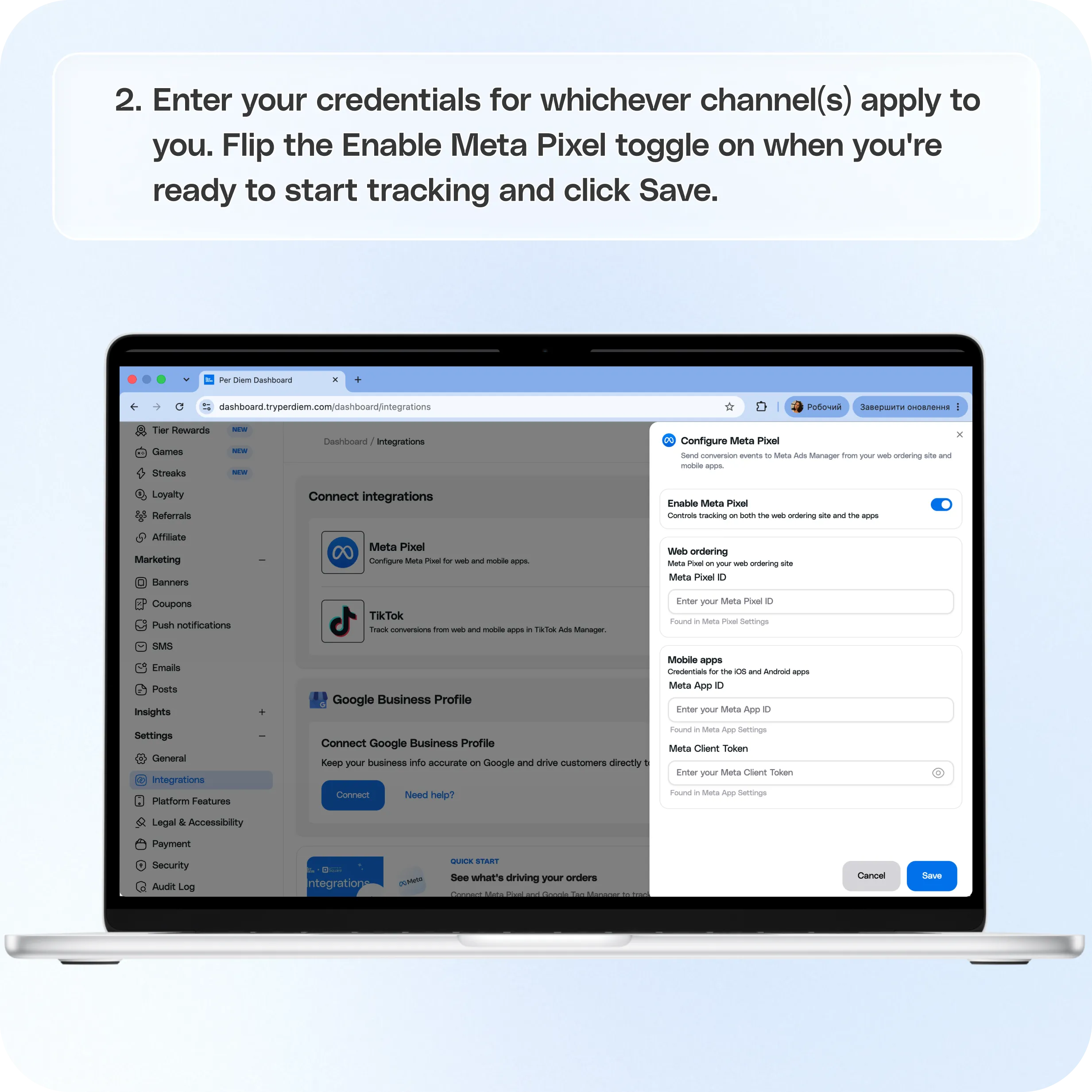
- Enter your credentials for whichever channel(s) apply to you:
- Flip the Enable Meta Pixel toggle on when you're ready to start tracking. This one switch turns tracking on for both your web site and your apps at the same time, so there's no separate on/off for each.
- Click Save.
Still require support?
Contact support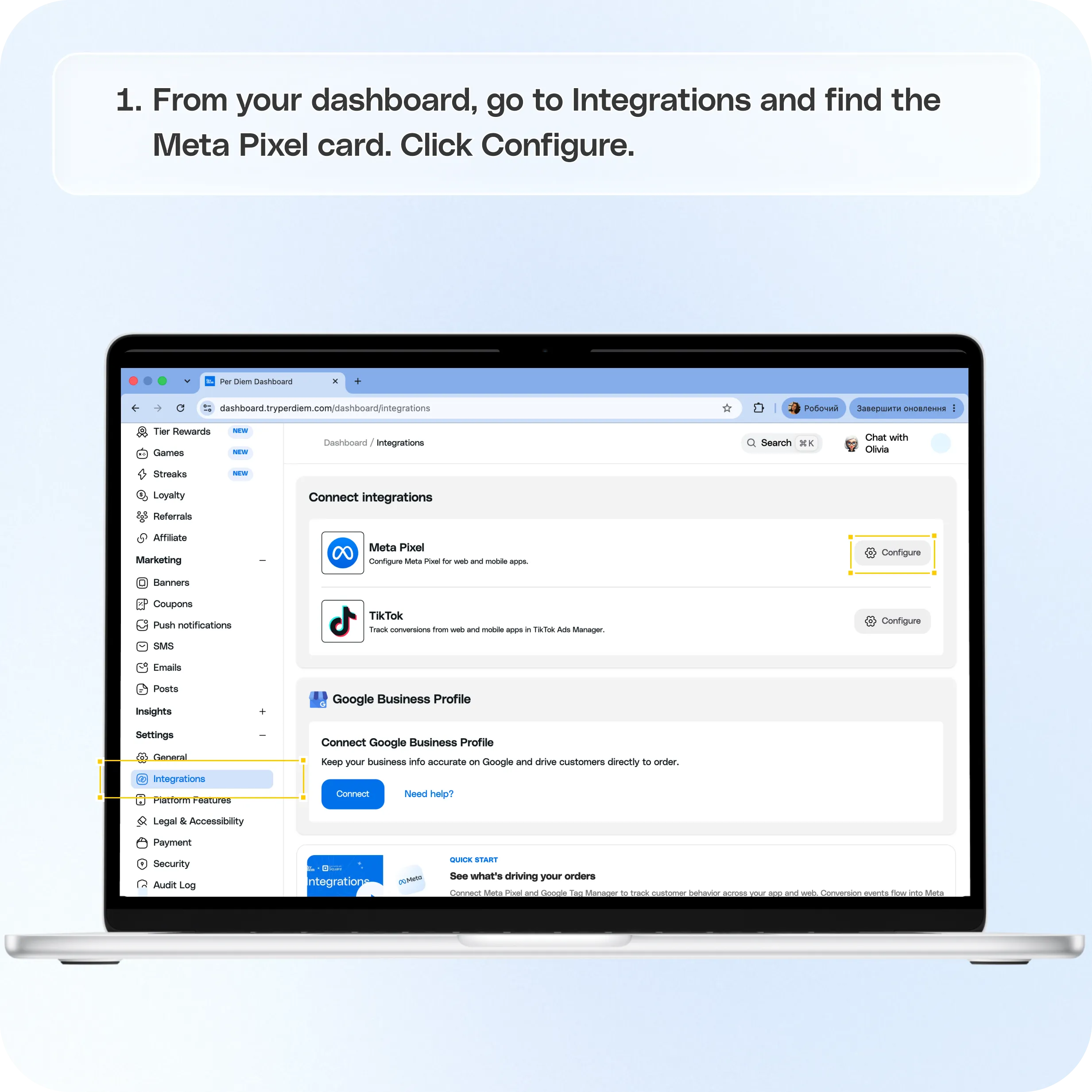
What you'll need first
Log into your Meta Business account and grab the following, depending on which channels you use:
- For your web ordering site: your Meta Pixel ID. You'll find this in Meta Events Manager, under Pixel Settings.
- For your iOS and Android apps: your Meta App ID and Meta Client Token. Both live in Meta App Settings.
If you're web only, skip the App ID and Client Token. If you're mobile only, skip the Pixel ID. No need to hunt down credentials you won't use.
Step by step: configuring Meta Pixel
- From your dashboard, go to Integrations and find the Meta Pixel card.
- Click Configure.
- Enter your credentials for whichever channel(s) apply to you:
- Flip the Enable Meta Pixel toggle on when you're ready to start tracking. This one switch turns tracking on for both your web site and your apps at the same time, so there's no separate on/off for each.
- Click Save.
Once saved, the Meta Pixel card will show an Active status, and your Configure button turns into Edit, with a new Disconnect option next to it.
What it tracks
Once enabled, Meta Pixel automatically picks up these events as customers move through your ordering flow:
- Page view – a customer visits a page on your site or app
- View content – a customer opens a product or views a promoted item
- Add to cart – a customer adds an item to their order
- Initiate checkout – a customer starts the checkout process
- Purchase – an order is completed (includes the order value and items)
- Complete registration – a customer creates an account
You don't need to configure these individually. They start flowing to Meta Ads Manager as soon as the integration is active.
Making changes later
- Edit opens the same setup screen you used before, already filled in with your saved credentials, so you can update them or flip the toggle without starting from scratch. Your Client Token stays hidden by default. Click the eye icon if you need to check it.
- Disconnect removes your saved credentials entirely and stops all tracking, for both web and mobile, until you set it up again.
Does this track everyone who visits?
No. Meta Pixel only tracks customers who've accepted marketing cookies. If a customer hasn't opted in, none of their activity gets sent to Meta. This keeps you aligned with privacy rules and respects your customers' choices.
Still have questions?Contact us
Ask anything or just say hi