
























How to Set Up Service Fees in Per Diem: A Complete Guide
A service fee is an extra charge you can add to orders placed in your app or on your ordering website. It appears as its own line at checkout, so customers can see exactly what they're paying. You decide whether to charge one, how much, and for which orders.
Go to Settings → Payment → Service Fee.
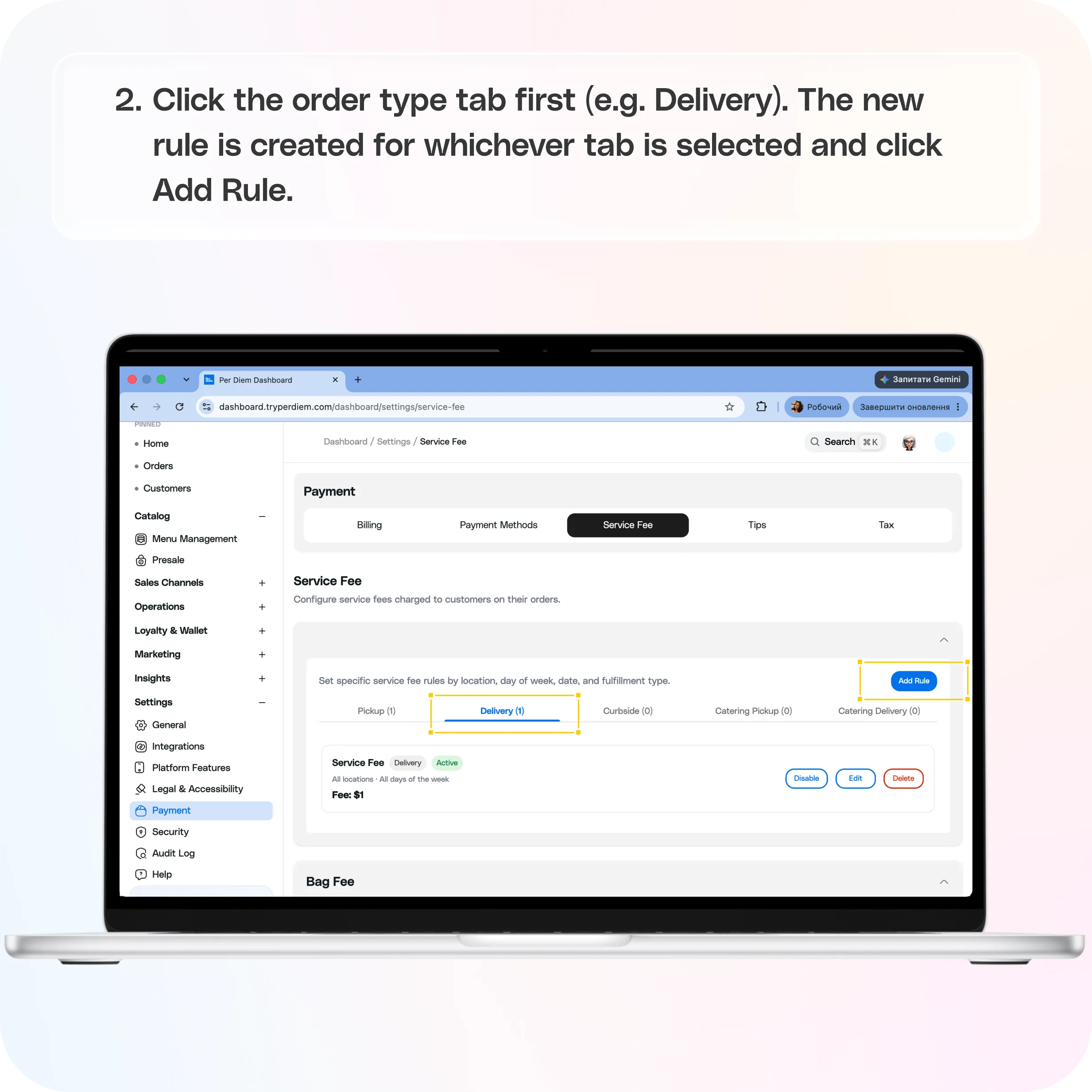
Click the order type tab first (e.g. Delivery). The new rule is created for whichever tab is selected.
Click Add Rule.
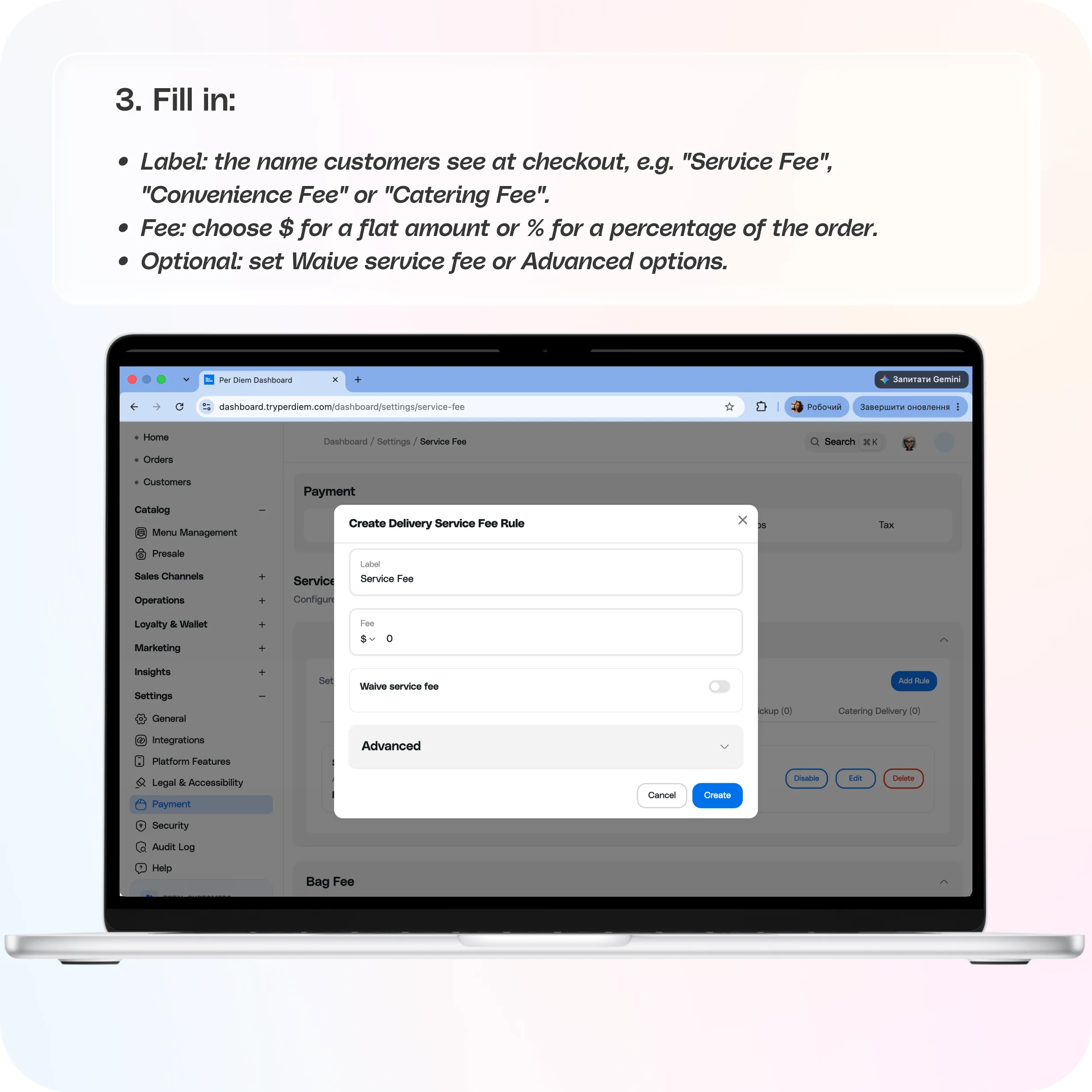
Fill in:
- Label: the name customers see at checkout, e.g. "Service Fee", "Convenience Fee" or "Catering Fee".
- Fee: choose $ for a flat amount or % for a percentage of the order.
- Optional: set Waive service fee or Advanced options (explained below).
Click Create.
Still require support?
Contact support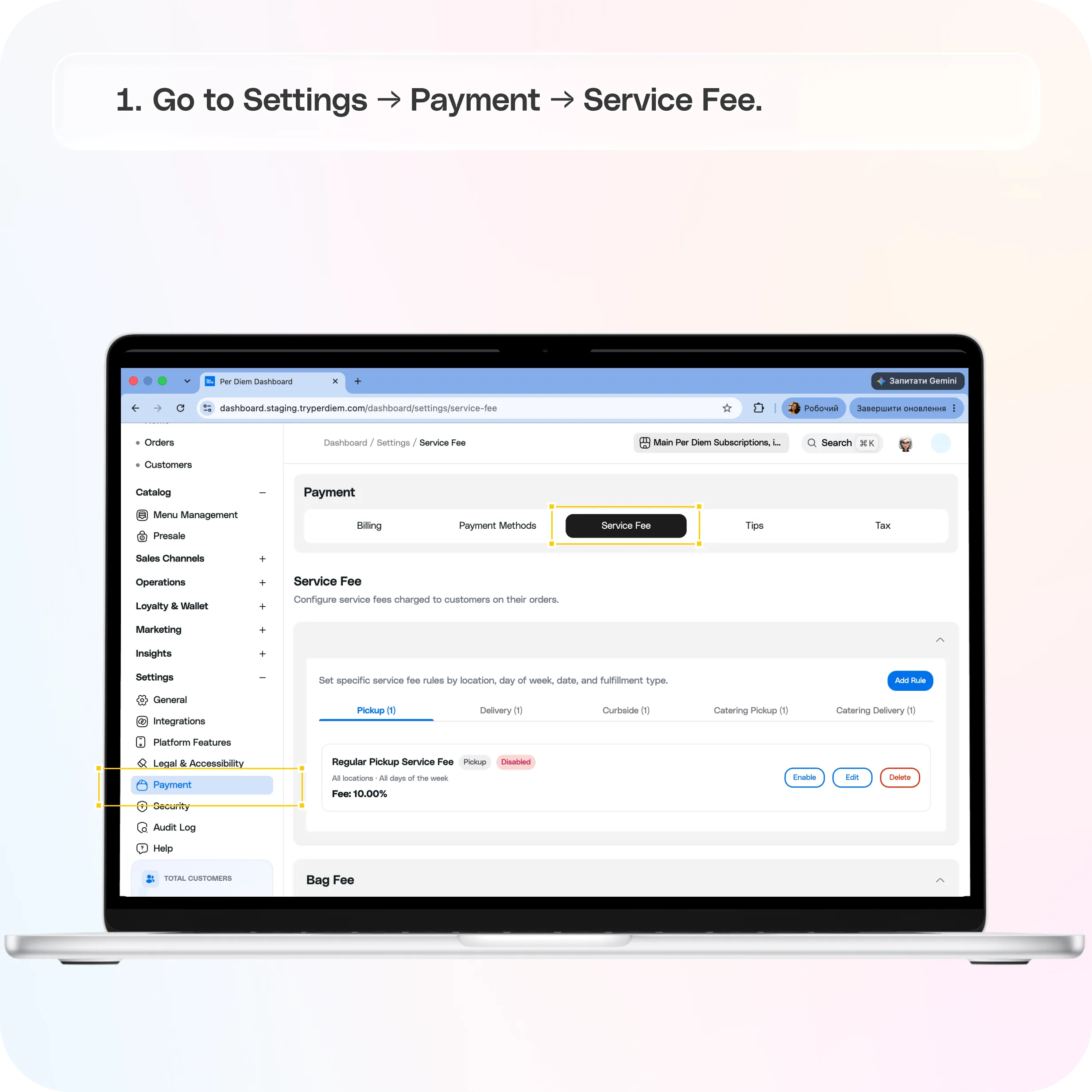
Where to find it
Go to Settings → Payment → Service Fee.
The Payment section has five tabs: Billing, Payment Methods, Service Fee, Tips and Tax.
How service fees work
- Each order type has its own fee. There are separate tabs for Pickup, Delivery, Curbside, Catering Pickup and Catering Delivery. Changing the pickup fee doesn't change the delivery fee.
- The number on each tab shows how many rules that order type has, e.g. Delivery (1).
- App and web ordering use the same rules. You don't need to set them up twice.
- The fee is shown separately on the customer's checkout screen.
Add a service fee
- Go to Settings → Payment → Service Fee.
- Click the order type tab first (e.g. Delivery). The new rule is created for whichever tab is selected.
- Click Add Rule.
- Fill in:
- Optional: set Waive service fee or Advanced options (explained below).
- Click Create.
Edit, turn off or delete a fee
Each rule shows as a card with its name, order type, status (Active or Disabled), where and when it applies, and the fee amount.
- Edit: change the amount, name or settings, then click Update.
- Disable: stops charging the fee but keeps the rule so you can turn it back on later. Click Enable to restart it.
- Delete: removes the rule permanently.
Tip: If you're not sure, use Disable rather than Delete.
Waive the fee on larger orders
Turn on Waive service fee and enter a Waiver amount. The fee won't be charged when the order total is greater than that amount.
Example: a $0.50 fee with a $25 waiver amount means orders over $25 have no service fee.
Advanced: specific locations, days or dates
Open Advanced in the rule form.
Location
- Leave All Locations on to apply the fee everywhere.
- Turn it off to choose a specific location.
Schedule
- All week: the fee applies every day.
- Days of week: pick the days (Sun–Sat), e.g. weekends only.
- Specific date: pick a month and day, e.g. December 25. This repeats every year, which makes it good for holiday surcharges.
Bag fee
The Bag Fee section sits below your service fee rules on the same page.
- Enter the Bag fee amount.
- Choose a setting for Pickup orders and one for Delivery orders:
- Click Save. The bag fee has its own Save button, separate from your service fee rules.
The bag fee appears on the bill as a service charge.
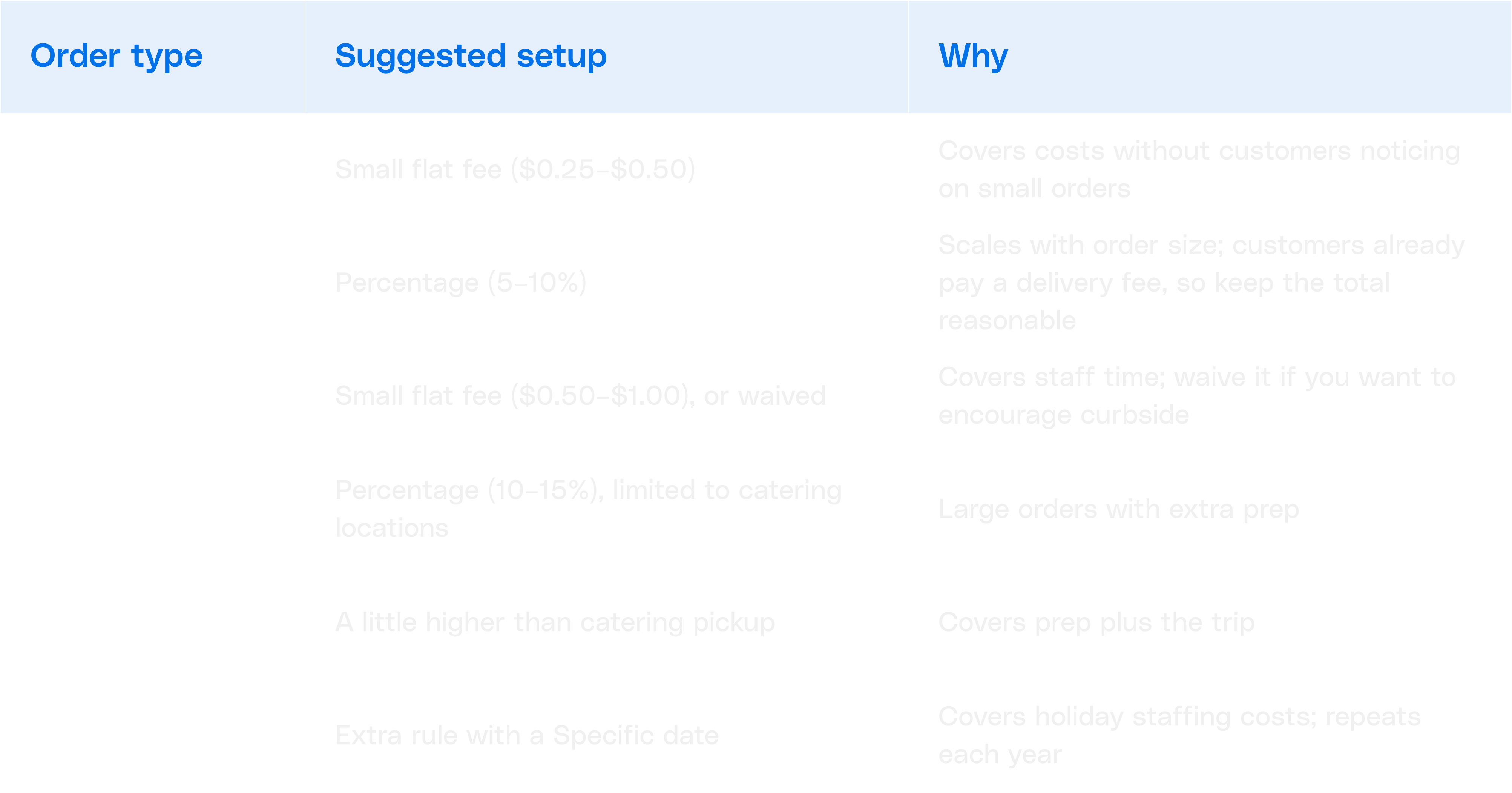
Suggested fees by order type
FAQs
**How do I add a service fee? **
Settings → Payment → Service Fee, choose the order type tab, then click Add Rule.
**How do I change my current fee (for example, $0.25)? **
Open the order type tab, find the rule and click Edit. Change the amount, or switch between $ and %, then click Update.
**I don't want to charge customers a fee. How do I turn it off? **
Click Disable on each active rule, and check every order type tab. [CONFIRM: what disabling means for who covers the platform fee; see note 1.]
**Can I waive the fee for loyalty members or subscribers? **
Not yet. You can waive it for orders above a set amount using Waive service fee. To refund the fee on a single order, issue a partial refund.
**Why do catering orders have a different fee? **
Catering has its own tabs (Catering Pickup and Catering Delivery) because those orders usually need more prep. Edit or disable them there.
**How do I add a holiday surcharge? **
Add Rule → Advanced → Schedule → Specific date, and pick the month and day. Name it something clear, like "Holiday Surcharge." It repeats every year on that date.
**Can I charge a fee at only one location, or only on weekends? **
Yes. In Advanced, turn off All Locations to pick a location, and use Days of week to pick the days.
Still have questions?Contact us
Ask anything or just say hi