

























How to Add a Video to Your App’s Splash Screen
Give customers a great first impression with a video that plays when they open your app. Showcase your food, drinks, store atmosphere, or anything that makes your business stand out.
- Log in to your Per Diem Dashboard.
- From the left menu, go to Sales Channels → App Customization.
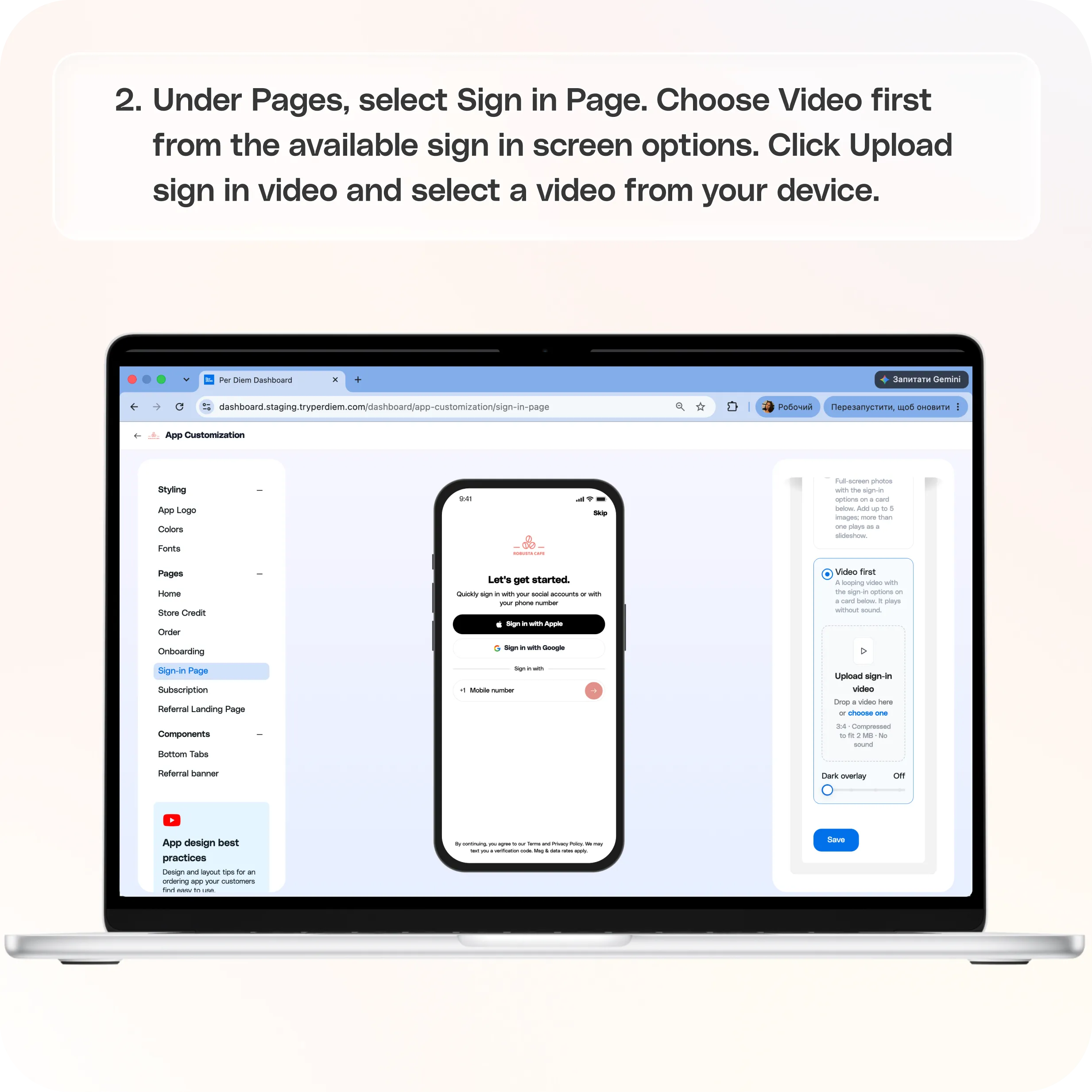
- Under Pages, select Sign in Page.
- Choose Video first from the available sign in screen options.
- Click Upload sign in video and select a video from your device.
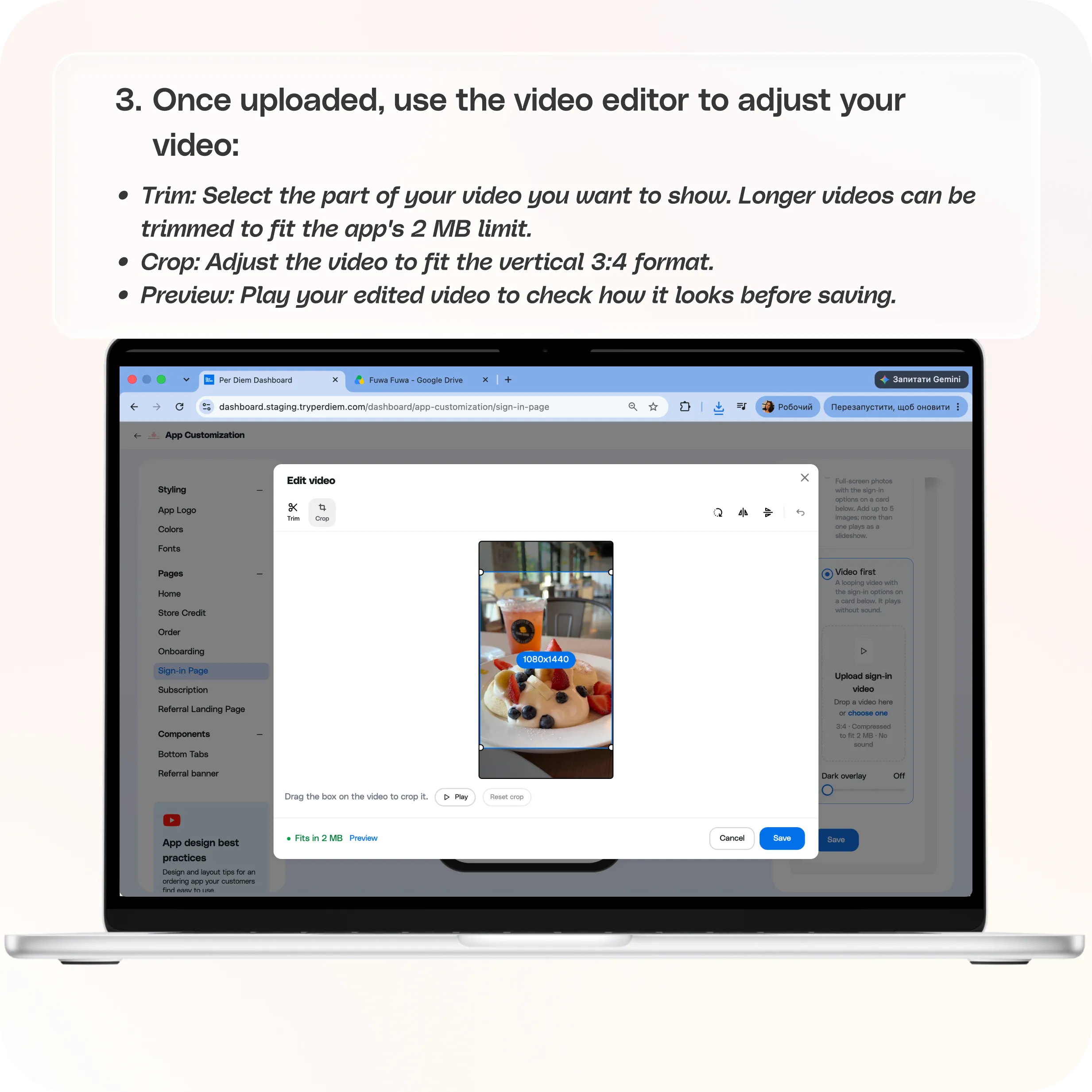
- Once uploaded, use the video editor to adjust your video:
- Click Save in the video editor to confirm your changes.
- Use the Dark overlay slider to adjust the appearance of your video from light to dark. A darker overlay can make text and other elements easier to read against a bright video.
- Check the phone preview to see how your video will appear to customers.
- Finally, click the blue Save button at the bottom of the settings panel to apply your changes to your app.
Still require support?
Contact support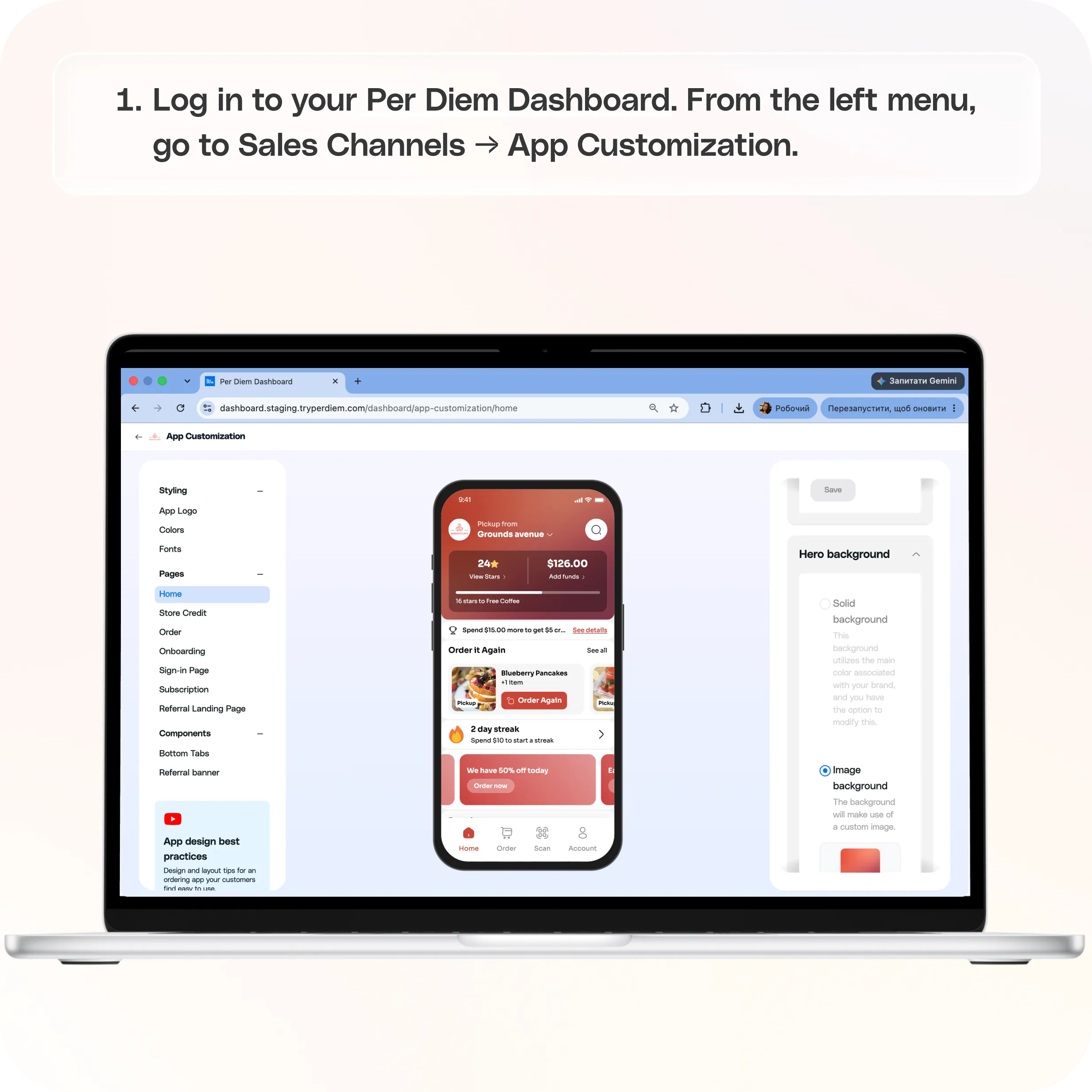
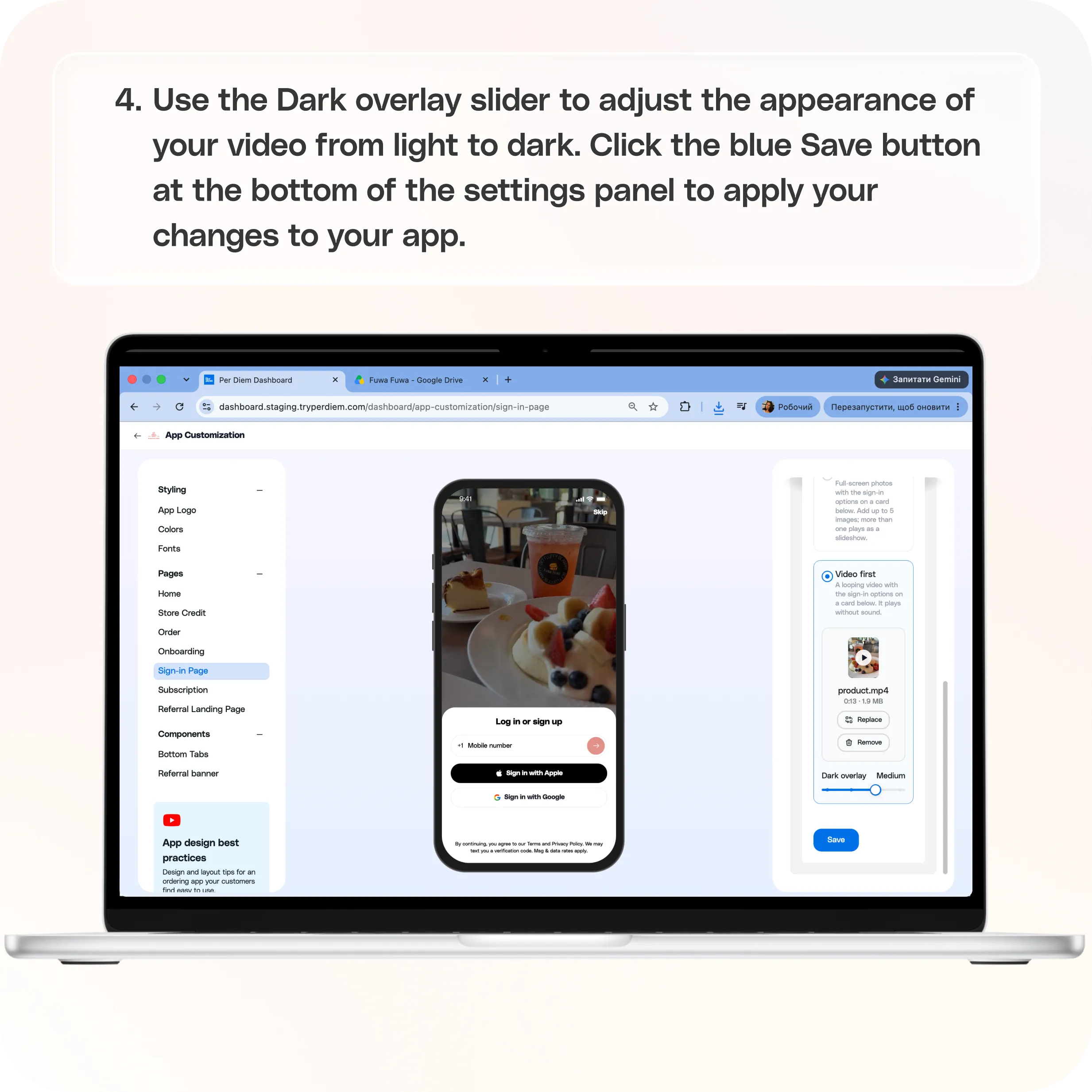
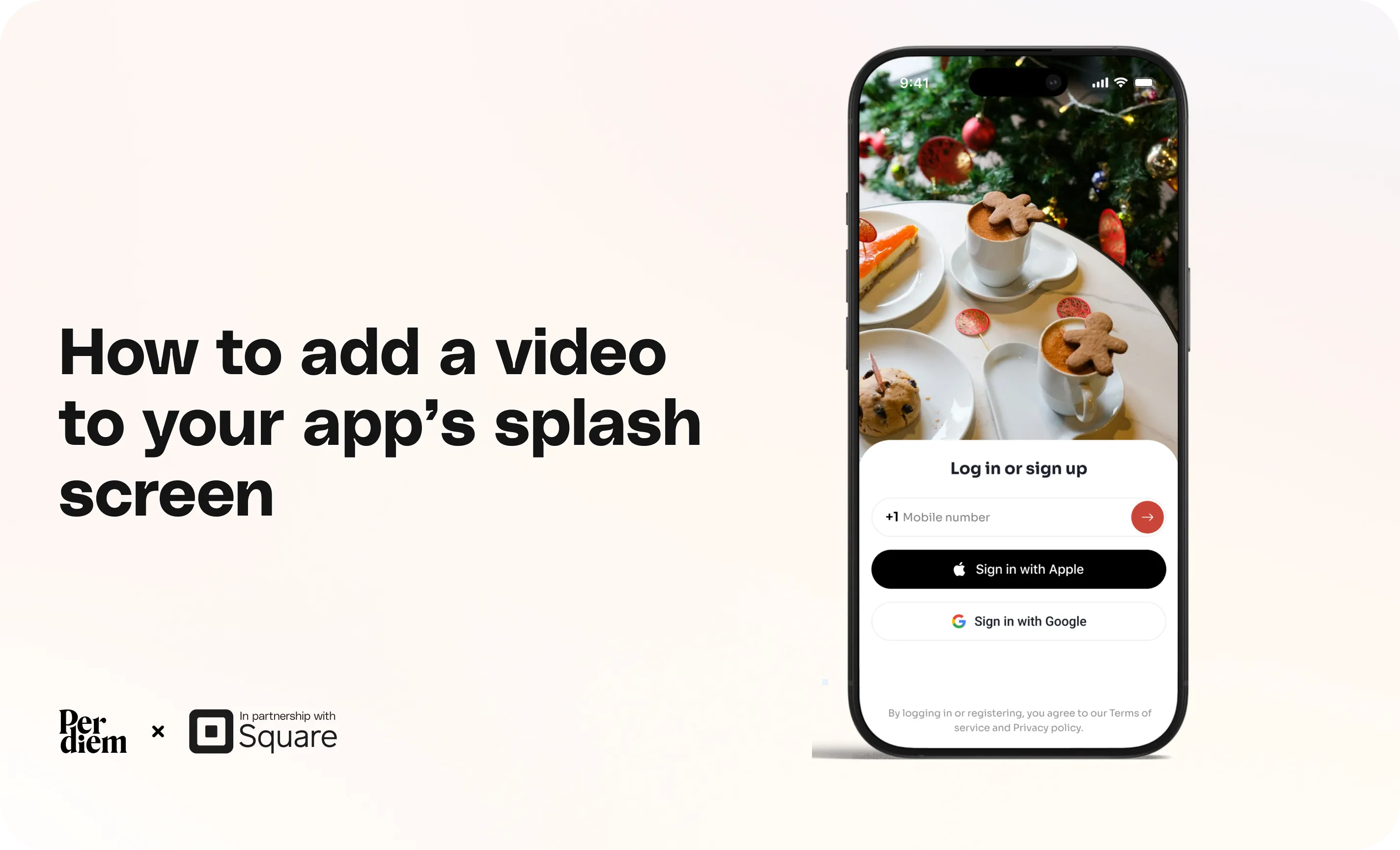
Your video plays automatically on the sign-in screen, with login options displayed below it.
Important: This feature requires your app to be on version 7.18.0 or later.
How to add a video to your sign-in screen
- Log in to your Per Diem Dashboard.
- From the left menu, go to Sales Channels → App Customization.
- Under Pages, select Sign in Page.
- Choose Video first from the available sign in screen options.
- Click Upload sign in video and select a video from your device.
- Once uploaded, use the video editor to adjust your video:
- Click Save in the video editor to confirm your changes.
- Use the Dark overlay slider to adjust the appearance of your video from light to dark. A darker overlay can make text and other elements easier to read against a bright video.
- Check the phone preview to see how your video will appear to customers.
- Finally, click the blue Save button at the bottom of the settings panel to apply your changes to your app.
Video requirements
Before uploading, here's what you should know:
- Video length: You can upload a longer video and trim it in the editor. The final clip must fit within the 2 MB limit.
- File size: The editor checks whether your video fits within 2 MB.
- Aspect ratio: Videos use a vertical 3:4 format, which you can adjust using the Crop tool.
- Sound: Videos play without sound.
- Playback: Your video loops automatically on the sign in screen.
Tips for choosing the right video
Choose a short, engaging clip that gives customers a feel for your business. You could show a coffee being prepared, a fresh dish coming out of the kitchen, or a quick look inside your store.
Since the video plays without sound, use footage that tells the story visually. Keep important details away from the bottom of the screen, where customers will see the login options.
You can update your video anytime by returning to App Customization → Sign in Page and selecting Replace or Remove.
Still have questions?Contact us
Ask anything or just say hi