

























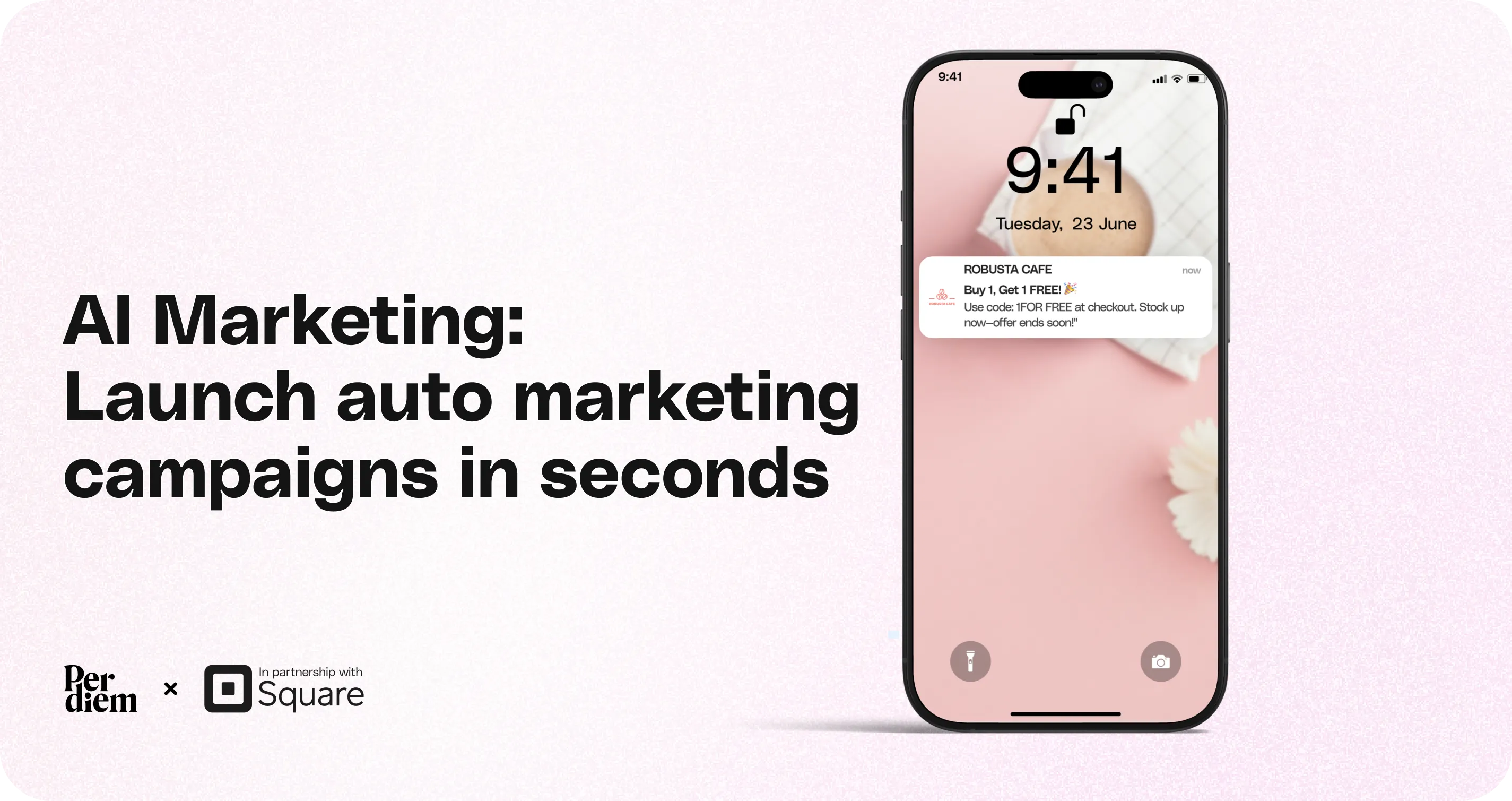
AI Marketing: Launch Auto Marketing Campaigns in Seconds
AI Marketing allows you to schedule campaigns, send push notifications, and offer discounts to drive repeat orders with minimal manual effort.
Creating a Custom Promotion
- Click **Create an Automated Promotion
** - Add an Event Name (this acts as your internal label)
- Select the frequency and day for the campaign
- Set up and schedule your **push notification
** - Enable the coupon toggle and configure:
- Discount code
- Amount or percentage off
- Enable the banner (optional) to display the promotion in the app
- Click **Save
**
Still require support?
Contact support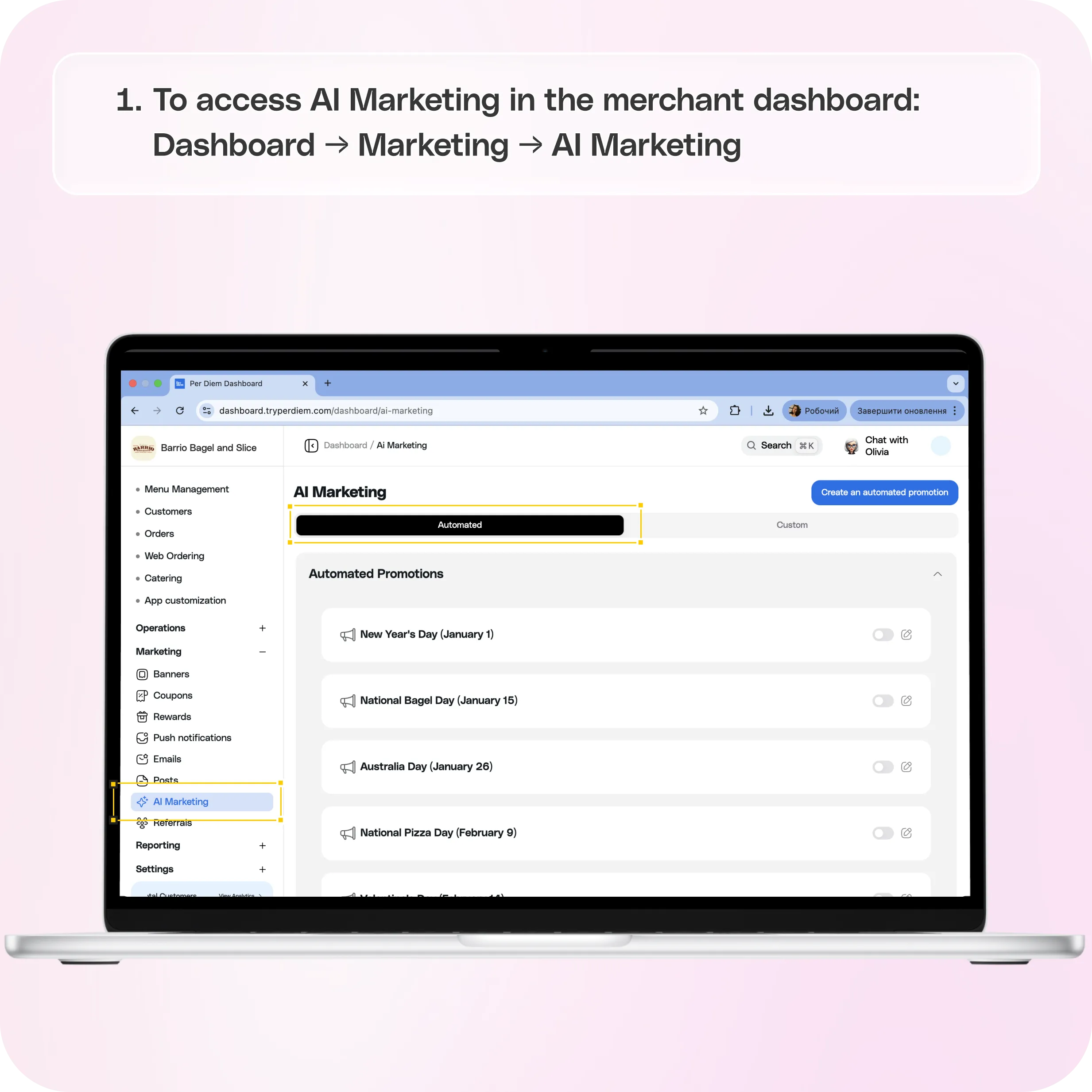
Where to Find AI Marketing
To access AI Marketing in the merchant dashboard:**
Dashboard → Marketing → AI Marketing**
From here, you can manage both automated promotions and custom campaigns.
Automated Promotions
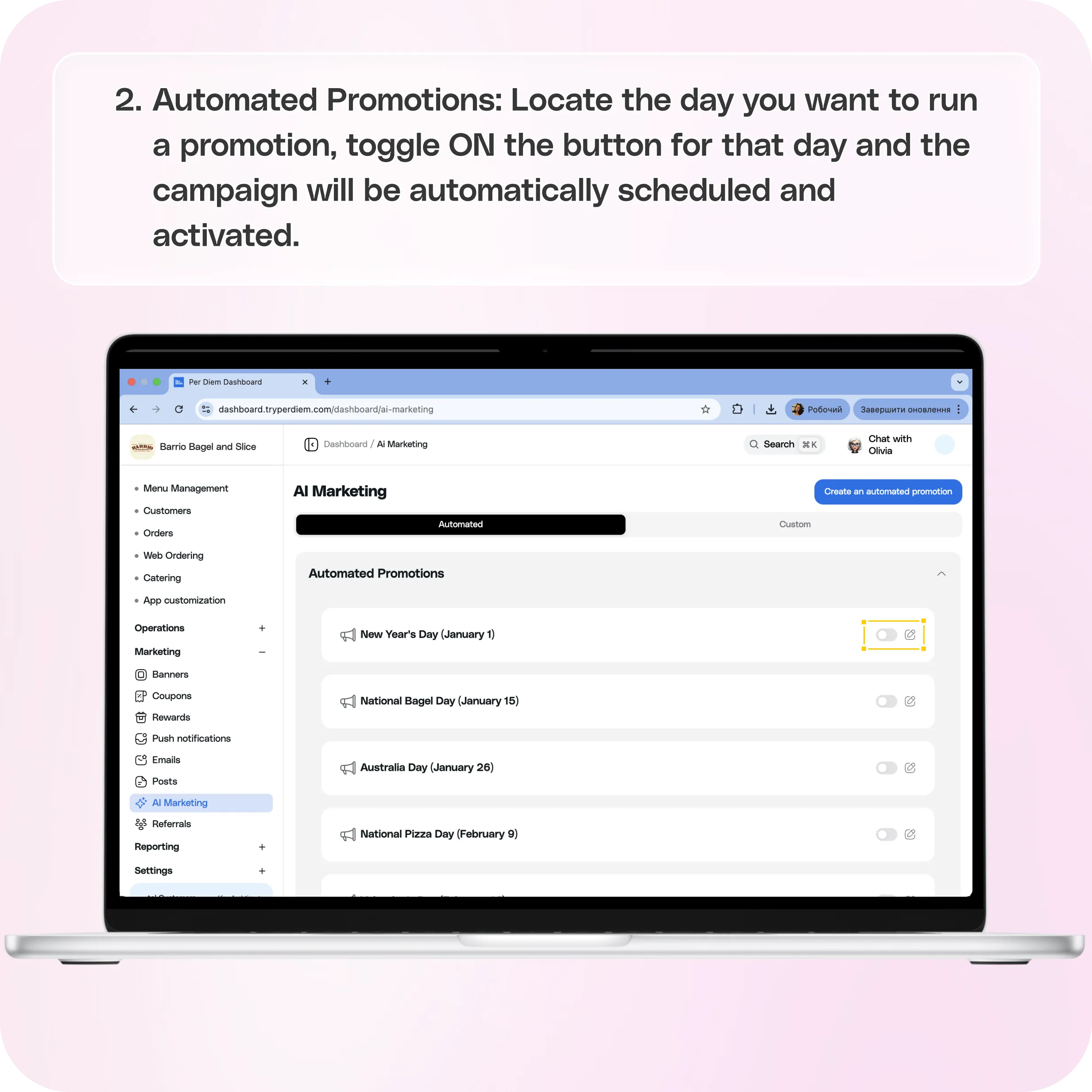
Automated promotions allow you to quickly enable campaigns for specific days of the week. Once enabled, campaigns will run automatically based on the selected schedule.
How to Enable Automated Promotions
- Locate the day you want to run a promotion
- Toggle ON the button for that day
- The campaign will be automatically scheduled and activated
Once enabled, the system handles the campaign without any additional setup.
Customizing Automated Promotions
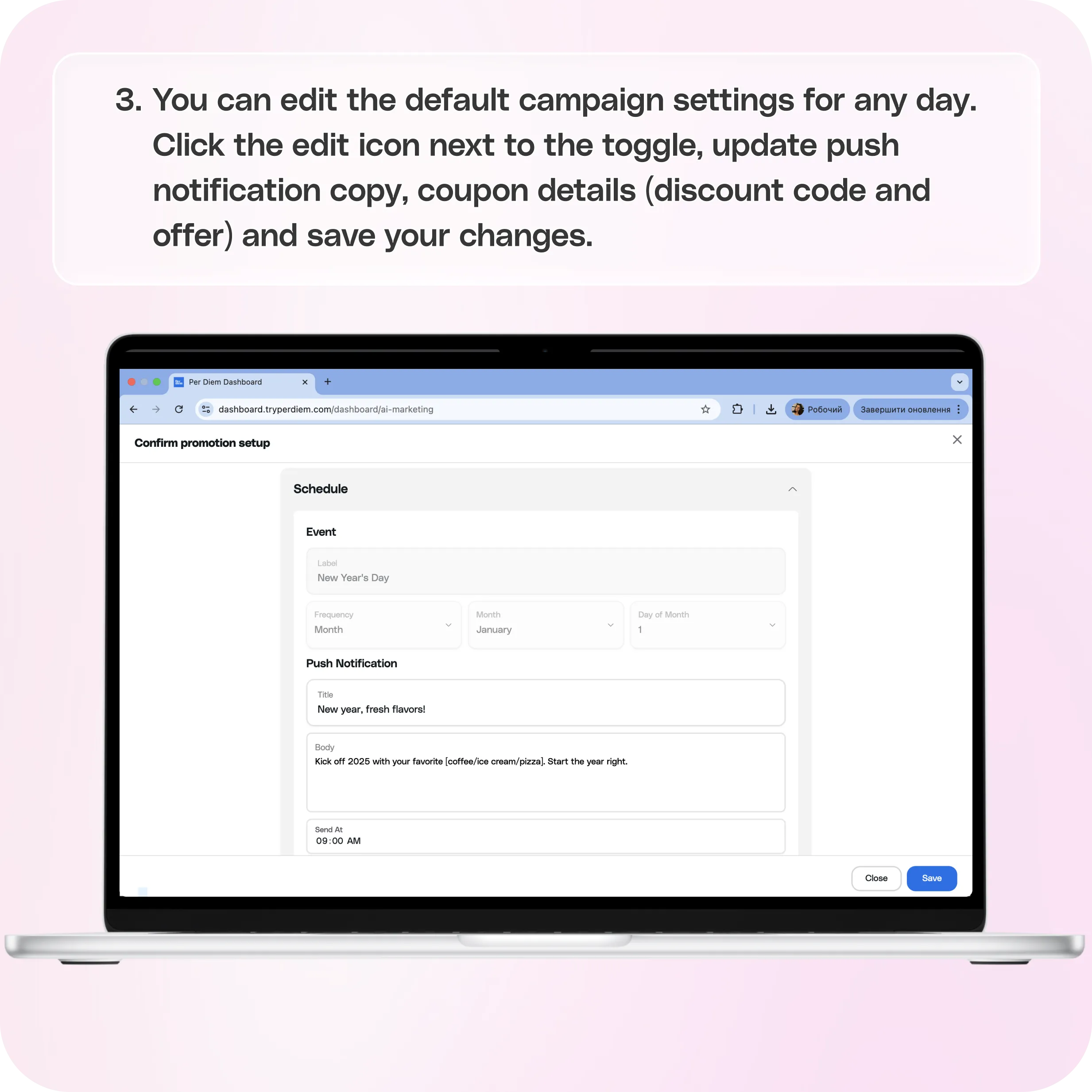
You can edit the default campaign settings for any day.
- Click the edit icon next to the toggle
- Update the following as needed:
- Push notification copy
- Coupon details (discount code and offer)
- Save your changes
This allows you to tailor each day’s promotion while still using automation.
Creating a Custom Promotion
Custom promotions give you full control over your campaign setup, including messaging, timing, and discounts.
How to Create a Custom Promotion
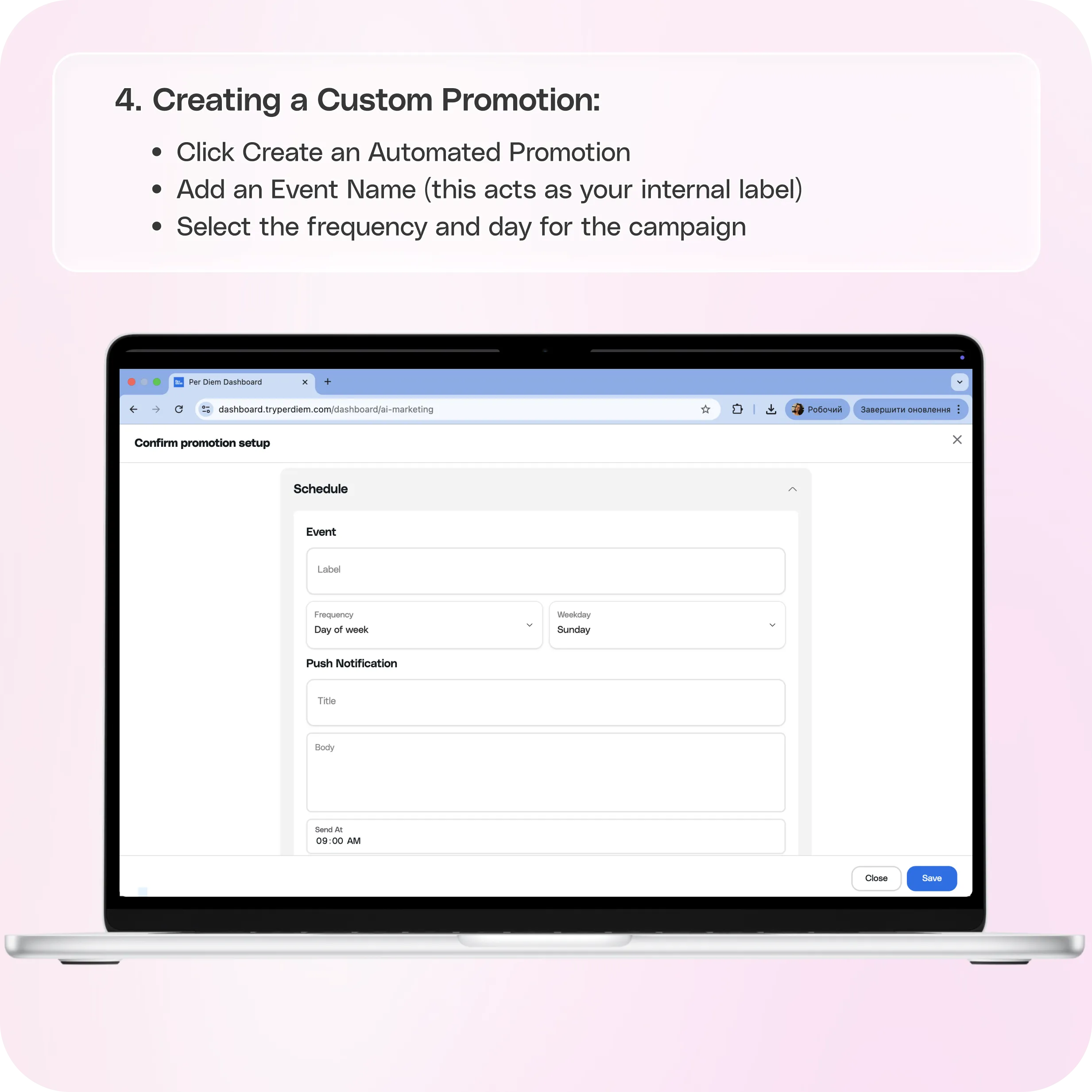
- Click **Create an Automated Promotion
** - Add an Event Name (this acts as your internal label)
- Select the frequency and day for the campaign
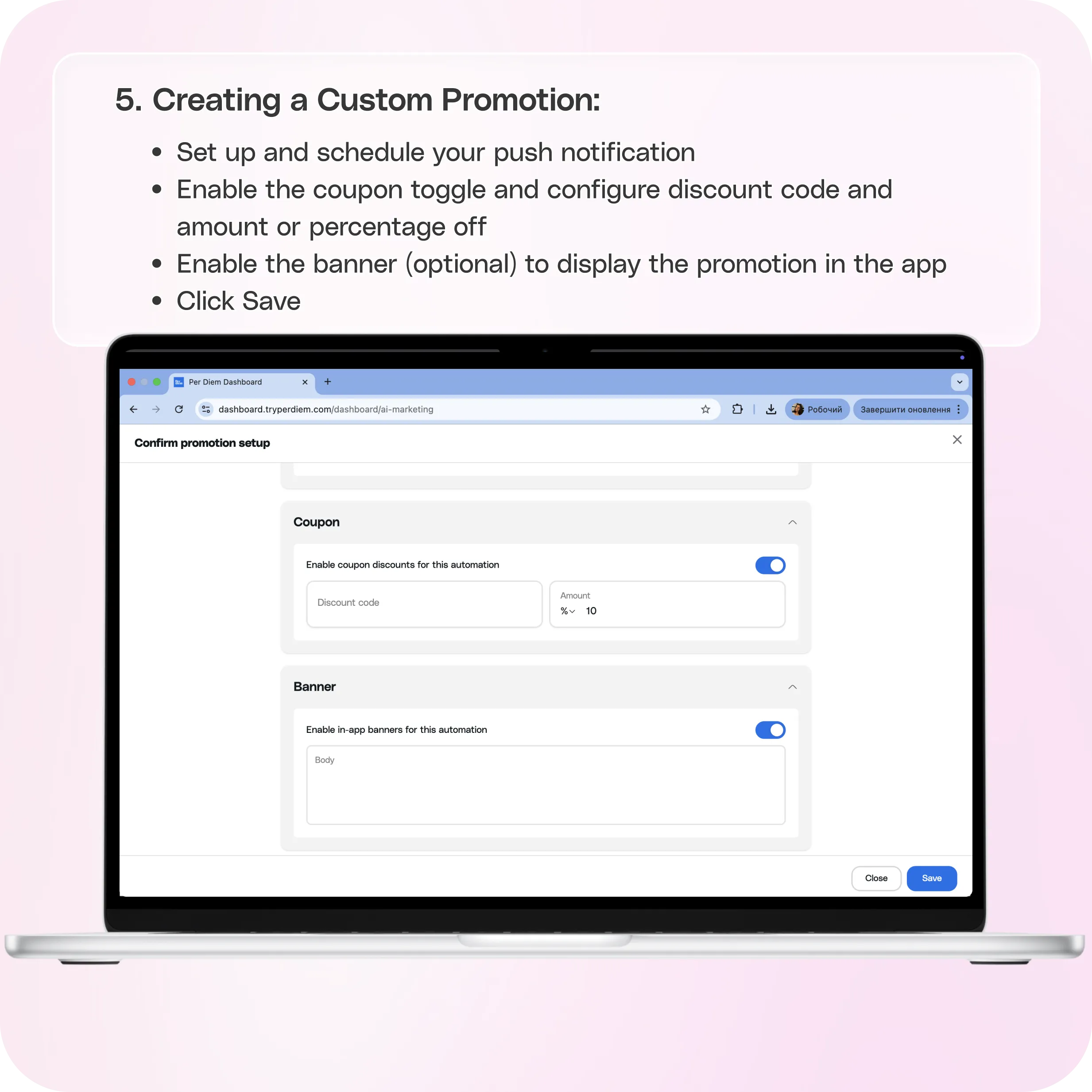
- Set up and schedule your **push notification
** - Enable the coupon toggle and configure:
- Discount code
- Amount or percentage off
- Enable the banner (optional) to display the promotion in the app
- Click **Save
**
Once saved, your custom promotion will run based on the schedule you selected.
Still have questions?Contact us
Ask anything or just say hi