


























Getting Started with SMS in Per Diem
- Select Package. Choose a credit package to start with.
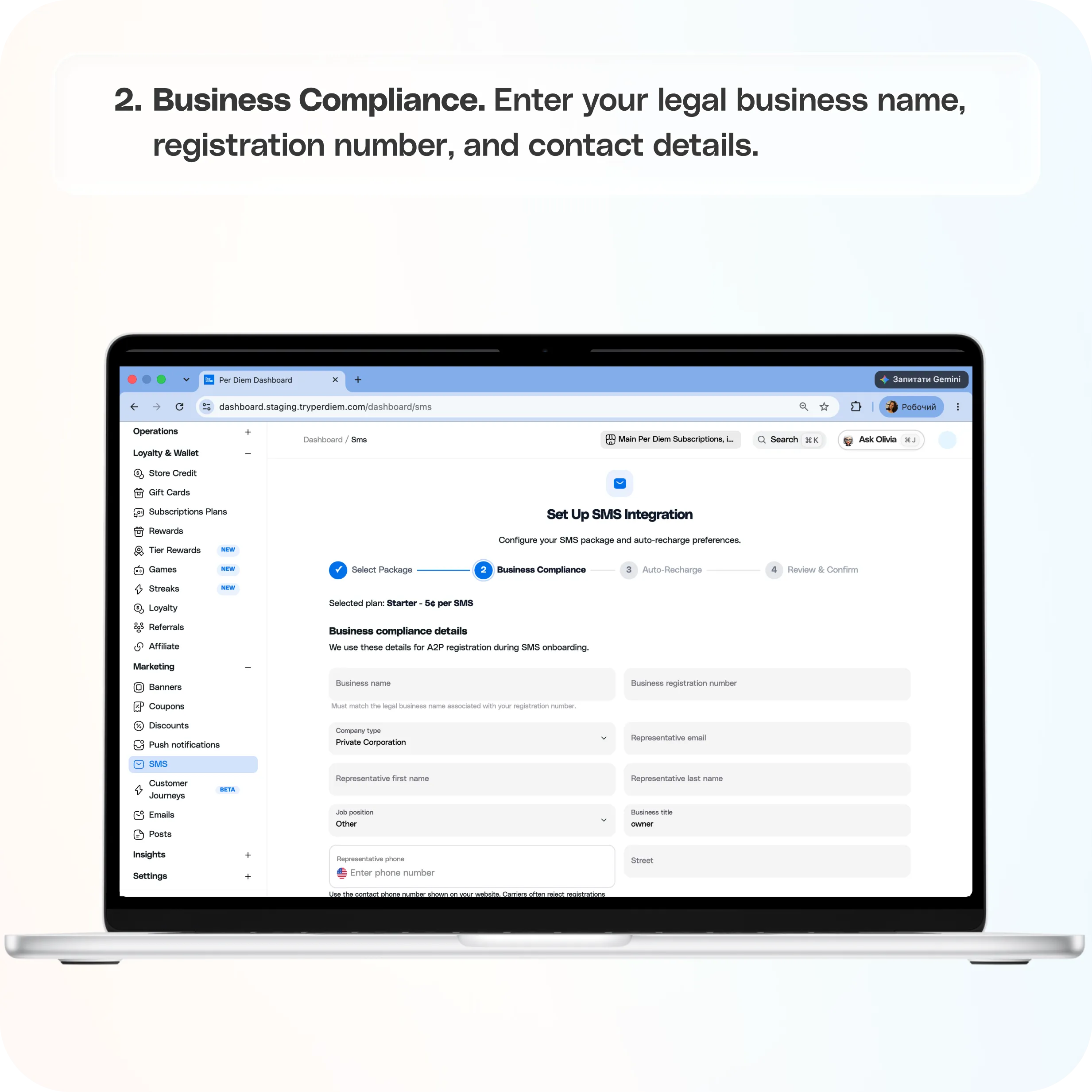
- Business Compliance. Enter your legal business name, registration number, and contact details.
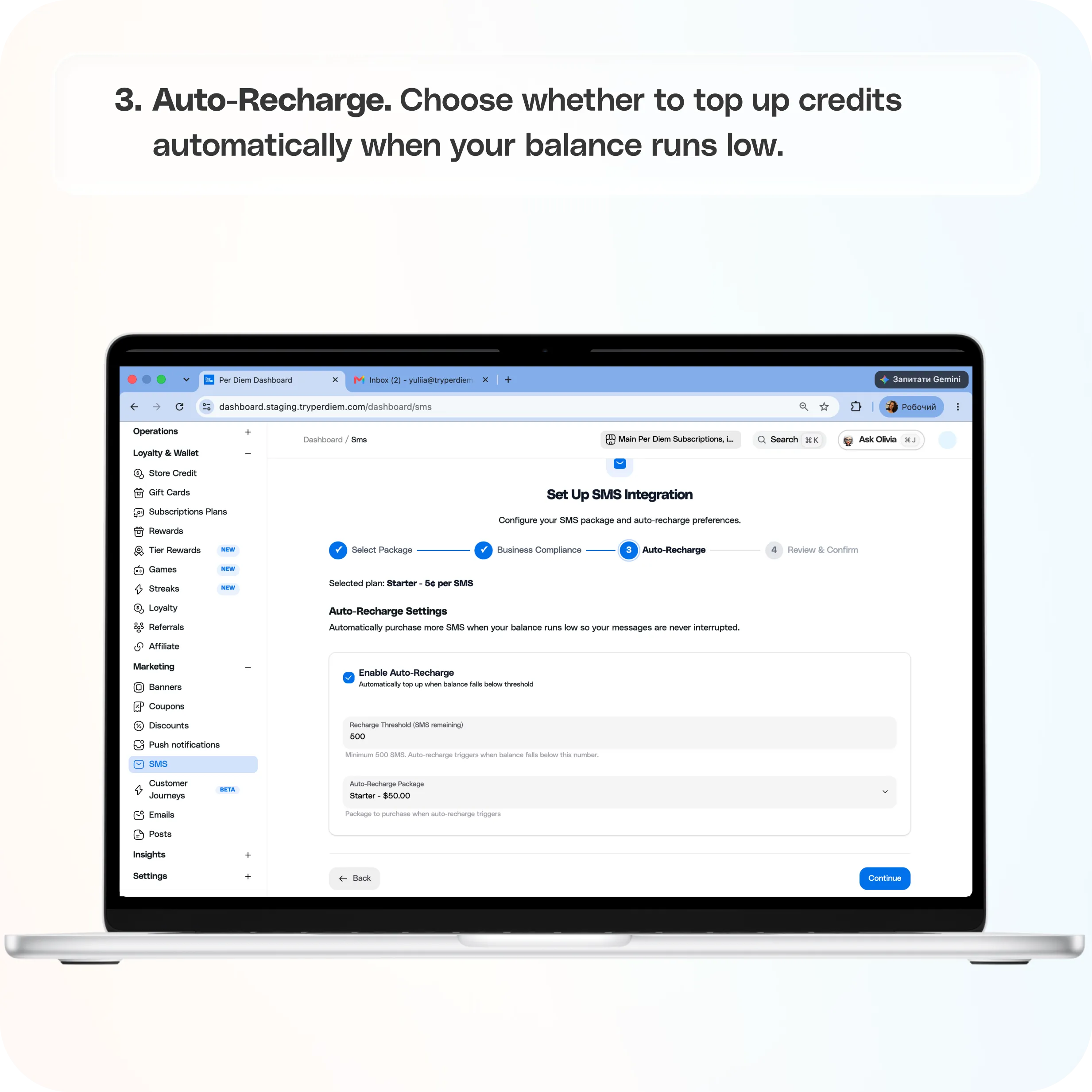
- Auto-Recharge. Choose whether to top up credits automatically when your balance runs low.
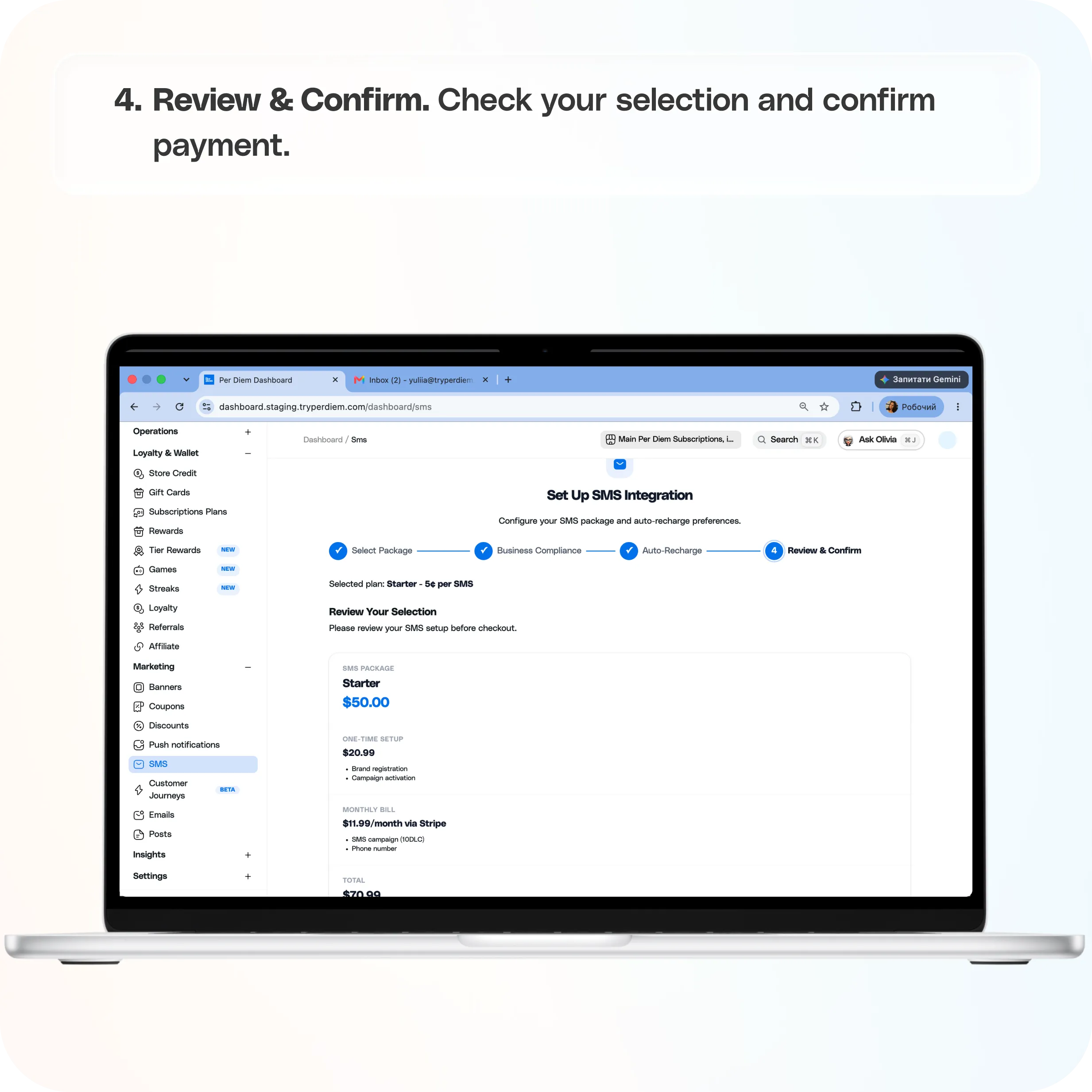
- Review & Confirm. Check your selection and confirm payment.
Still require support?
Contact support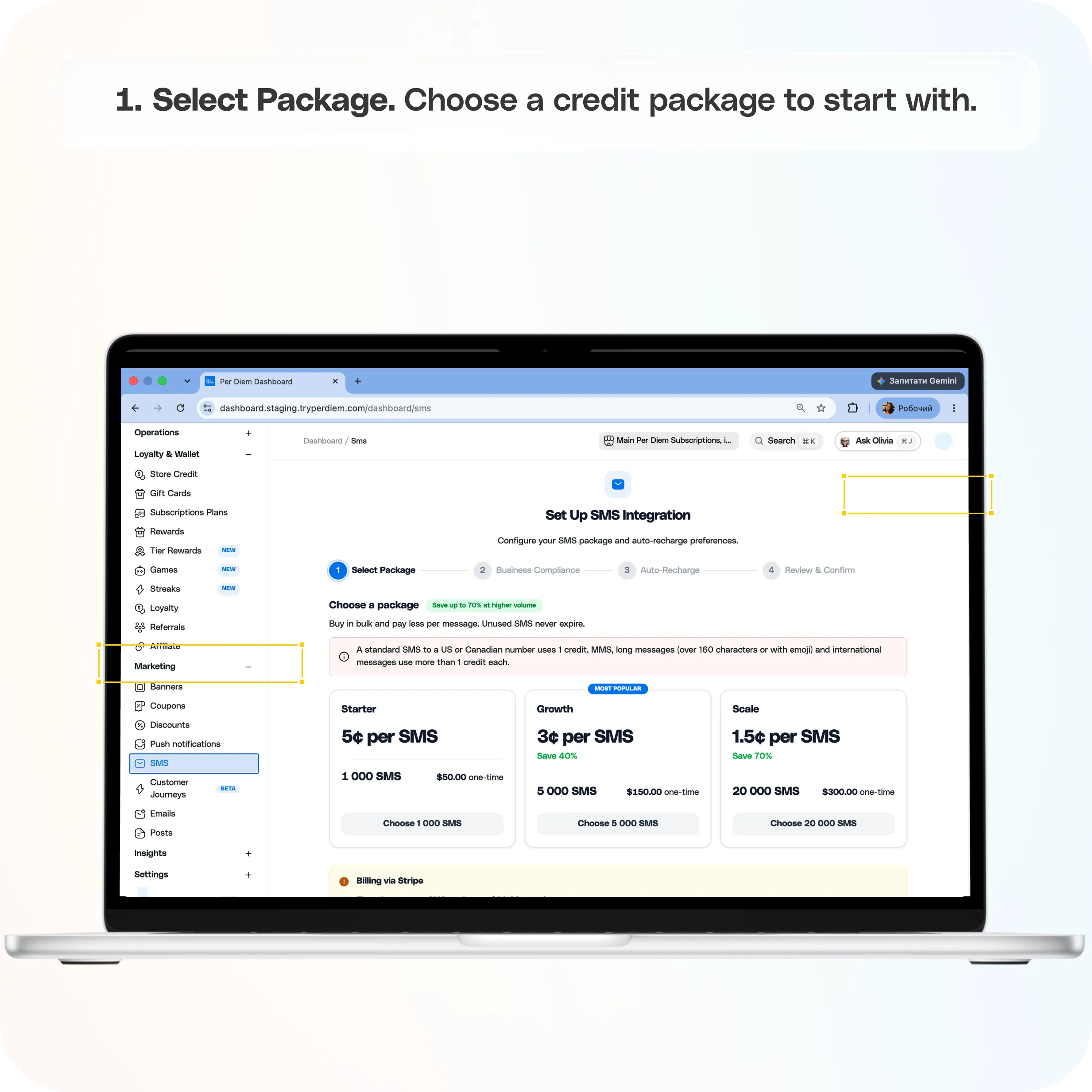
Getting started takes four steps:
- Set up SMS. Choose a credit package, add your business details, and wait for carrier approval.
- Turn on order texts. Let customers know when their order is accepted, ready, and completed.
- Send your first campaign. Start with a small group of regulars.
- Keep an eye on delivery. Check your delivery rate on the Overview tab.
Tip: turn on order texts before you send marketing texts. It helps more of your messages get delivered. We explain why below.
What is SMS in Per Diem?
SMS lets you text your customers right from your Per Diem dashboard. There are two kinds of texts:
- Order texts (transactional). Automatic updates when an order is accepted, ready, or completed.
- Marketing texts. Campaigns you send yourself, plus automatic texts like birthday messages.
You'll find everything under Marketing > SMS. The page has five tabs:
- Overview: your credit balance, texts sent this month, delivery rate, and active automations.
- Message logs: every text sent from your store number.
- Automations: your order texts and automatic marketing texts.
- Credits & billing: your balance, auto-recharge, and purchase history.
- Settings: international marketing texts and the option to turn SMS off.
I don't see SMS in my dashboard. What should I do?
Contact your Per Diem account manager or our support team and we'll turn it on for you.
Step 1: Set up SMS
The first time you open Marketing > SMS, you'll go through a short setup:
- Select Package. Choose a credit package to start with.
- Business Compliance. Enter your legal business name, registration number, and contact details.
- Auto-Recharge. Choose whether to top up credits automatically when your balance runs low.
- Review & Confirm. Check your selection and confirm payment.
Why do I need to enter my business details?
Phone carriers require businesses to register before they can send texts to customers. Your details must match your official business registration. For more detail, see Setting up SMS.
When can I start sending?
After you confirm, carriers review your registration and your campaign status shows Pending. Once it changes to Active, you're ready to send. You can see your status at the top of the SMS page.
Why order texts come first
Phone carriers watch how customers react to texts from your number. If your first texts are promotions and people reply STOP, carriers may start filtering everything you send, including order updates.
Order texts are different. Customers expect them and read them, and they rarely opt out. Starting with order texts builds a good track record for your number, so your marketing texts are more likely to arrive later.
They help your team too. Customers get live updates, so you get fewer "is my order ready?" calls. And since web orders don't get push notifications, texts are how web customers hear about their order.
Step 2: Turn on order texts
- Go to Marketing > SMS and open the Automations tab.
- Under Transactional routing, turn on Mobile app and Web ordering.
- Under Event templates, select Transactional.
- Choose an order type: Pickup, Delivery, Curbside, or Pay at table.
- Turn on Order accepted, Order ready, and Order completed. If a message is empty, turning it on opens the editor so you can write it.
- Repeat for every order type you offer.
You can also turn on texts for web orders from the SMS for web ordering switch on the Overview tab.
Do curbside and pay-at-table orders need their own messages?
Not necessarily. They get the Pickup message unless you write one for that order type.
Can I personalize order texts?
Yes. Click Edit on any message. Add {customer_first_name} to greet customers by name, and {order_url} so they can open their order.
Step 3: Send your first campaign
Once order texts have been running for a while, you're ready to start marketing. Start small, with your most loyal customers, and grow from there.
- Click Send SMS at the top of the SMS page.
- Under Send to, choose All customers, Customer groups, or Smart groups. For your first campaigns, pick a small group of regulars.
- Write your message.
- Pick a date and time, or leave it blank to send right away. You can schedule up to 30 days ahead.
- Check the recipient count and estimated cost, then click Send.
The window shows how many opted-in customers you'll reach. Customers who opted out or have no phone number are left out automatically, and landline or toll-free numbers are skipped.
Good habits for marketing texts:
- Give customers a clear reason to read: an offer, a new item, an event.
- Keep it short.
- Don't text too often.
Can marketing texts go out automatically?
Yes. On the Automations tab, under Event templates, select Marketing. You can turn on Birthday and Spend rewards tier reached texts. Turning one on opens the editor so you can write the message.
Step 4: Keep an eye on delivery
On the Overview tab, check Delivery rate (last 30 days), along with Sent this month, Credits remaining, and Automations active.
Open Message logs to see every text, who it went to, its status, and the credits it used.
If your delivery rate drops:
- Send less often.
- Send to smaller groups of customers who order often.
- Make sure order texts are still turned on.
Credits
Every text uses credits. One message part is up to 160 characters and uses 1 credit. Messages can be up to 320 characters (2 parts). The Send SMS window shows the estimated cost before you send.
Credits never expire. To add more, click Buy credits. To avoid running out mid-campaign, set up Auto-recharge on the Credits & billing tab.
FAQ
Can I send marketing texts right away?
Yes. But starting with order texts first helps more of your messages get delivered.
Do order texts use credits?
Yes. Every text uses credits, including order texts.
Can I text customers in other countries?
Marketing texts (campaigns, journeys, and birthday texts) only go to numbers in your store's country. To include international numbers, turn on International marketing texts on the Settings tab.
What happens if a customer opts out?
They're left out of your campaigns automatically.
How do I turn SMS off?
Go to the Settings tab and click Disable under Disable integration. This stops all texts for your store, including order texts.
Ready to send your first text? Turn on order texts in your dashboard today. Go to SMS
Still have questions?Contact us
Ask anything or just say hi