


























One Coupon for Your App, Web Ordering, and Square POS
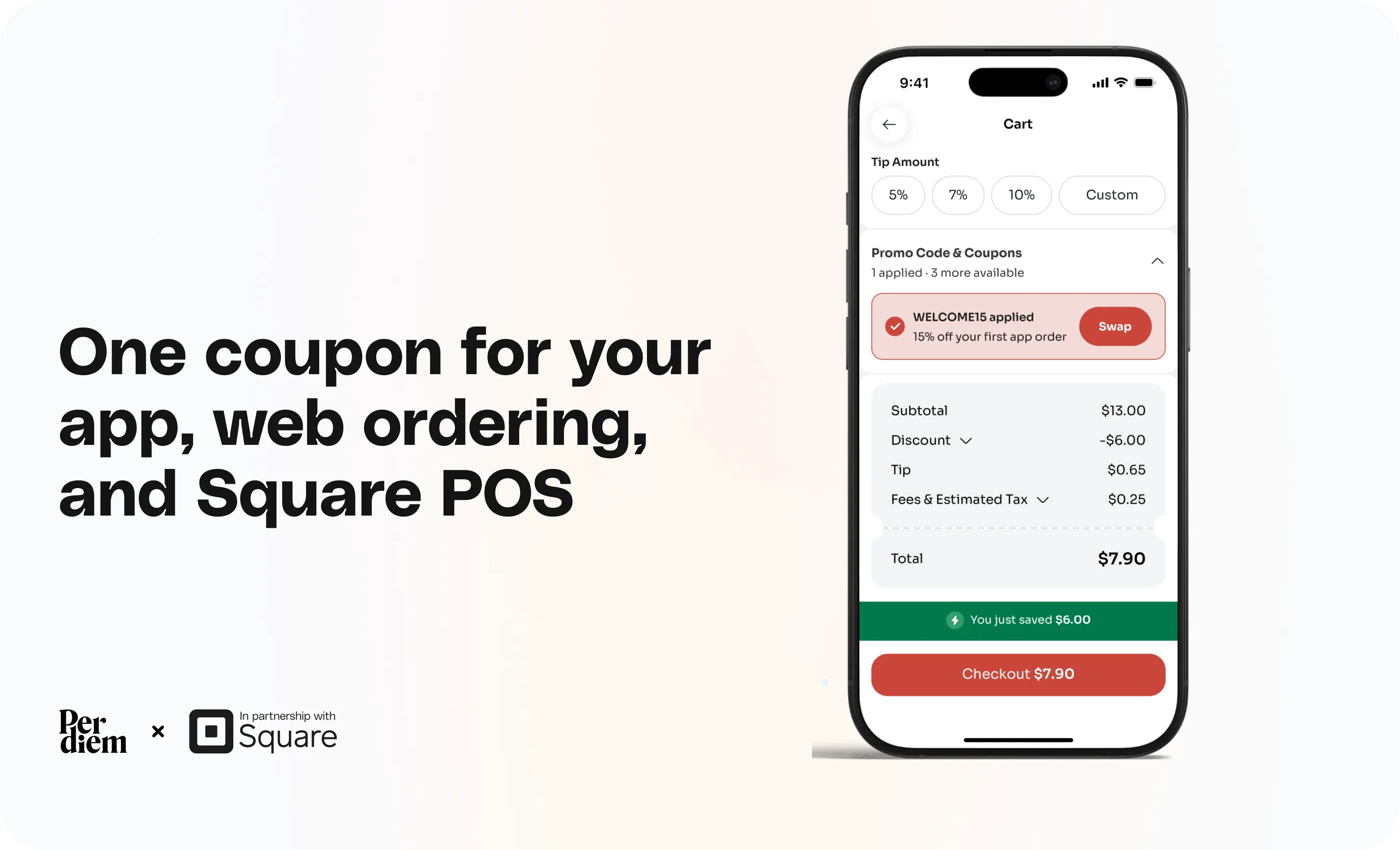
One coupon you create in Per Diem can work everywhere your guests order: in your app, on your web ordering site and at your Square POS in store. Create it once, and Per Diem adds the same code to Square for you, so your cashier can redeem it at the register. This also means coupons in your sequences can now be redeemed in-store, not just online.
- In your Per Diem dashboard, go to Marketing → Coupons and click + Create coupon.
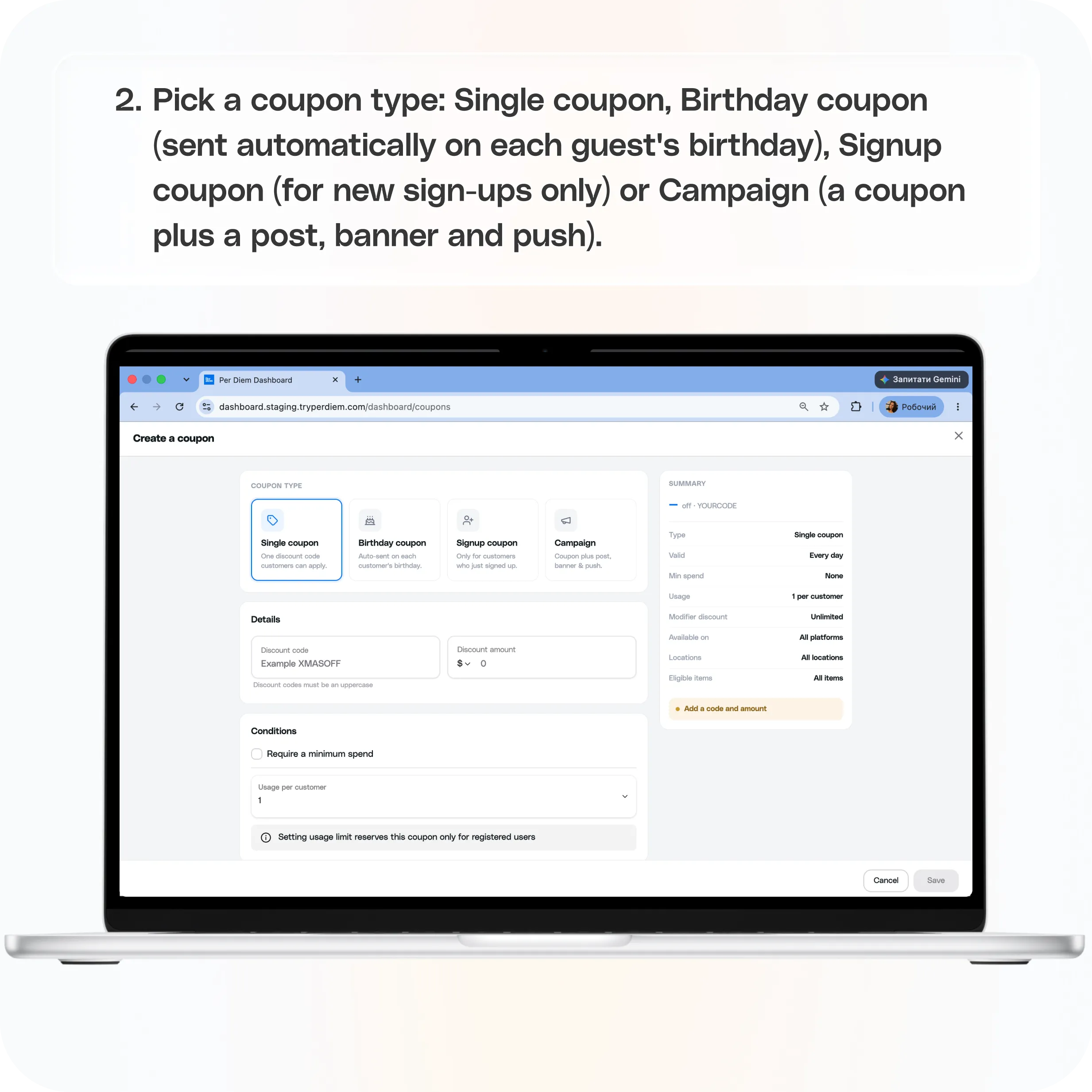
- Pick a coupon type: Single coupon, Birthday coupon (sent automatically on each guest's birthday), Signup coupon (for new sign-ups only) or Campaign (a coupon plus a post, banner and push).
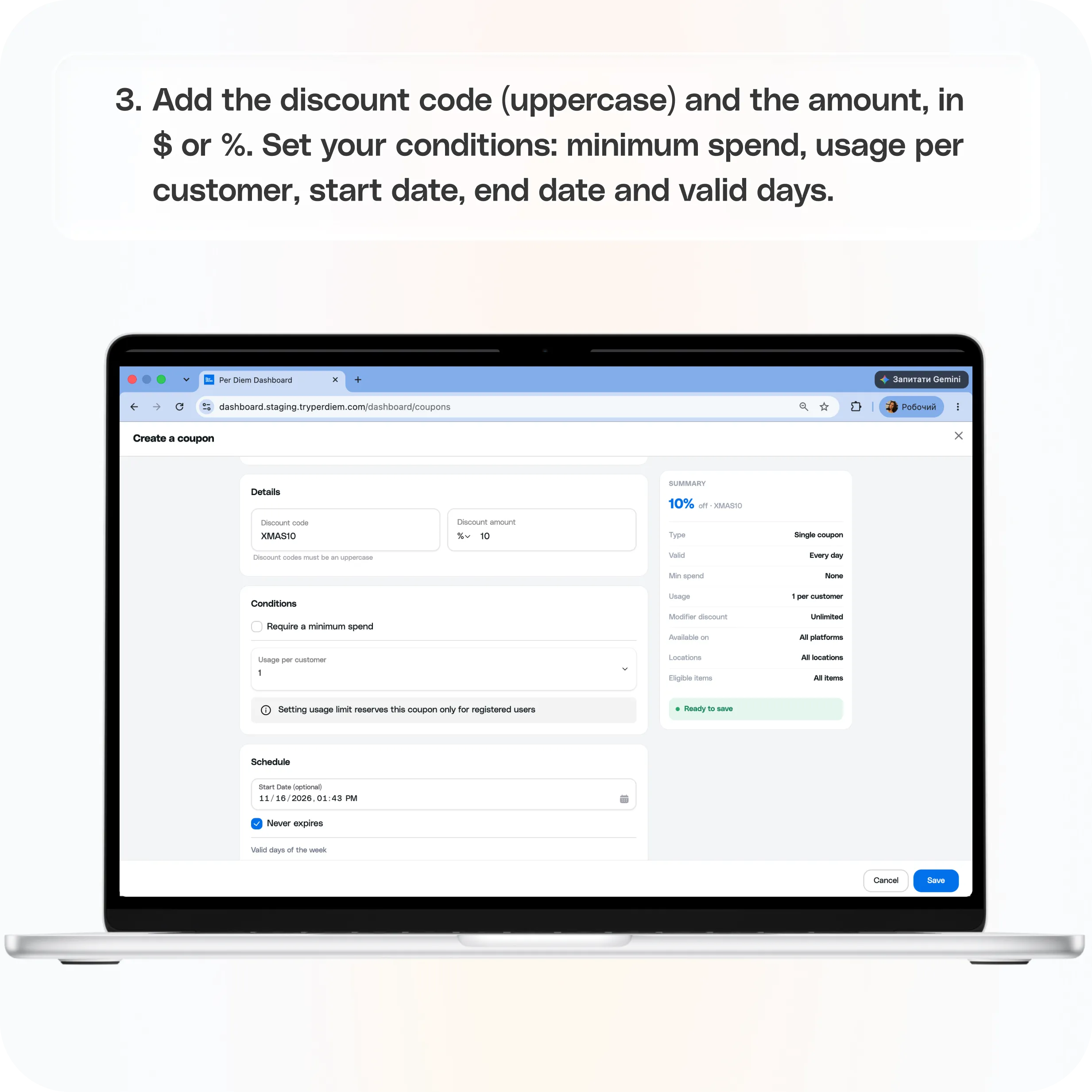
- Add the discount code (uppercase) and the amount, in $ or %.
- Set your conditions: minimum spend, usage per customer, start date, end date and valid days.
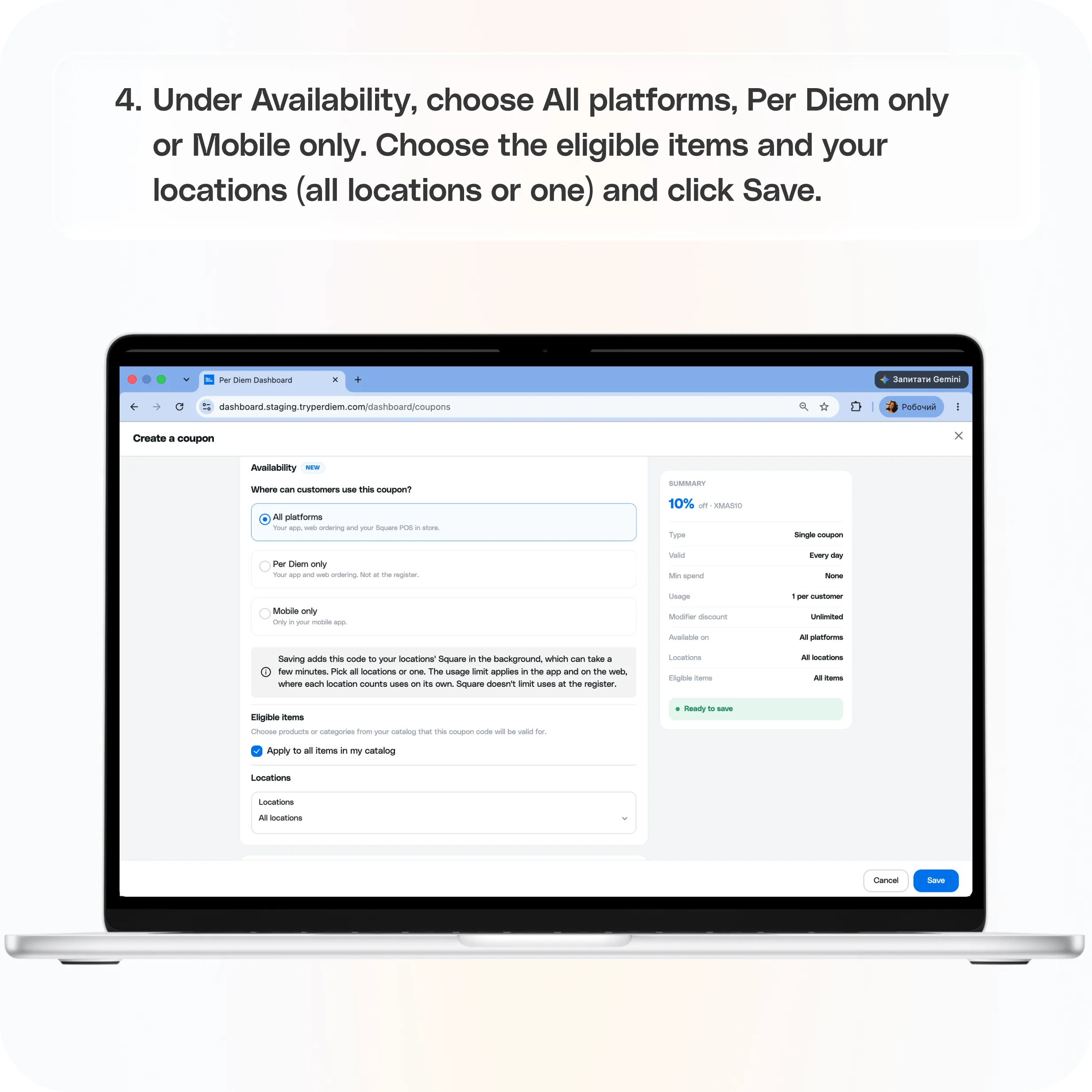
- Under Availability, choose All platforms, Per Diem only or Mobile only.
- Choose the eligible items and your locations (all locations or one).
- Save. If you chose All platforms, the code is added to your Square in the background and your cashier can redeem it at the register within a few minutes.
Still require support?
Contact support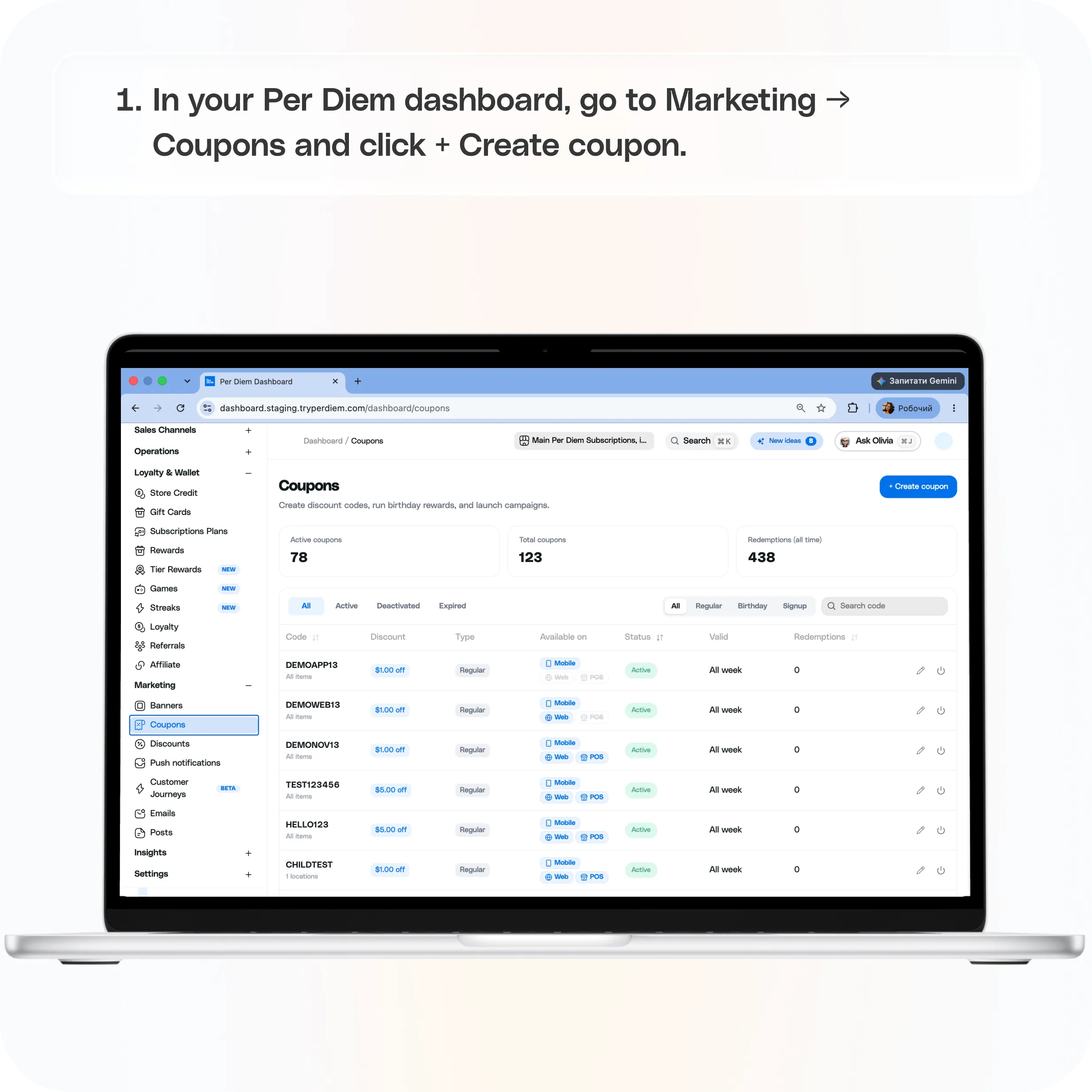
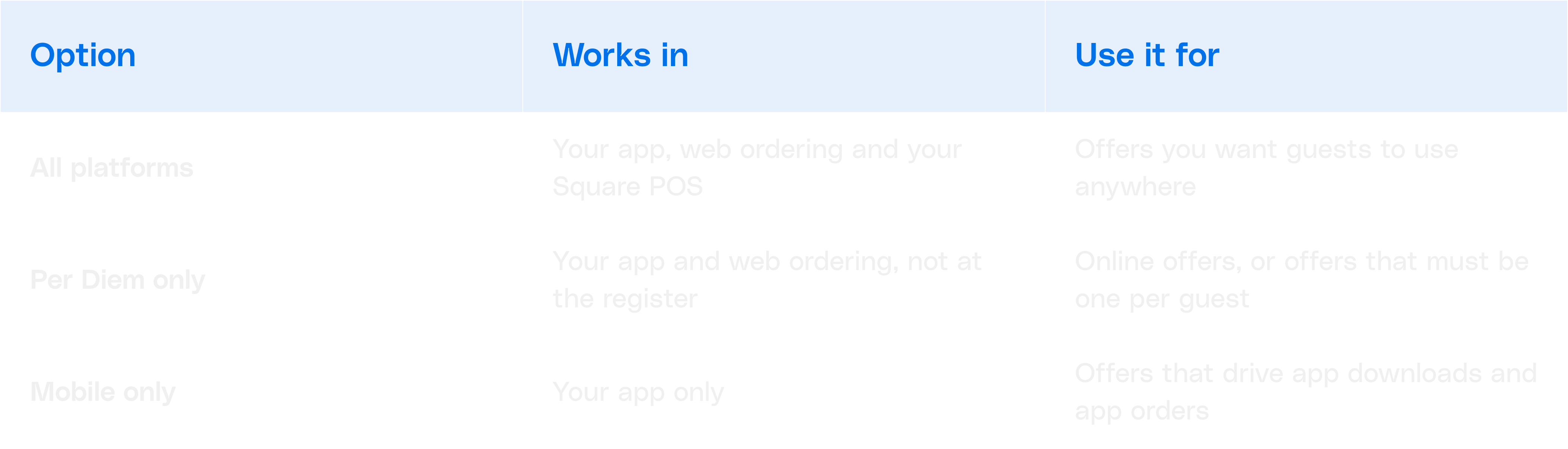
Where a coupon can be used
****
Want a coupon only at the register? Create it directly in your Square POS.
How to set it up
- In your Per Diem dashboard, go to Marketing → Coupons and click + Create coupon.
- Pick a coupon type: Single coupon, Birthday coupon (sent automatically on each guest's birthday), Signup coupon (for new sign-ups only) or Campaign (a coupon plus a post, banner and push).
- Add the discount code (uppercase) and the amount, in $ or %.
- Set your conditions: minimum spend, usage per customer, start date, end date and valid days.
- Under Availability, choose All platforms, Per Diem only or Mobile only.
- Choose the eligible items and your locations (all locations or one).
- Save. If you chose All platforms, the code is added to your Square in the background and your cashier can redeem it at the register within a few minutes.
Some options work a little differently at the register, like how a discount applies to items and modifiers. The setup screen notes how Square handles each one, right next to the option.
Usage limits
Usage per customer applies in your app and on the web. Square doesn't limit uses at the register.
- Set a usage limit (for example, 1 per customer) and Per Diem enforces it on app and web orders. Setting a limit also reserves the coupon for registered guests.
- At the register, Square doesn't count uses, so a guest could redeem the same code in store more than once.
- If an offer must be strictly one per guest, choose Per Diem only.
What happens to your existing coupons
- We move your existing coupons to the new setup automatically. You don't need to do anything.
- 100% off coupons are not moved. If you want to keep one, create it again after the update, ideally with an end date and a usage limit.
- POS-only coupons are no longer created in Per Diem. If you need a coupon only at the register, create it directly in your Square POS.
Tips
- Always set an end date. A coupon that never expires keeps working long after the promotion ends. If you're unsure, start shorter; you can always extend it.
- Think twice before 100% off. Free-item coupons are easy to overuse, especially at the register where uses aren't limited.
- Pair coupons with sequences. Add a coupon to a Welcome or At risk message, and guests can now redeem it in-store as well as online.
Still have questions?Contact us
Ask anything or just say hi