


























How to Add Custom Sections, Forms, and Galleries to Your Website
Per Diem Website Builder lets you customize your website with content sections, forms, and photo galleries. You can add images, collect customer inquiries, and showcase your business using the drag-and-drop editor.
- Open Website Builder from your Per Diem Merchant Dashboard's sales channels.
- Under Add blocks, select Custom section.
- Click the heading or description directly in the website preview to edit the text.
- Use Rewrite this section with AI in the right panel to improve your copy. You can enter your own instructions or choose options like Make it shorter, Make it bold, or Make it professional.
- Turn on Show Image to upload a photo (JPG or PNG, up to 10 MB).
- Enable Show Button to add a call to action. Customize its label, button color, and text color.
- Adjust the Background Color and other available styling settings to match your brand.
Still require support?
Contact support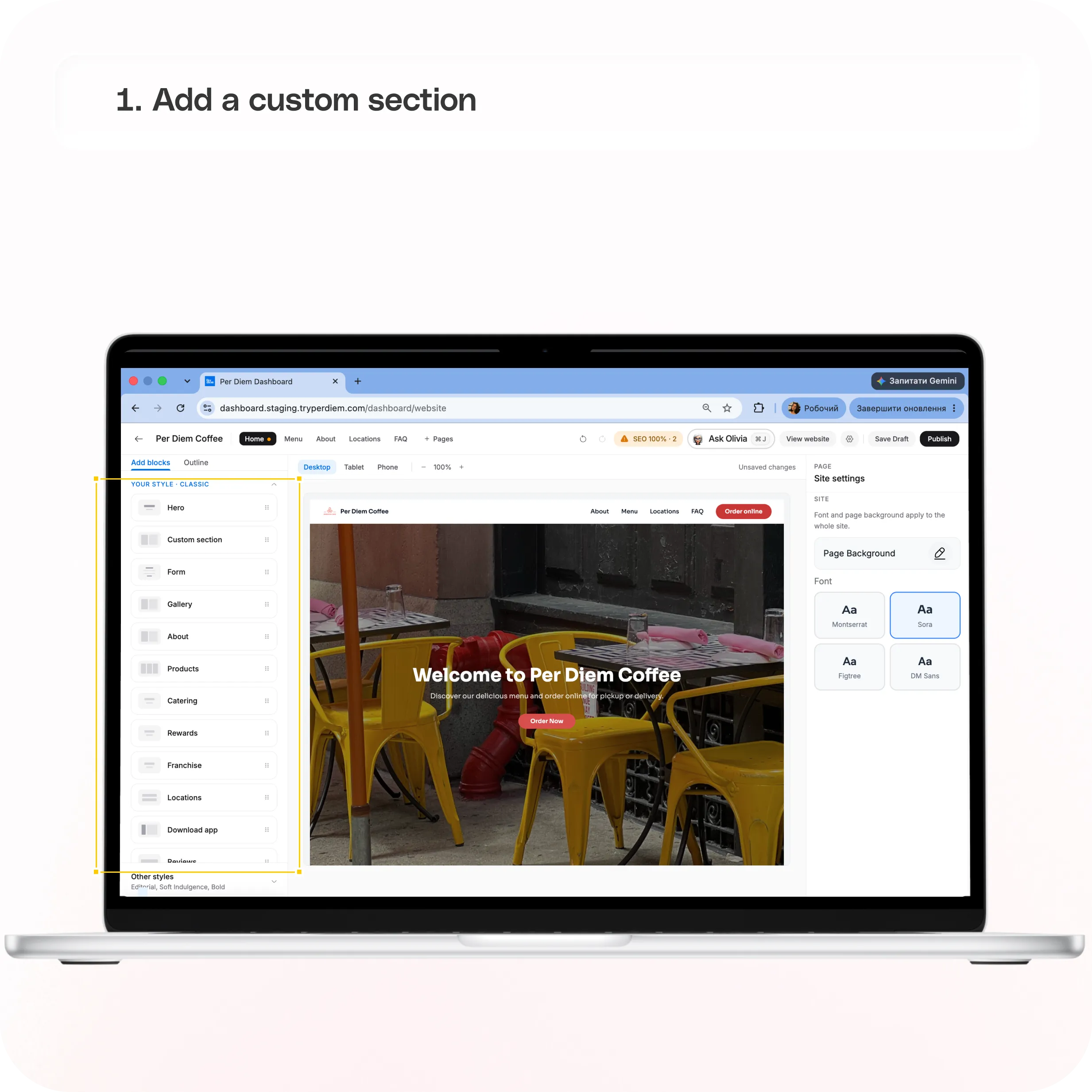
Here's how to set up and customize each section.
1. Add a Custom Section
Custom sections let you highlight promotions, share business updates, introduce your team, or add other content to your website.
- Open Website Builder from your Per Diem Merchant Dashboard's sales channels.
- Under Add blocks, select Custom section.
- Click the heading or description directly in the website preview to edit the text.
- Use Rewrite this section with AI in the right panel to improve your copy. You can enter your own instructions or choose options like Make it shorter, Make it bold, or Make it professional.
- Turn on Show Image to upload a photo (JPG or PNG, up to 10 MB).
- Enable Show Button to add a call to action. Customize its label, button color, and text color.
- Adjust the Background Color and other available styling settings to match your brand.
You can also leave images and buttons turned off to create a simple text section.
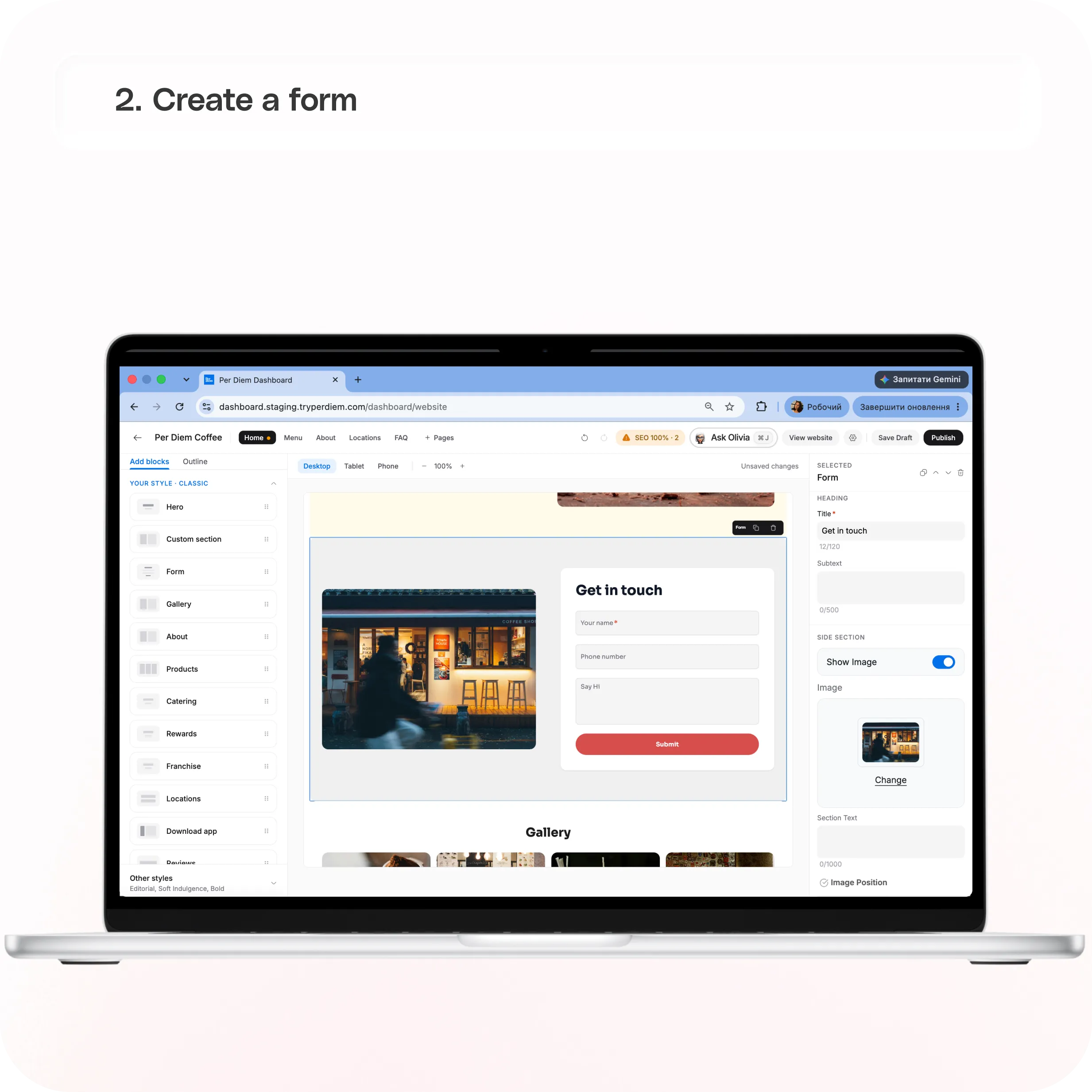
2. Create a Form
Forms help you collect customer information for catering requests, event bookings, feedback, or general inquiries.
Add and Customize Your Form
- Under Add blocks, select Form.
- In the right panel, edit the Title and Subtext to explain what the form is for.
- Under Fields, click + Add field to add questions. Choose from the following field types:
- Customize individual fields and use the arrow controls to reorder them. Click the trash icon to remove a field.
- Under Submit button label, change the button text to something relevant, such as "Send Inquiry" or "Request Catering".
- Edit Message after sending to customize the confirmation customers see after submitting the form.
Manage Submissions and Appearance
- Send submissions to: Enter an email address and click Add. You can add multiple recipients, and everyone listed receives an email for each submission.
- Show Image: Upload a JPG or PNG image (up to 10 MB) to display beside the form.
- Section Text: Add supporting information alongside the form, such as catering details or instructions.
- Image Position: Choose Left or Right to control where the image appears.
- Background Color: Customize the section's background to match your website.
For example, a catering form could collect a customer's name, contact information, event date, guest count, and special requests, then send the inquiry directly to your team.
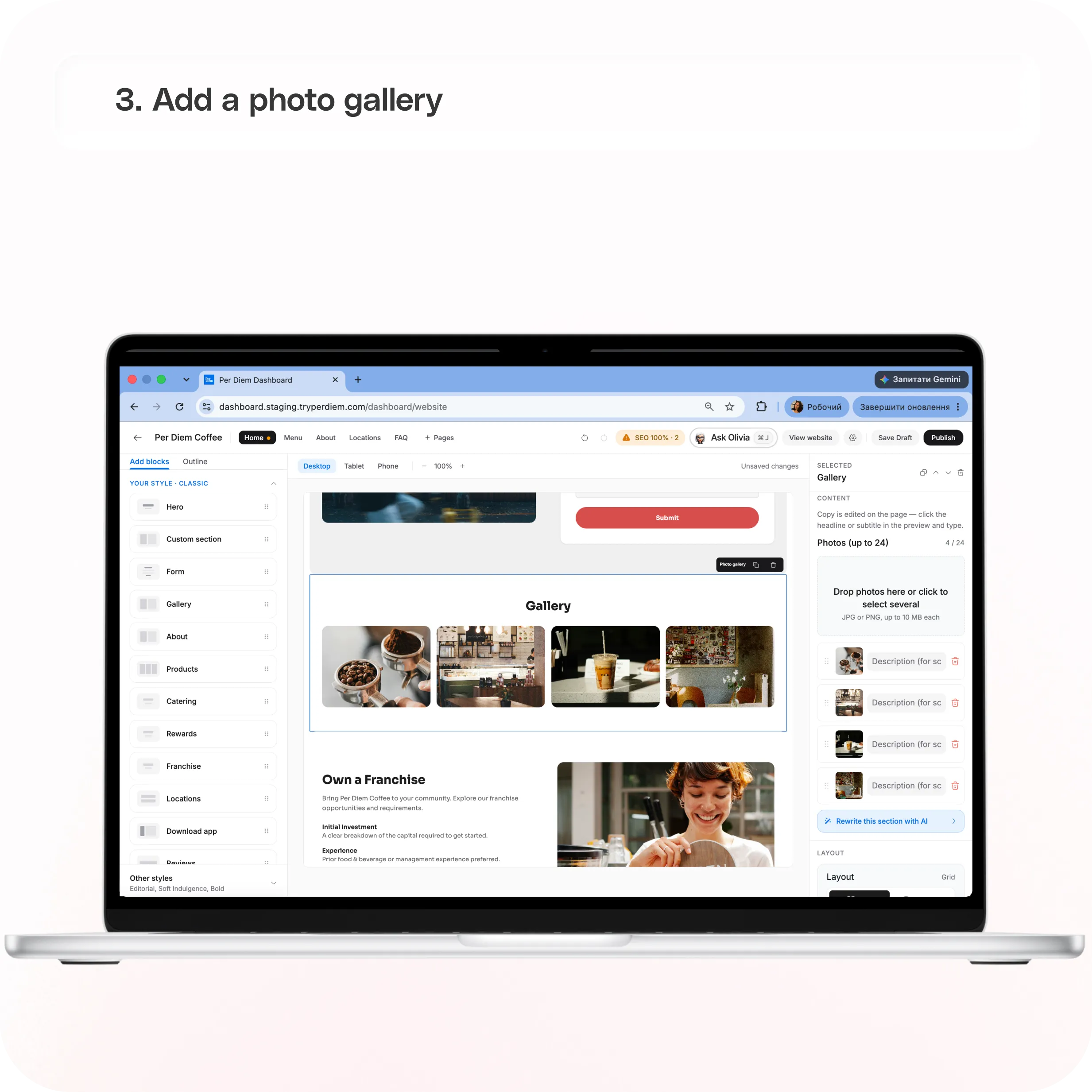
3. Add a Photo Gallery
The Gallery block lets you showcase your food, drinks, store interiors, or events using up to 24 photos.
- Under Add blocks, select Gallery.
- Click the gallery heading in the website preview to edit it.
- Under Photos, drag and drop your images or click to upload several at once. You can add up to 24 JPG or PNG images, with a maximum size of 10 MB each.
- Under Layout, choose how your images appear:
- Adjust Background Color and Text Color to match your branding.
- Use Rewrite this section with AI to update the gallery's heading or supporting copy.
You can switch between grid and carousel layouts whenever you want.
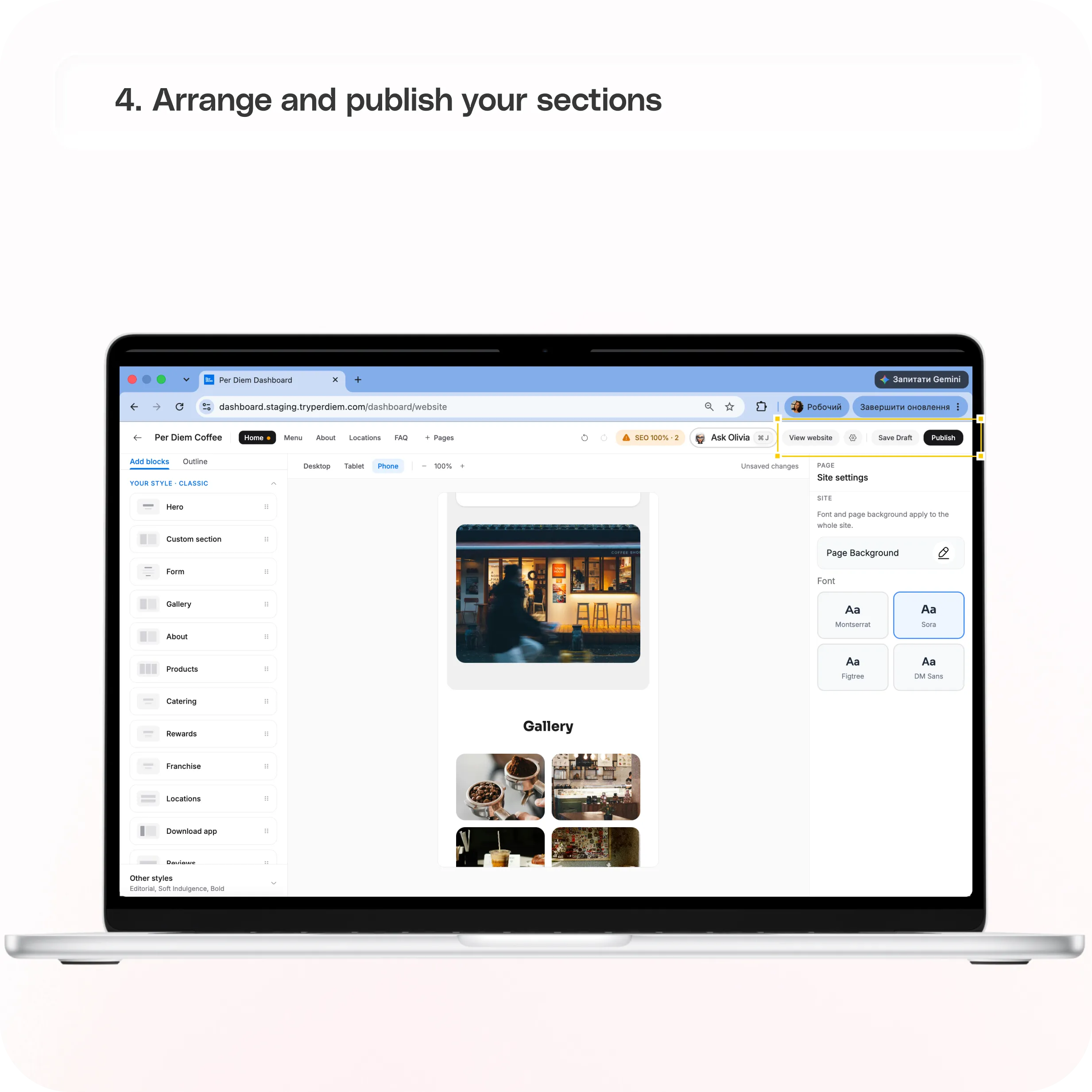
4. Arrange and Publish Your Sections
Once you've added your sections, use the drag-and-drop editor to arrange them in your preferred order. You can also duplicate or delete sections using their controls.
Use the Desktop, Tablet, and Phone preview options to check how your website looks across different screen sizes.
Click Save Draft to keep your changes without making them public, or Publish to make the updated website live.
Still have questions?Contact us
Ask anything or just say hi