


























How to Enable Rewards and Gift Cards on Your Website
Rewards and gift cards are now available as features on your Per Diem website. This article walks you through turning both on using the Website Builder.
- Open your dashboard and go to Website Builder
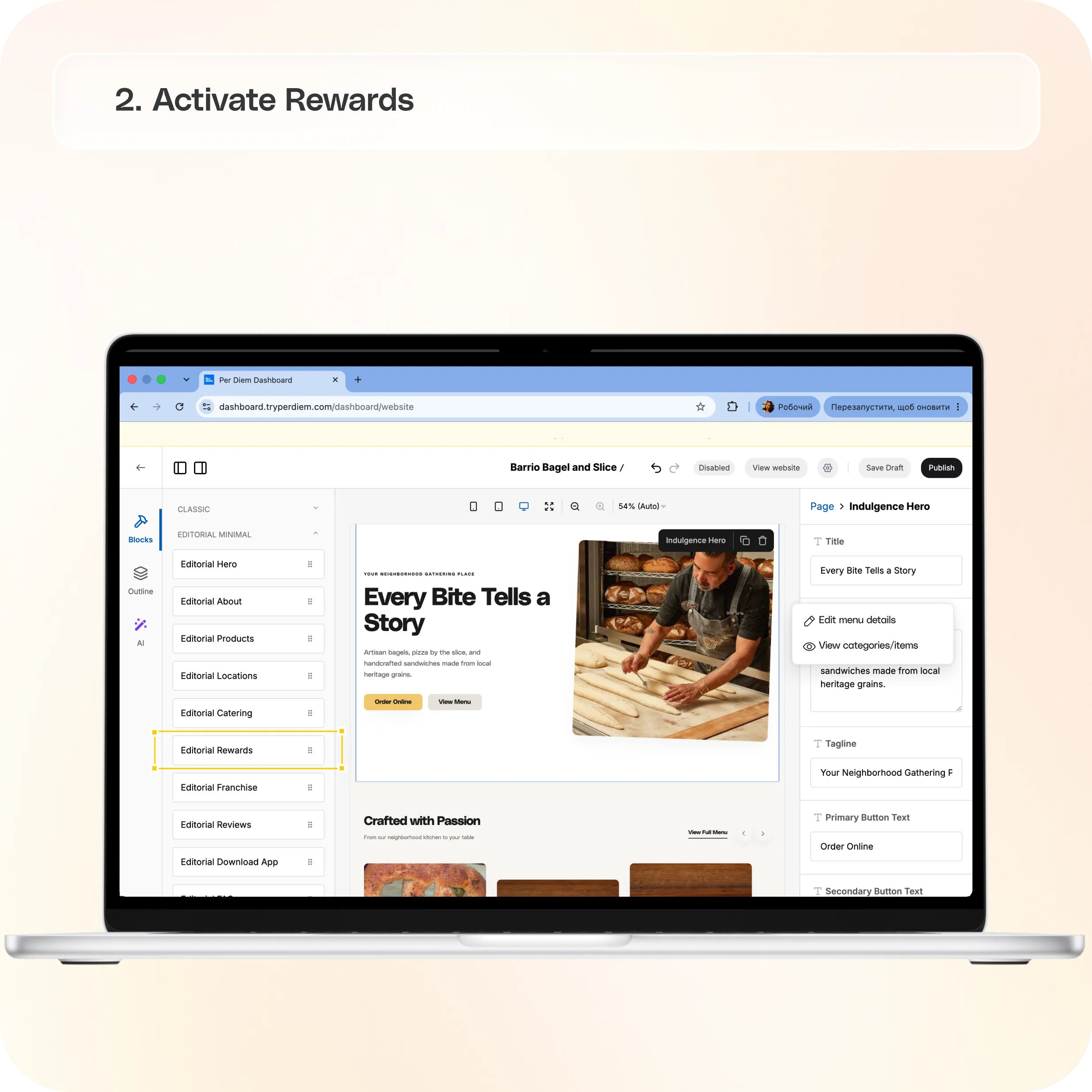
- Activate Rewards
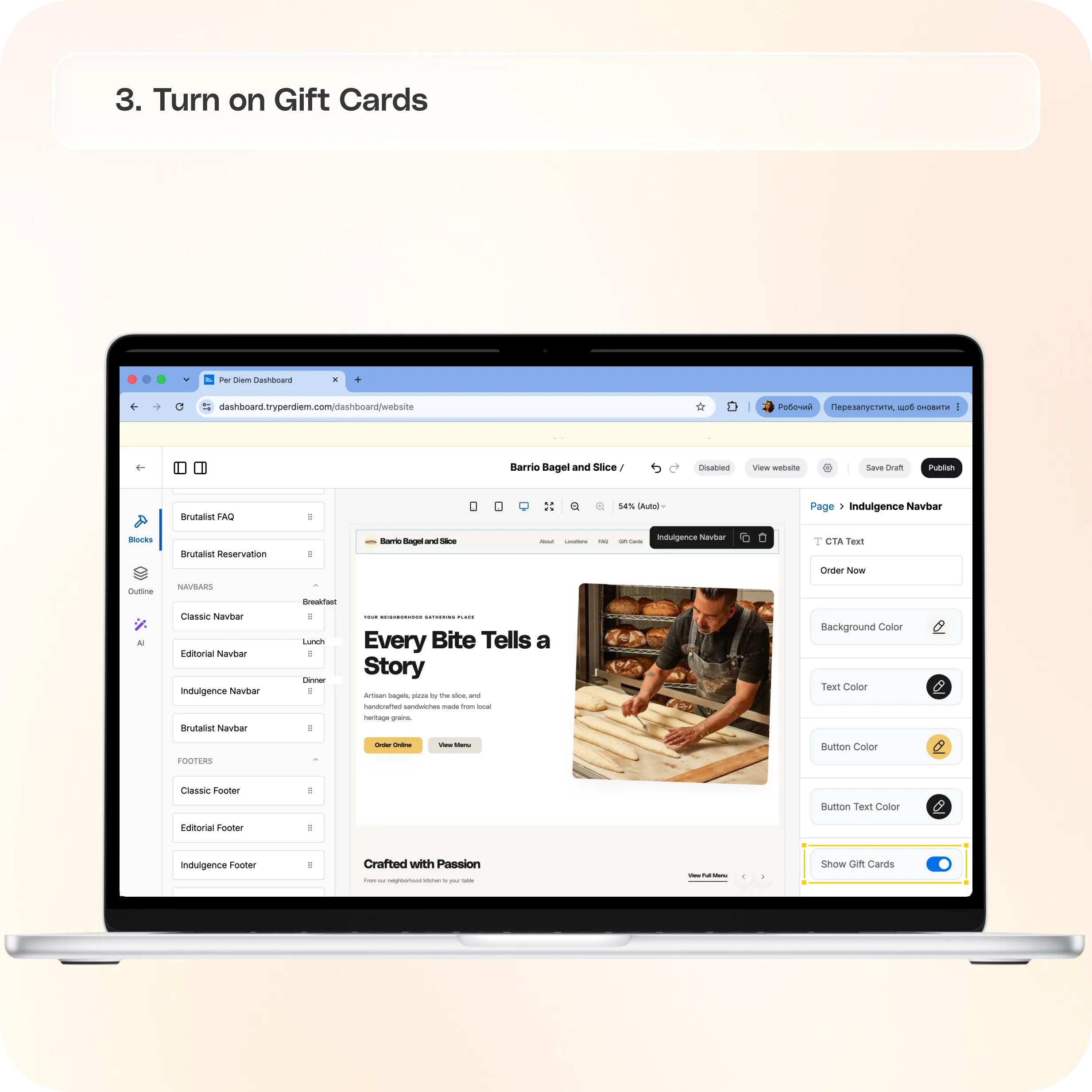
- Turn on Gift Cards
- Preview and publish
Both features live in the Website Builder (Dashboard > Website). Rewards is added as a page block, and gift cards are turned on with a toggle inside your navbar block's settings — they're two separate steps, so make sure you complete both.
Still require support?
Contact support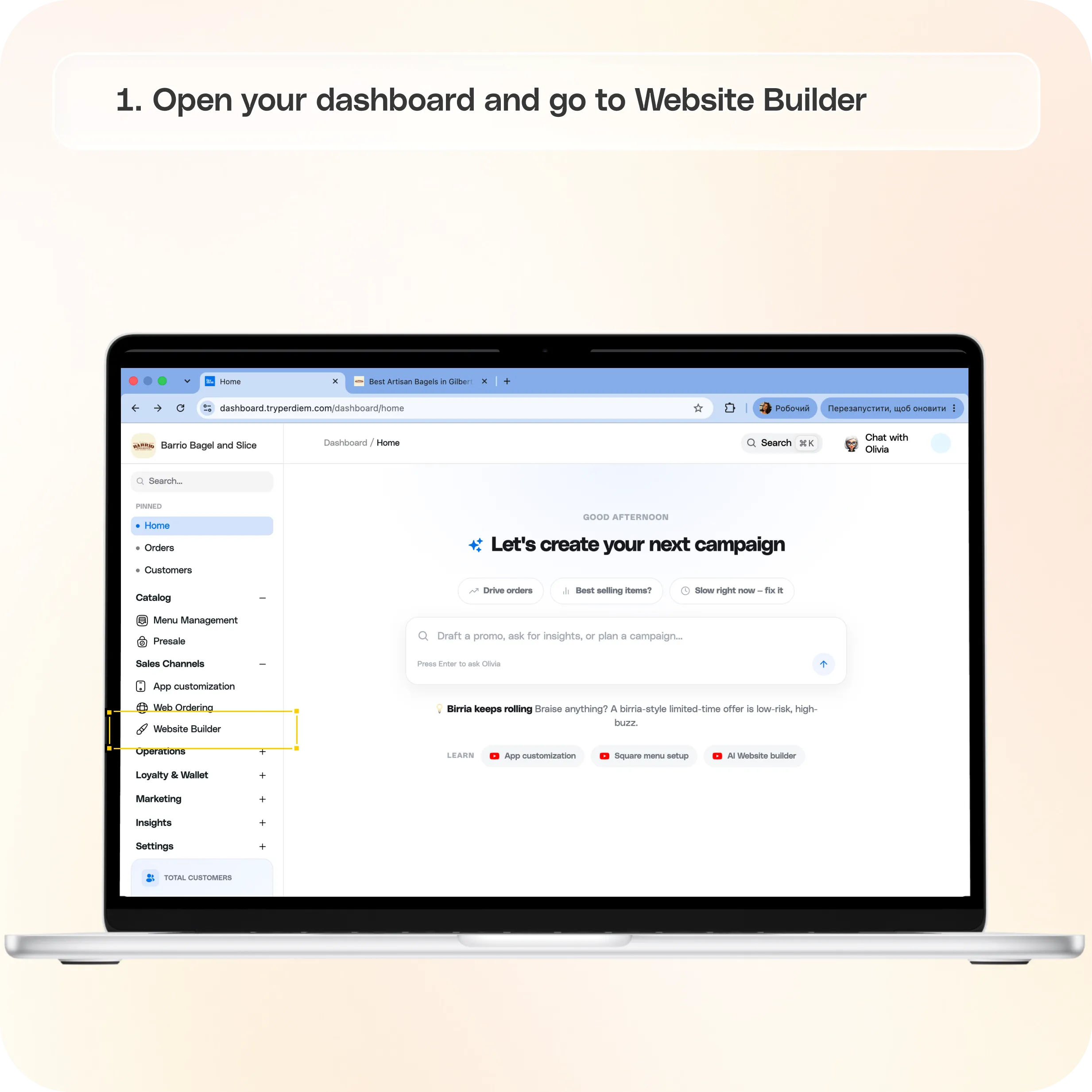
Before you start
Open your dashboard and go to Website Builder: dashboard.tryperdiem.com/dashboard/website
You'll see three panels:
- Left panel — your library of content blocks, grouped by theme (for example, "Editorial Minimal").
- Center panel — a live preview of your page.
- Right panel — settings for whichever block is currently selected.
Step 1: Activate Rewards
Rewards is added to your site the same way any other section is — by dragging its block onto the page.
- In the left panel, find the block library for your active theme.
- Locate the Editorial Rewards block in the list (it will be named "Rewards" if you're on a different theme).
- Click and drag the block onto your page in the center panel, dropping it wherever you'd like the Rewards section to appear — for example, between your Catering and Franchise sections.
- The Rewards section will now appear on your page preview.
That's it — Rewards is active. If you don't drag the block onto the page, the Rewards section will not show up on your live site, even though it's available in your library.
Step 2: Turn on Gift Cards
Gift cards are controlled separately, through a toggle in your navbar settings.
- Click on your Navbar block (for example, "Editorial Navbar") in the center panel to select it.
- The right panel will switch to show that block's settings — CTA text, colors, and so on.
- Scroll down to Show Gift Cards.
- Click the toggle to switch it on. It will change from grey/outline to filled, confirming it's enabled.
Once this is on, a gift card option will appear for your customers alongside your existing navbar links.
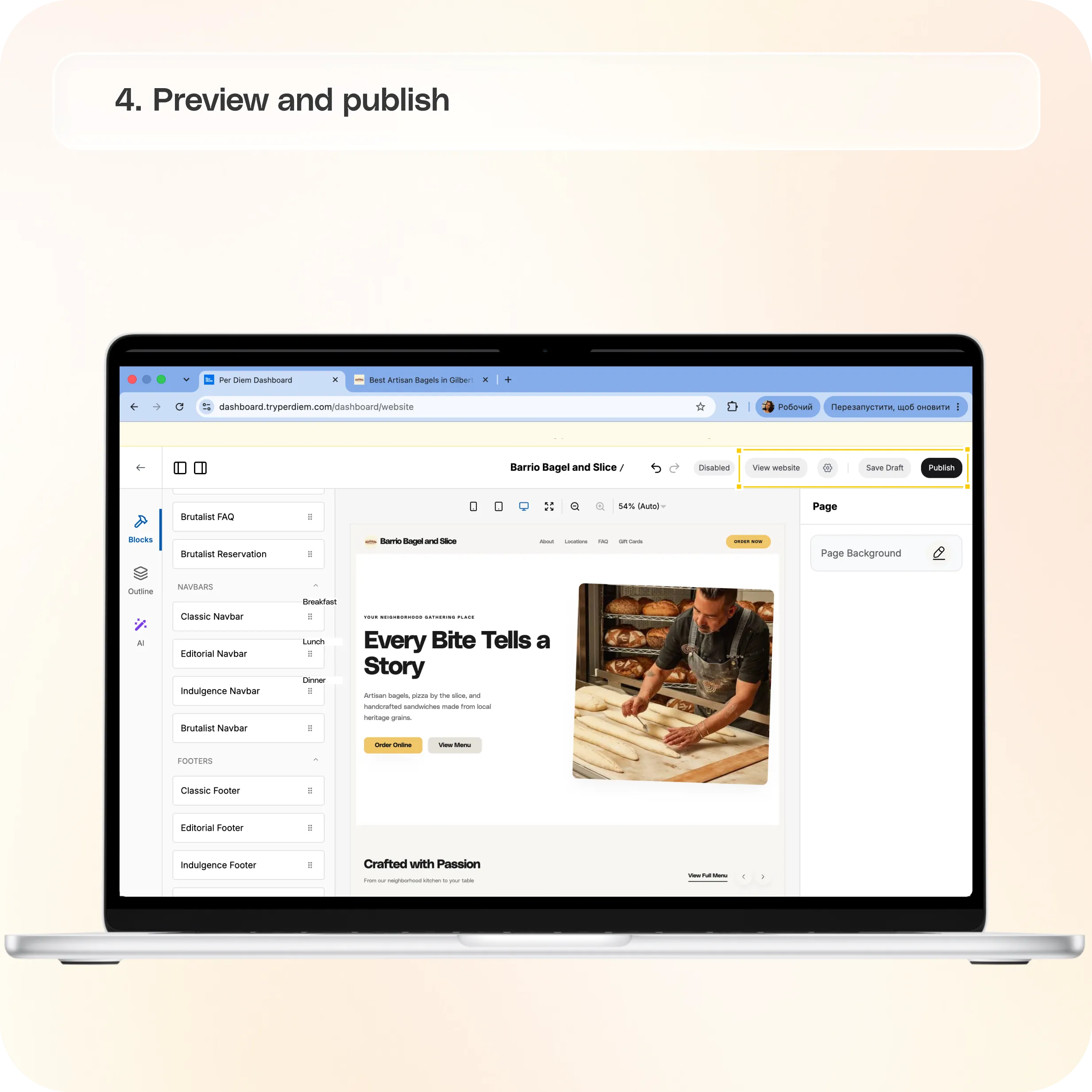
Step 3: Preview and publish
Turning these on only updates your draft — your live site won't change until you publish.
- Use the device icons above the preview (desktop, tablet, mobile) to check how Rewards and Gift Cards look on different screen sizes.
- Click View website to open your current live site in a new tab for comparison.
- Click Save Draft to save your progress at any point.
- When you're happy with how everything looks, click Publish in the top right corner to push the changes live.
Still have questions?Contact us
Ask anything or just say hi