


























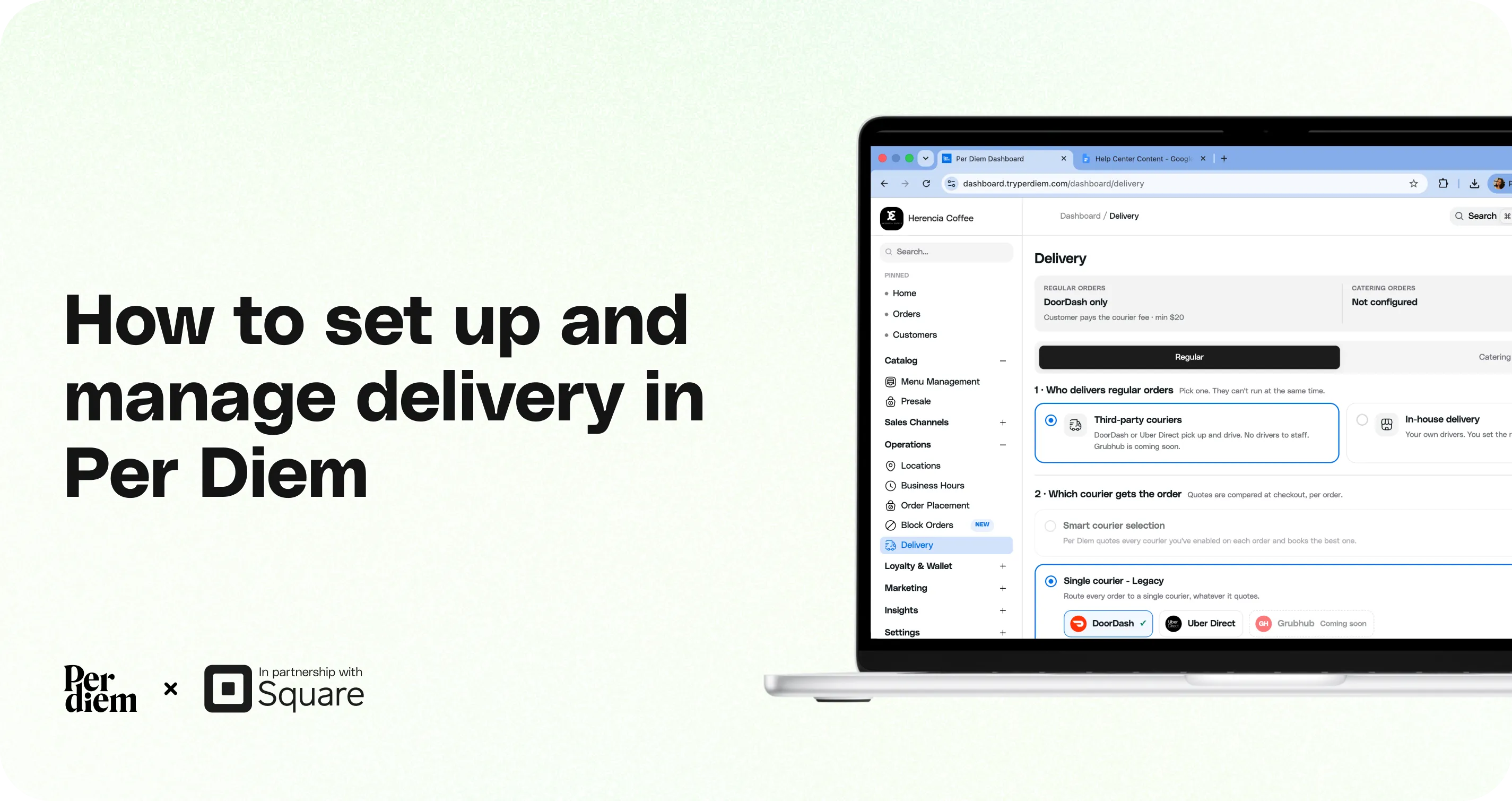
How to Set Up and Manage Delivery in Per Diem
Per Diem gives you one place to manage how your regular and catering orders are delivered, from choosing your delivery provider to setting delivery fees, order minimums, delivery areas, and tips. Regular and catering delivery are set up separately, so you can choose the delivery setup that works best for each type of order.
- In your Per Diem Merchant Dashboard, go to: Operations → Delivery
- Choose who delivers your orders
- Choose how third party orders are assigned
- Set what customers pay
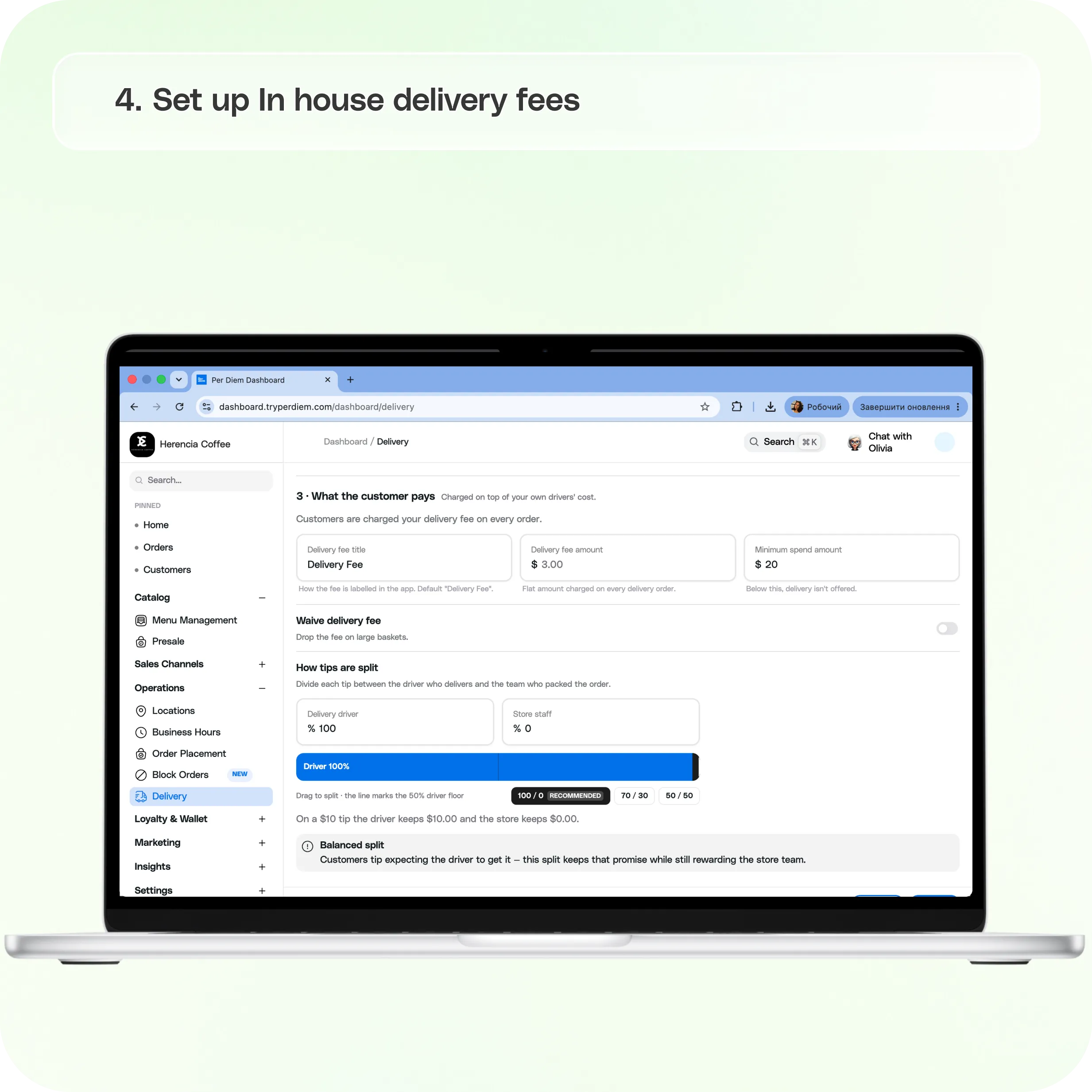
- Set up In house delivery fees
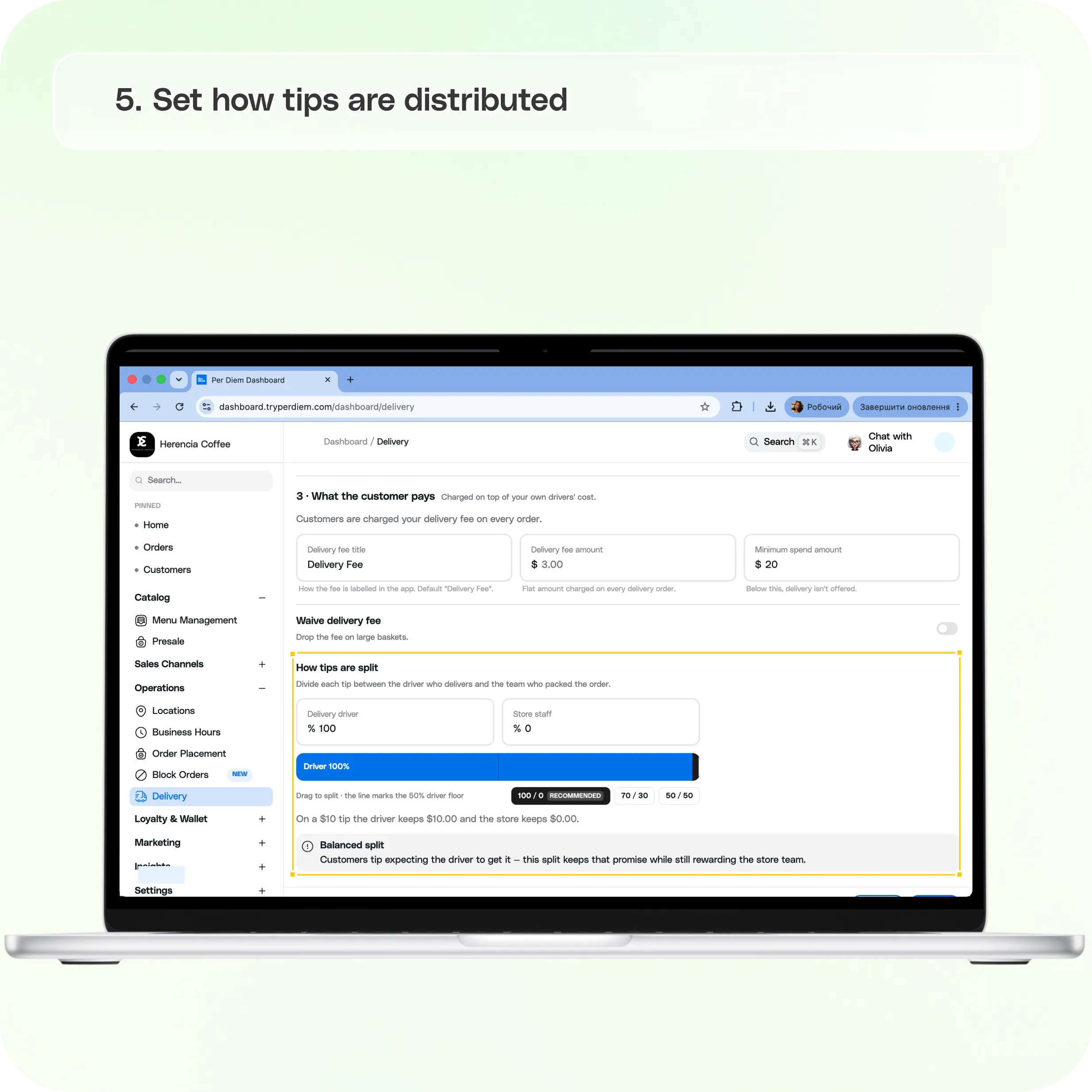
- Set how tips are distributed
- Optional: Set a precise delivery area
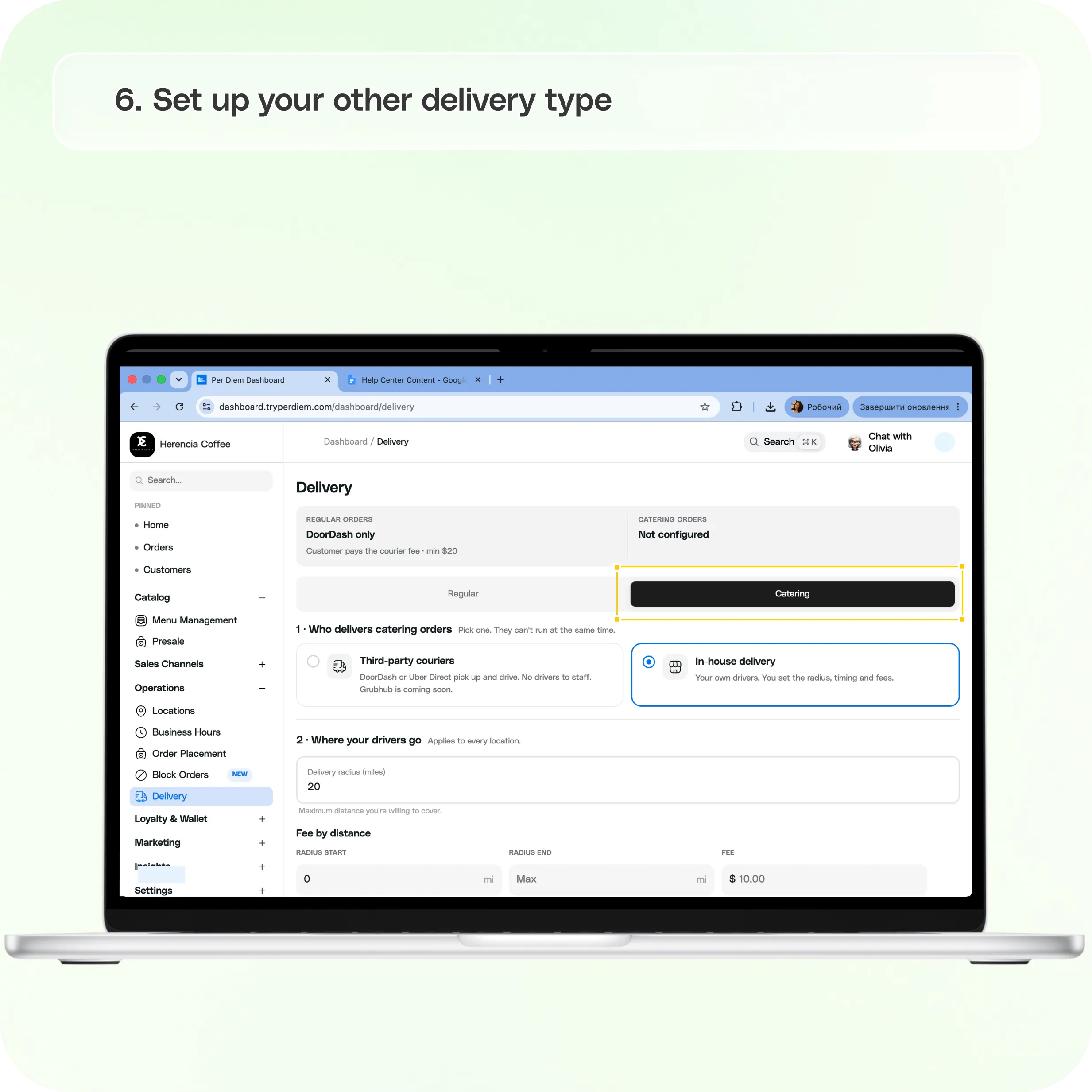
- Set up your other delivery type
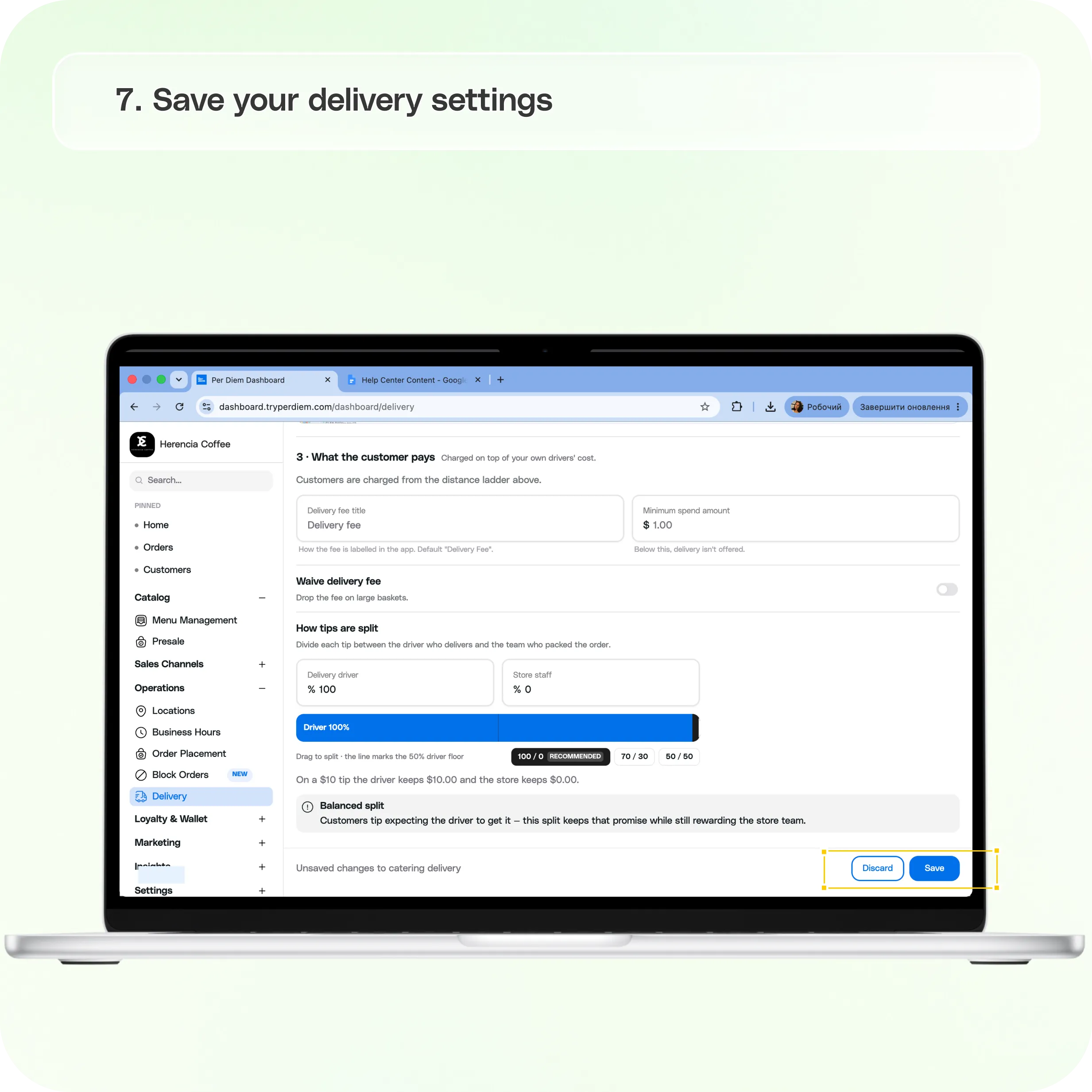
- Save your delivery settings
Still require support?
Contact support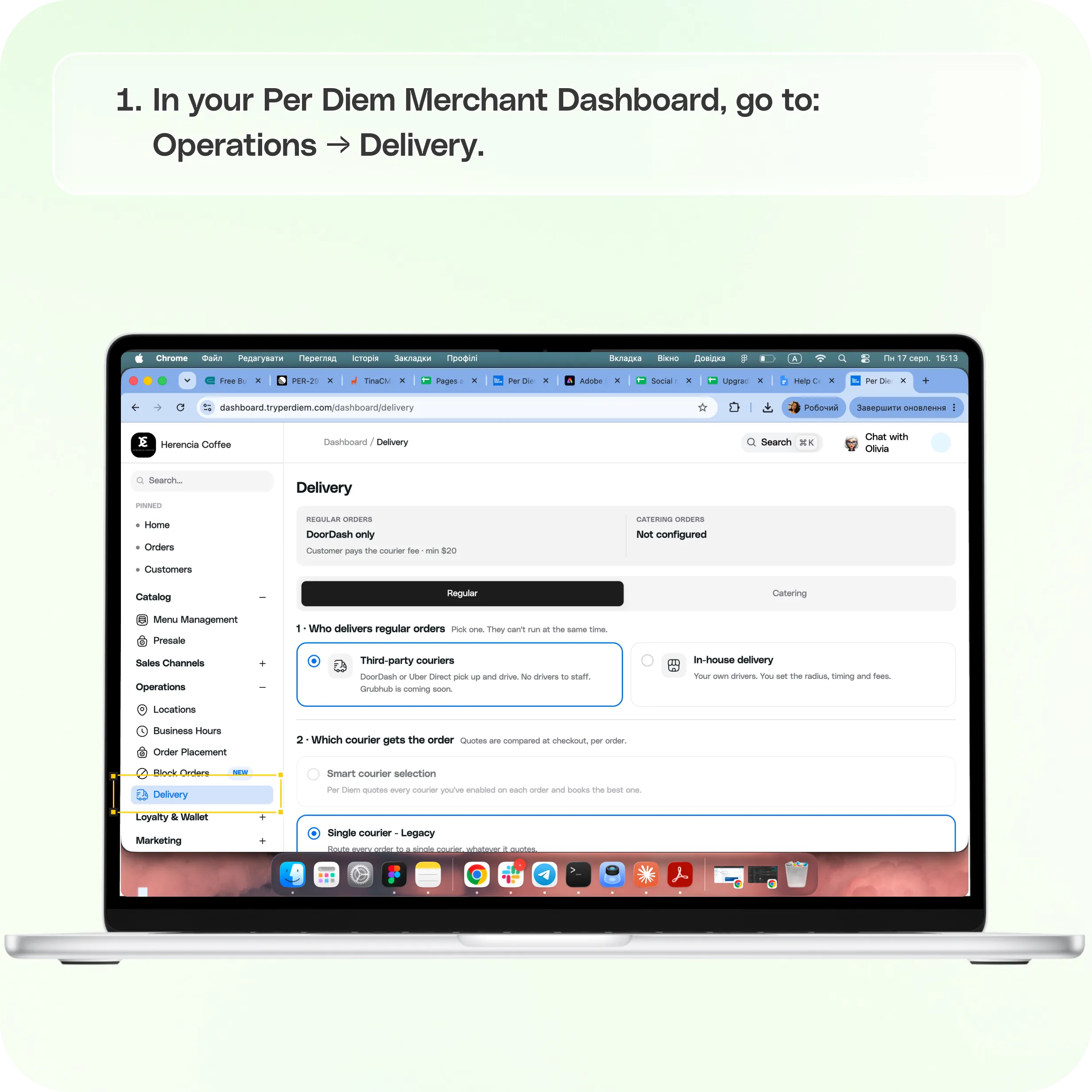
Where to find Delivery settings
In your Per Diem Merchant Dashboard, go to:
Operations → Delivery
At the top of the Delivery page, you'll see two tabs:
Regular for your everyday delivery orders Catering for catering delivery orders
Each tab has its own delivery settings. This means you can use different delivery providers, fees, minimums, and other rules for regular and catering orders. For example, you could use a third party courier for regular orders while using your own drivers for catering.
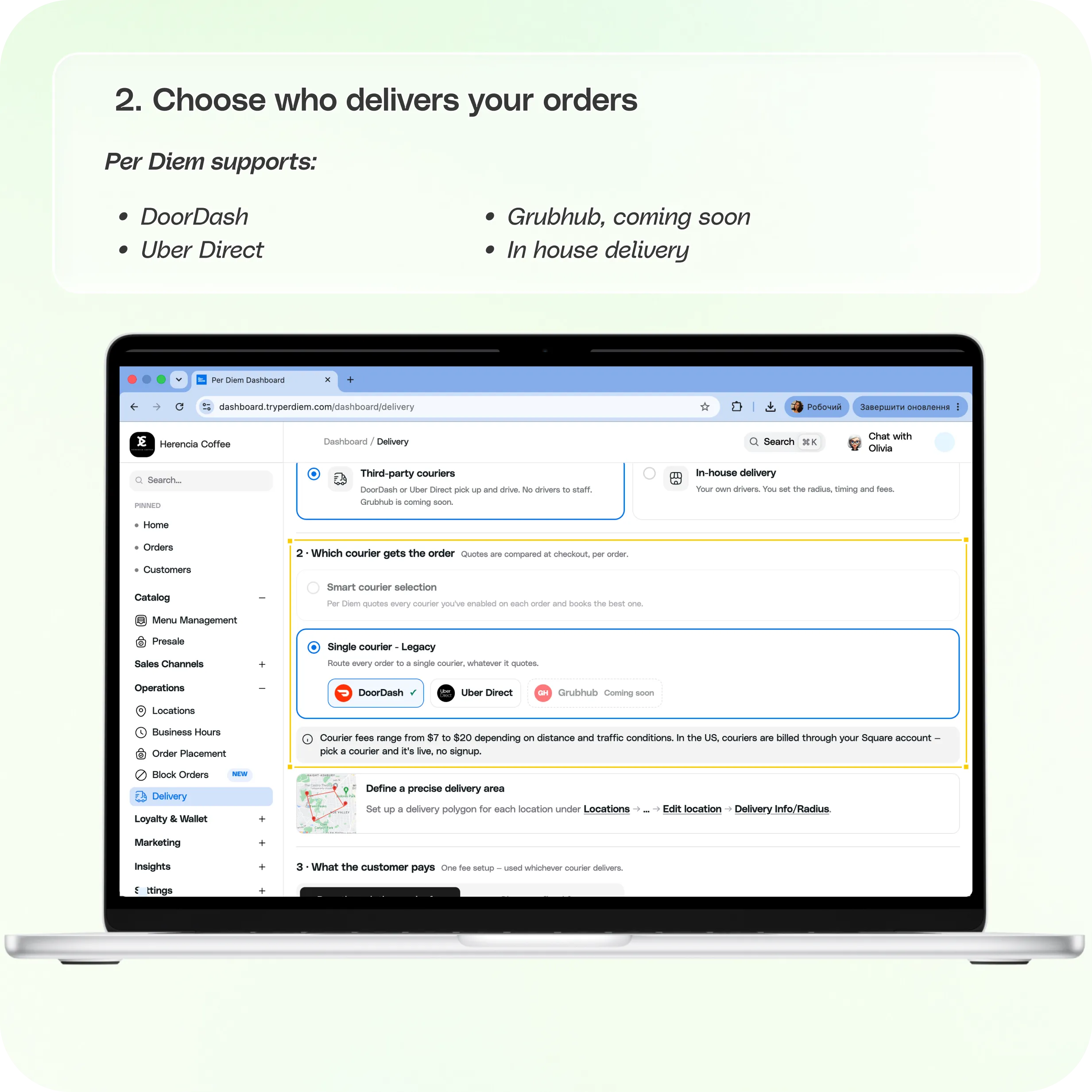
Step 1: Choose who delivers your orders
Start by opening either the Regular or Catering tab. Under Who delivers your orders, choose how you want those orders delivered.
Third party couriers
Choose this option if you want delivery orders fulfilled by an available third party courier. Per Diem supports:
- DoorDash
- Uber Direct
- Grubhub, coming soon
If you choose third party couriers, you'll continue to the courier selection settings.
In house delivery
Choose In house delivery if your business uses its own drivers. For regular delivery, you can configure:
- Delivery radius: Set how far your team will deliver.
- Max duration: Set the maximum delivery time allowed.
You'll then continue to your delivery fee and tip settings.
Step 2: Choose how third party orders are assigned
If you selected Third party couriers, choose how Per Diem should assign a courier to an order.
Smart courier selection
Smart courier selection compares available courier quotes for each order and automatically selects the best option. Choose how you want the courier selected:
- Auto: Balances delivery cost and speed.
- Cheapest: Selects the lowest available quote.
- Most reliable: Prioritizes the fastest available dropoff time.
Single courier
If you prefer to send your orders through one specific provider, select Single courier and choose your preferred courier. Your orders will then be routed through that provider rather than comparing multiple courier options.
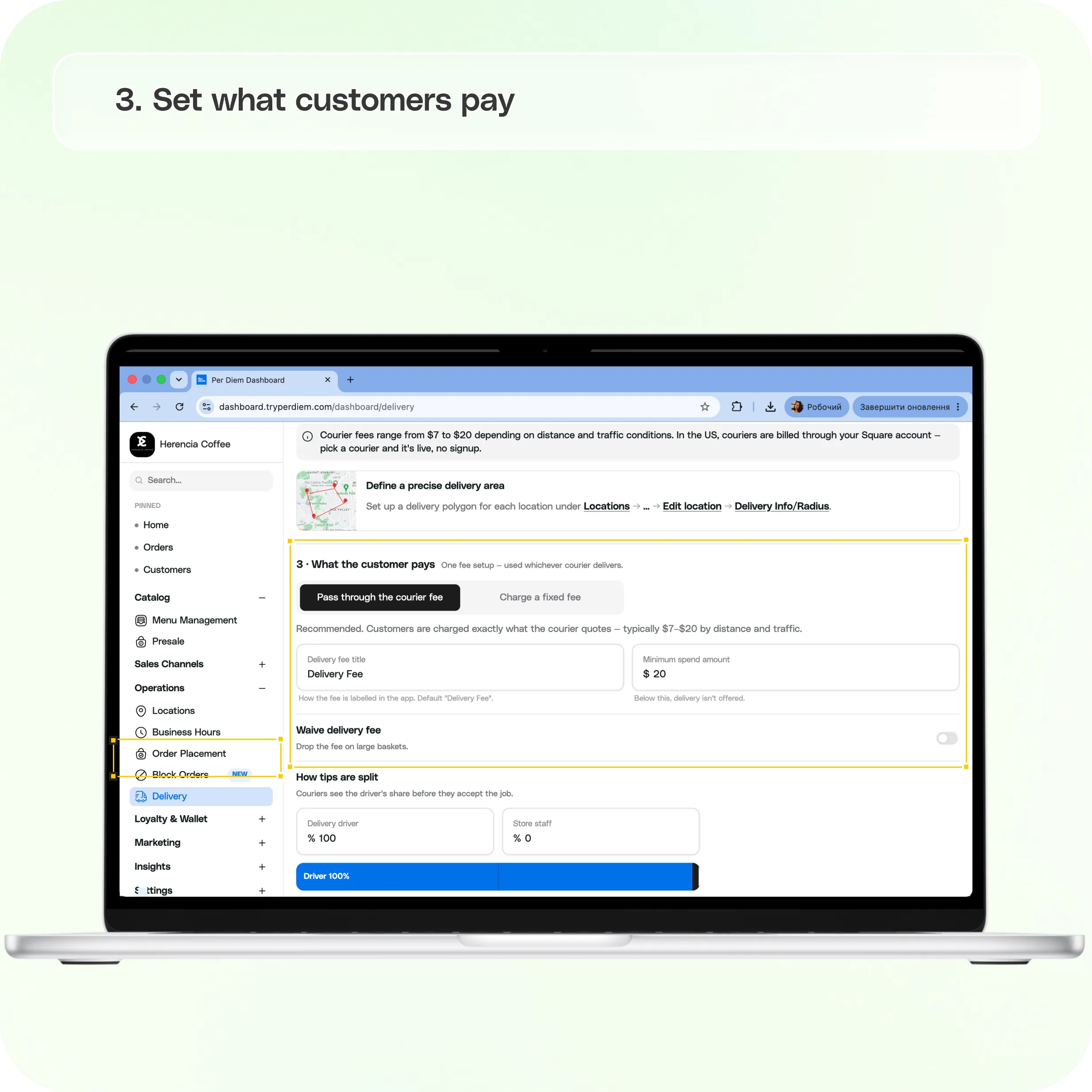
Step 3: Set what customers pay
Next, decide how you want to charge customers for delivery. For third party delivery, you can choose between:
Pass through the courier fee
The customer pays the delivery fee quoted by the courier for their order. You can set:
- Delivery fee title
- Minimum spend amount
Charge a fixed fee
Charge customers the same delivery fee rather than passing through the courier's individual quote. Set your:
- Delivery fee title
- Delivery fee amount
- Minimum spend amount
Waive the delivery fee
You can also turn on Waive delivery fee and set an order amount customers need to reach to qualify for free delivery. Once their eligible order reaches the amount you set, the delivery fee is waived automatically.
Step 4: Set up In house delivery fees
If you selected In house delivery, you control your own delivery pricing instead of using a third party courier quote. For regular orders, configure your delivery radius and maximum delivery duration, then set your:
- Delivery fee title
- Delivery fee amount
- Minimum spend amount
- Optional delivery fee waiver
Catering delivery pricing
Catering delivery can be configured separately from regular delivery. If you're using your own drivers for catering, you can create distance based pricing intervals so the delivery fee changes based on how far the catering order needs to travel.
You can also configure:
- Maximum delivery distance
- Minimum catering delivery amount
- Optional delivery fee waiver
This lets you build delivery rules specifically for larger catering orders without changing your regular delivery setup.
Step 5: Set how tips are distributed
You can choose how customer tips are divided between:
- Delivery driver
- Store staff
Adjust the percentages to determine how much of the tip goes to each. For third party delivery, remember that the driver's portion contributes to the payout the courier sees when deciding whether to accept an order.
Optional: Set a precise delivery area
If a simple delivery radius doesn't accurately represent where you deliver, you can create a more precise delivery area for an individual location. Go to:
Operations → Locations → Select Location → Delivery Info/Radius
From here, you can define the delivery area for that location instead of relying only on a standard radius.
Step 6: Set up your other delivery type
Regular and Catering delivery settings work independently. Once you've finished your Regular settings, switch to Catering if you offer catering delivery and configure it separately. You can use a different provider and different delivery rules for each.
Step 7: Save your delivery settings
Once everything looks right, click Save.
Your Regular and Catering settings are saved independently, so make sure you save any changes you make within each tab.
If you don't want to keep your unsaved changes, click Discard to return to your previously saved settings.
Before you finish
Check both your Regular and Catering tabs and make sure the correct delivery method is selected for each.
Your delivery setup controls who fulfills your orders, where you deliver, what customers pay, and how tips are distributed, so keeping these settings accurate helps customers see the right delivery options and fees when ordering.
Still have questions?Contact us
Ask anything or just say hi