


























Sell gift cards within the app
Easily sell digital gift cards through your app with Per Diem's Square integration. Offer convenient eGift card purchases for last-minute shoppers or those at a distance.
Instructions
- On the left side of your merchant dashboard, click "Gift Cards" to kickstart selling eGift cards within the app.
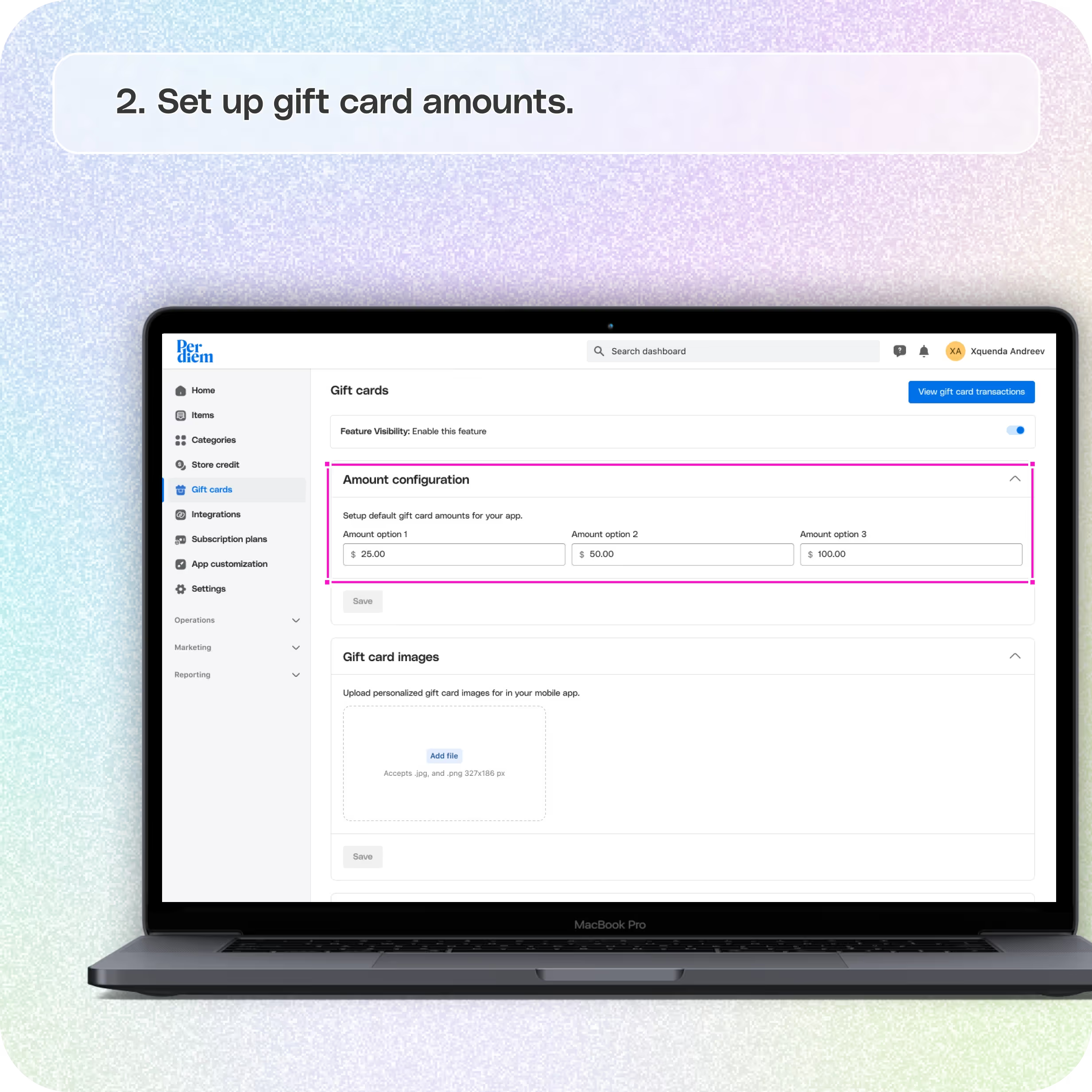
- Fill in the three boxes with the custom gift card amounts you want to offer.
- Hit "Save" to make these changes available for your customers.
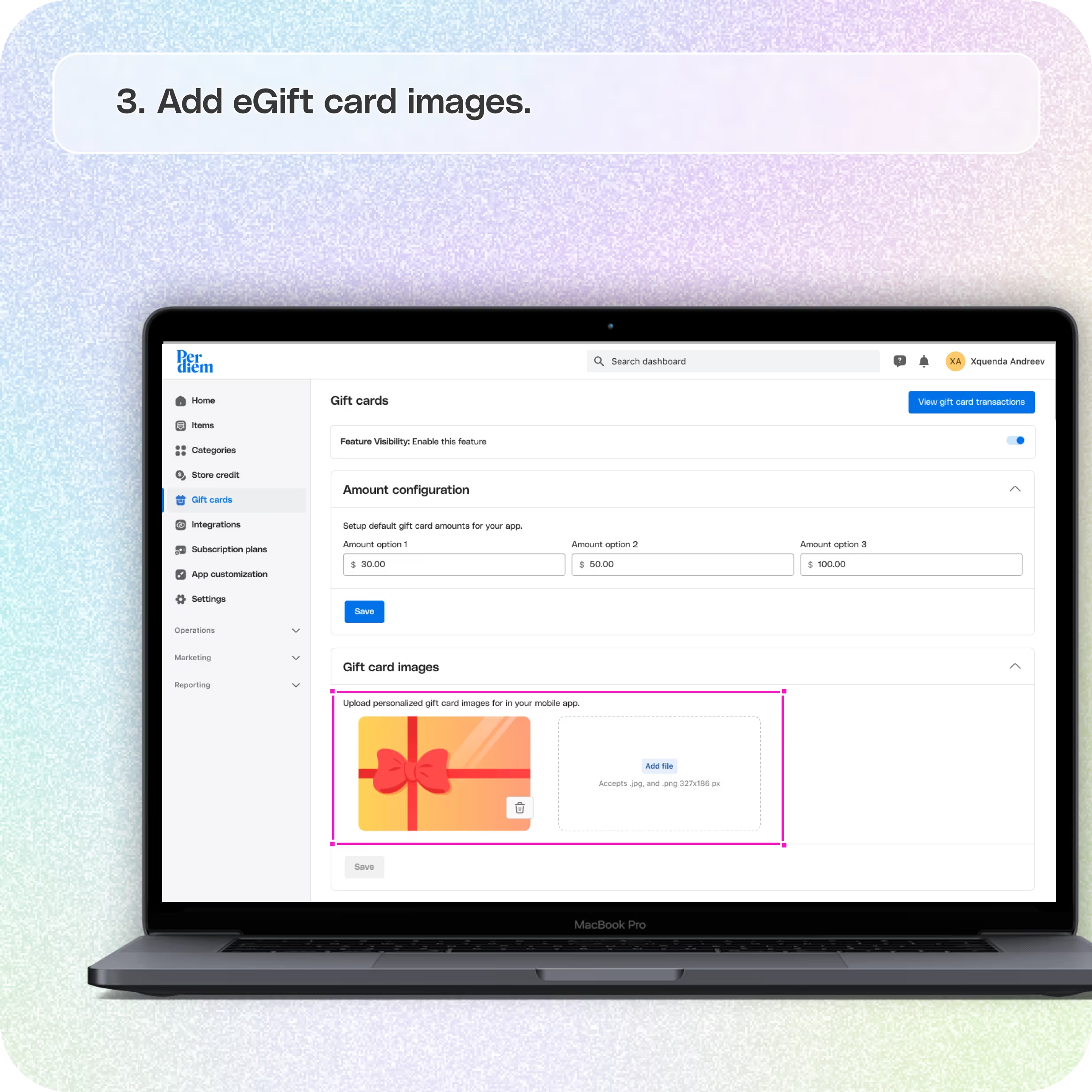
- Click "Add File" and choose the image you've created from your files.
- Adjust the size of the image as needed.
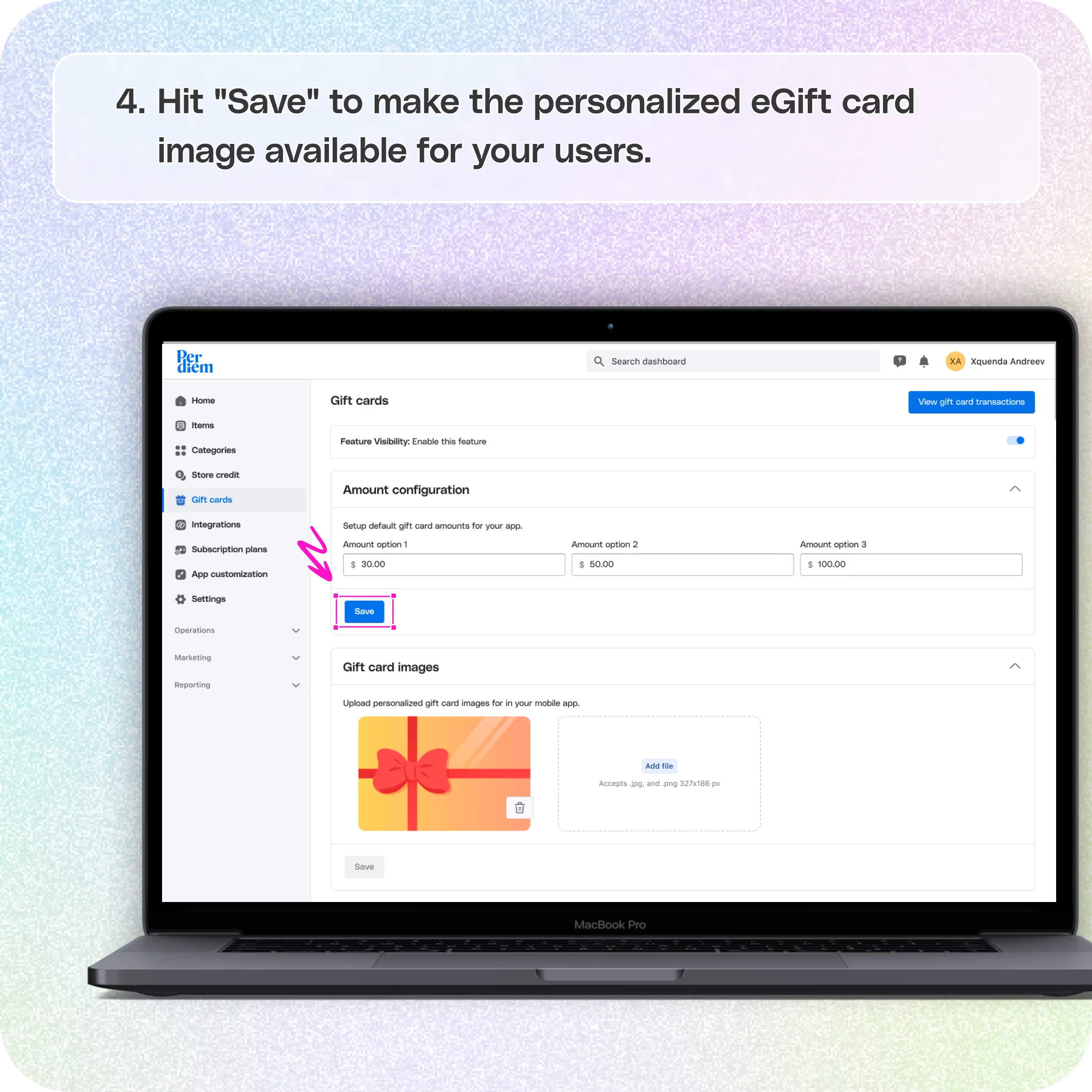
- Hit "Save" to make the personalized eGift card image available for your users.
- Customers can select a gift and choose the amount from the provided options or add their custom amount through the "Buy an eGift Card" option in your app.
- After submitting their details, they can also include a personalized message for the recipient.
Still require support?
Contact support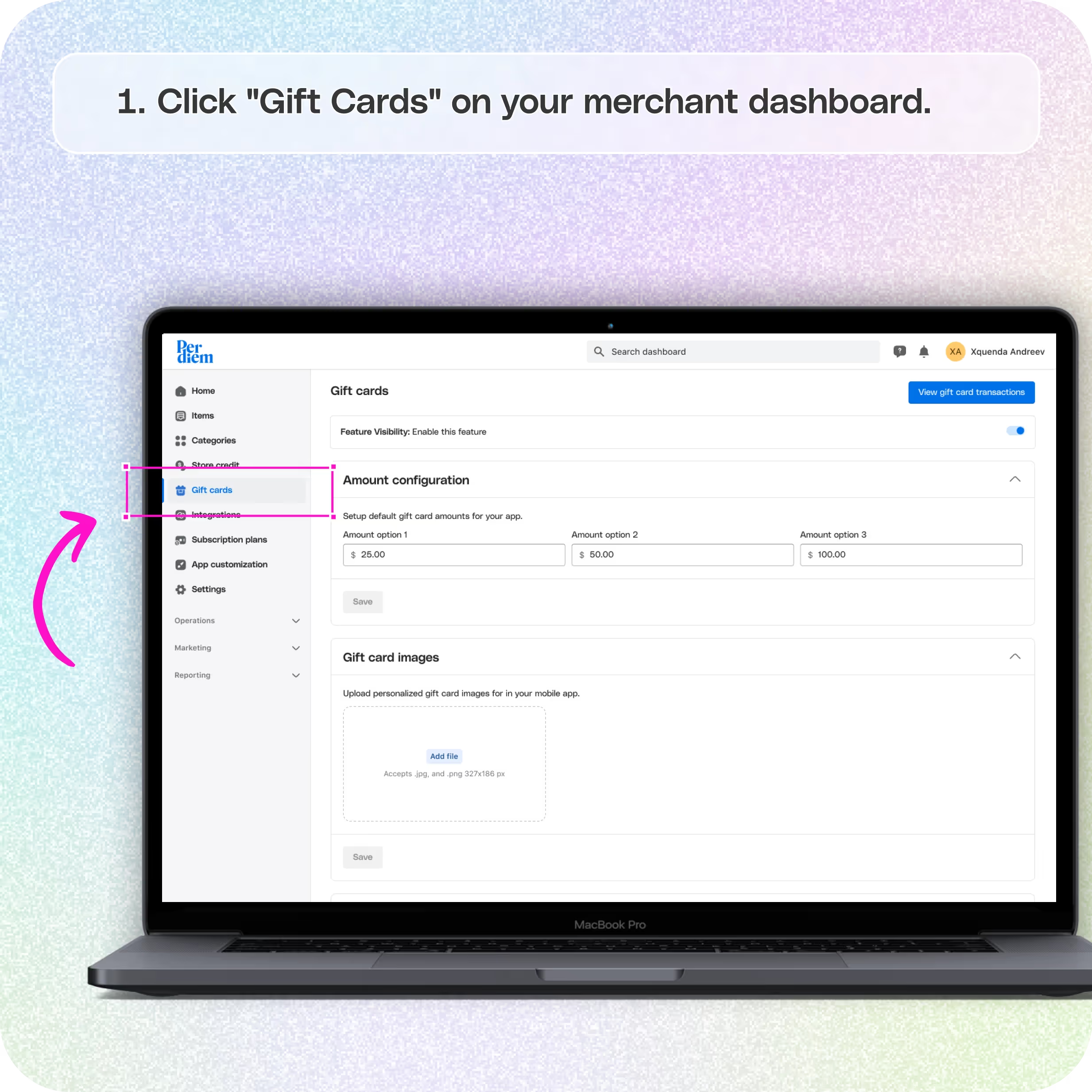
Click "Gift Cards" on Your Merchant Dashboard
With Per Diem's integration with Square, selling digital gift cards through your app has always been challenging. Whether your customers are looking for last-minute gifts or reside miles away, you can offer them the convenience of purchasing eGift cards with just a few clicks.
Step 1
On the left side of your merchant dashboard, click "Gift Cards" to kickstart selling eGift cards within the app.
Set Up Gift Card Amounts
Customize your eGift card offerings to suit your business and customers' preferences. By default, the Square Point of Sale app displays common amounts like $10, $15, $20, $25, and $50. However, you have the flexibility to set your default amounts.
Step 1
Hit "Save" to make these changes available for your customers.
Step 2
Hit "Save" to make these changes available for your customers.
Add eGift Card Images
Give your eGift cards a personal touch by uploading customized images. This step allows you to add flair for special occasions like birthdays or upcoming events.
Step 1
Click "Add File" and choose the image you've created from your files.
Step 2
Adjust the size of the image as needed.
Step 3
Hit "Save" to make the personalized eGift card image available for your users.
Customers Can Buy Your Gift Cards In-App
Empower your customers to easily purchase eGift cards directly from your app. Follow these simple steps:
Step 1
Customers can select a gift and choose the amount from the provided options or add their custom amount through the "Buy an eGift Card" option in your app.
Step 2
After submitting their details, they can also include a personalized message for the recipient.
Step 3
Customers have the flexibility to schedule the date for sending the eGift card, making it a convenient and thoughtful gifting experience.
Accept Your eGift Cards
Make the redemption process seamless for your customers. Here's how you can accept eGift cards through the Square POS:
Option 1
Enter the 16-digit redemption code directly into the Square POS.
Option 2
Allow customers to enter their gift card number on the app to redeem their eGift card in-app.
Option 3
Hit "Save" to make the personalized eGift card image available for your users.
Once redeemed, the gift card amount will be added to their store credit, providing a hassle-free way for them to enjoy their chosen products or services.
Learn the best practices of leveraging gift cards during holidays in this article.
Still have questions?Contact us
Ask anything or just say hi