
















Category management
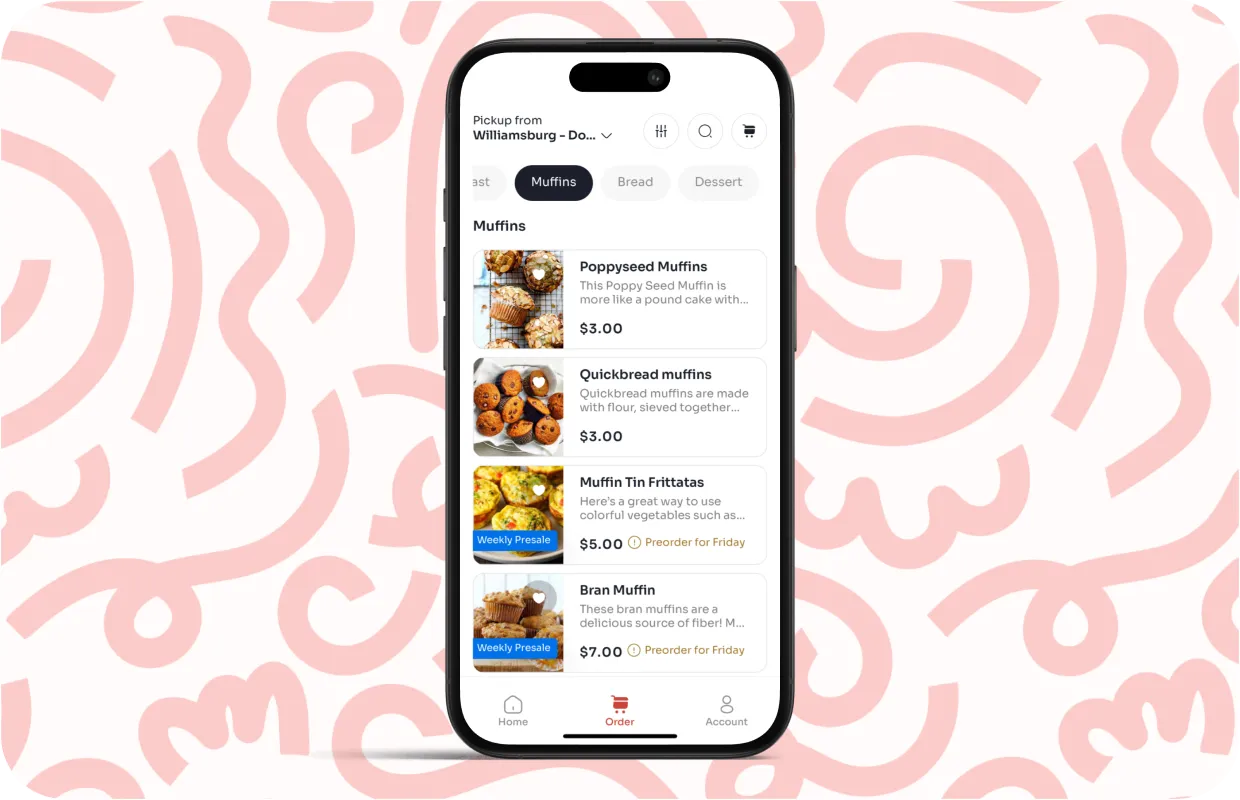
Categories shape how customers move through your menu. They control what items appear together, how menus feel at a glance, and how easy it is for someone to find what they want without searching. Strong category structure also makes updates faster and keeps menus consistent across locations and channels.
This section explains how category visibility works, how to organize and reorder categories, and how to manage category changes without disrupting your menu.
Customers scan categories before they read individual items, using them as the primary way to orient themselves in a menu.
Understanding category visibility
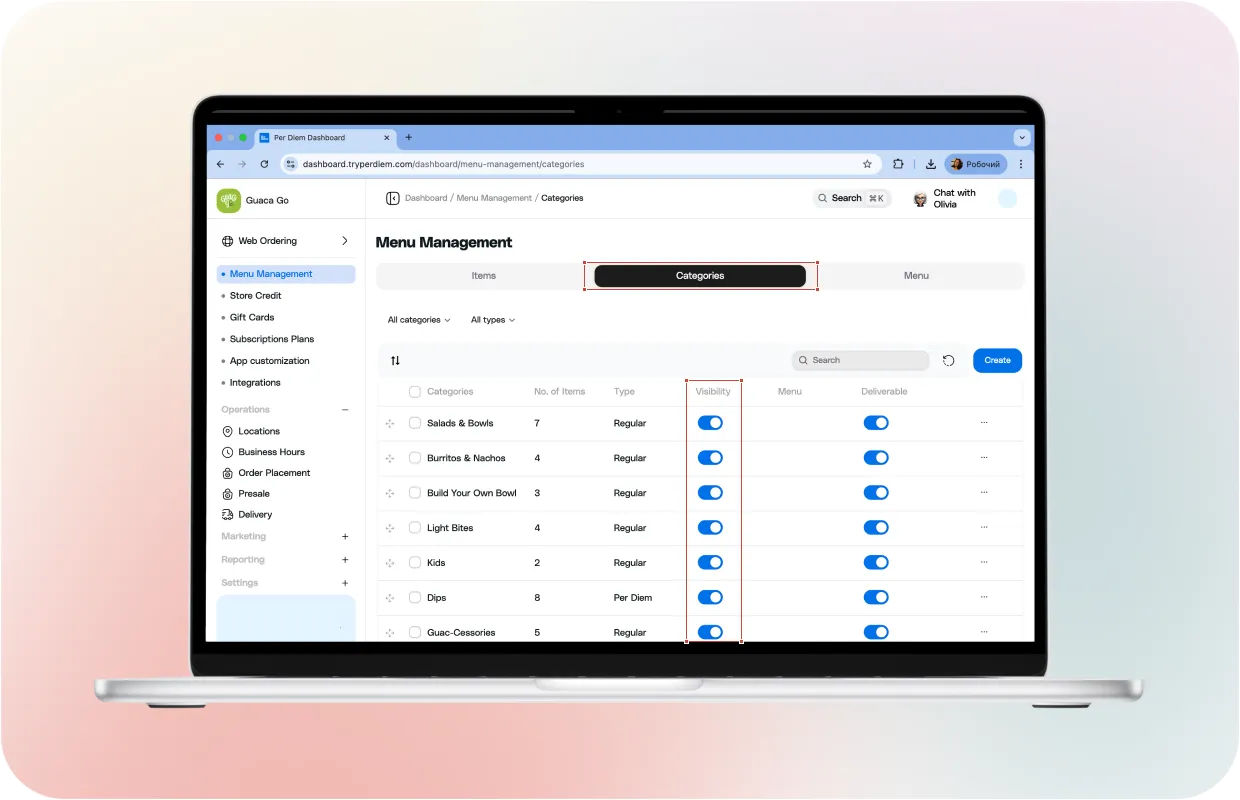
Category visibility determines whether a group of items appears in the app. When a category is visible, customers see all visible items assigned to it. When a category is hidden or archived, customers do not see that group at all, even if individual items still exist in your catalog.
This separation matters. Categories help control presentation, not item existence. You can hide a category without deleting items or affecting reporting. This makes categories a powerful way to manage seasonal sections, limited-time menus, or temporary changes without rebuilding your menu.
Visibility works best when categories reflect how customers think, not how items are stored internally. Clear, intentional category visibility keeps menus focused and reduces scrolling.
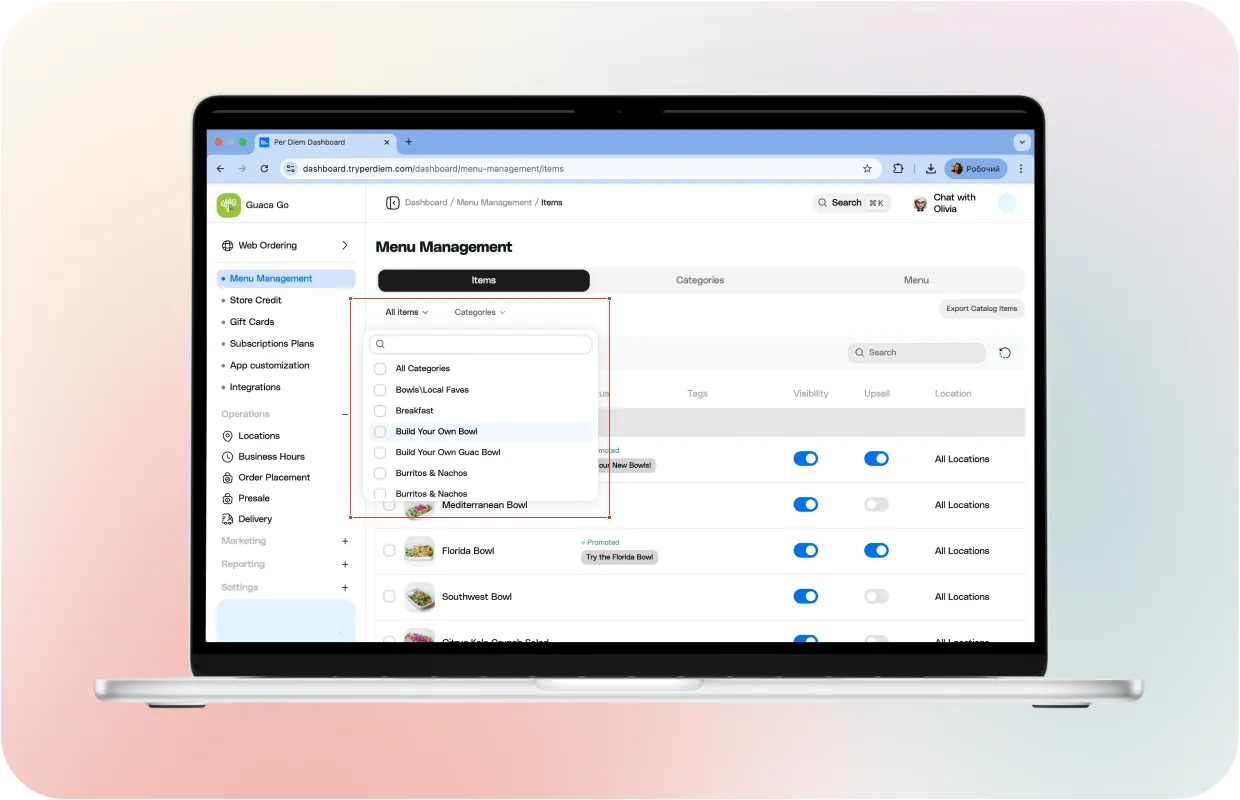
Searching for items by category
Categories are not just for customers. They also help you manage items faster behind the scenes.
When you search or filter items by category, you can quickly review what belongs where, spot misplaced items, and make bulk updates without editing items one by one. This becomes especially helpful as menus grow or when managing multiple locations.
Using categories consistently makes menu maintenance easier over time. Instead of hunting for individual items, you work at the group level and keep everything organized.
Edit category details
You can manage categories in Square and in your dashboard.
In Square, create or edit a category
- Sign in to Square Dashboard.
- Go to Items & services, or Items & menus, or Items & inventory.
- Go to Items, then Categories.
- Click Create category, or select an existing category.
- Update details and click Save. Square
In your dashboard, create a category
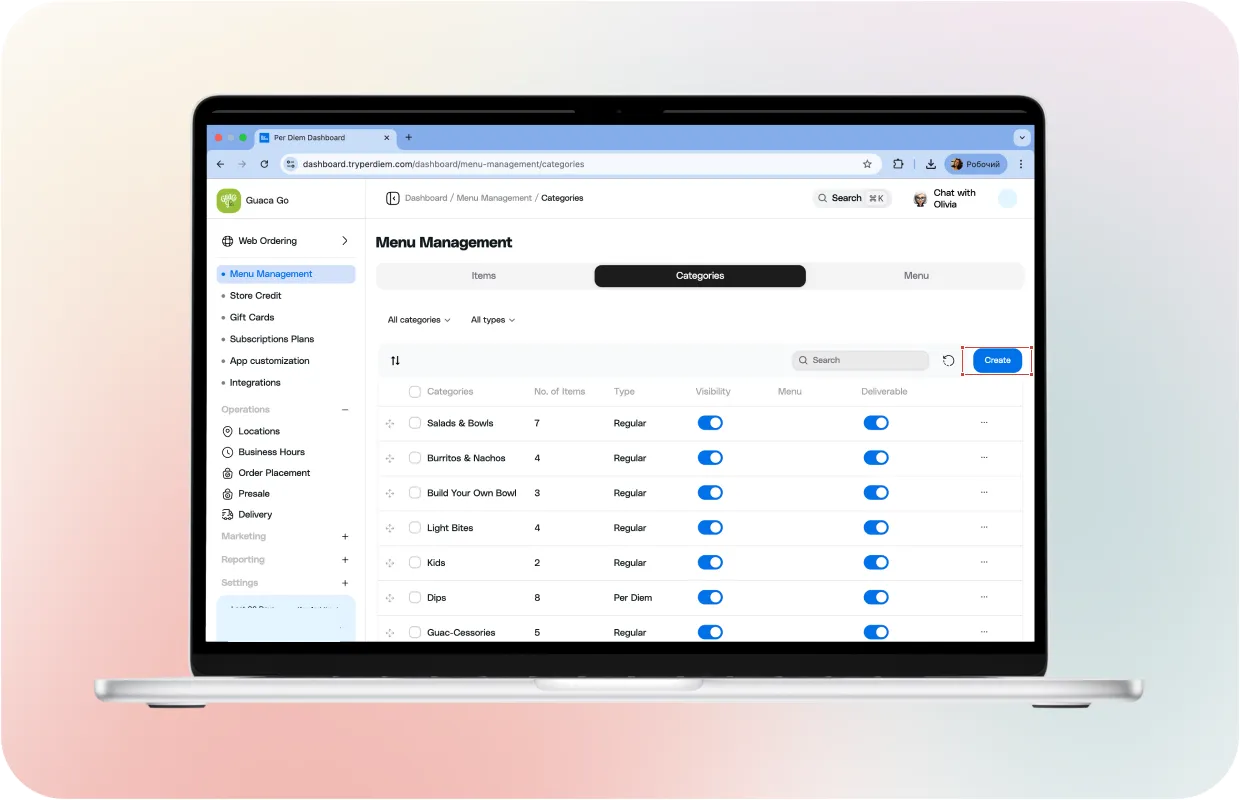
Open the Categories tab and click Create. Add the details you want customers to see, then save. This gives you a fast way to build category structure without bouncing between tools.
Assign items to a category
Use this when items sit in the wrong place, when you create a new category, or when you want to tighten menu browsing.
Assign a single item
- Log in to your merchant dashboard.
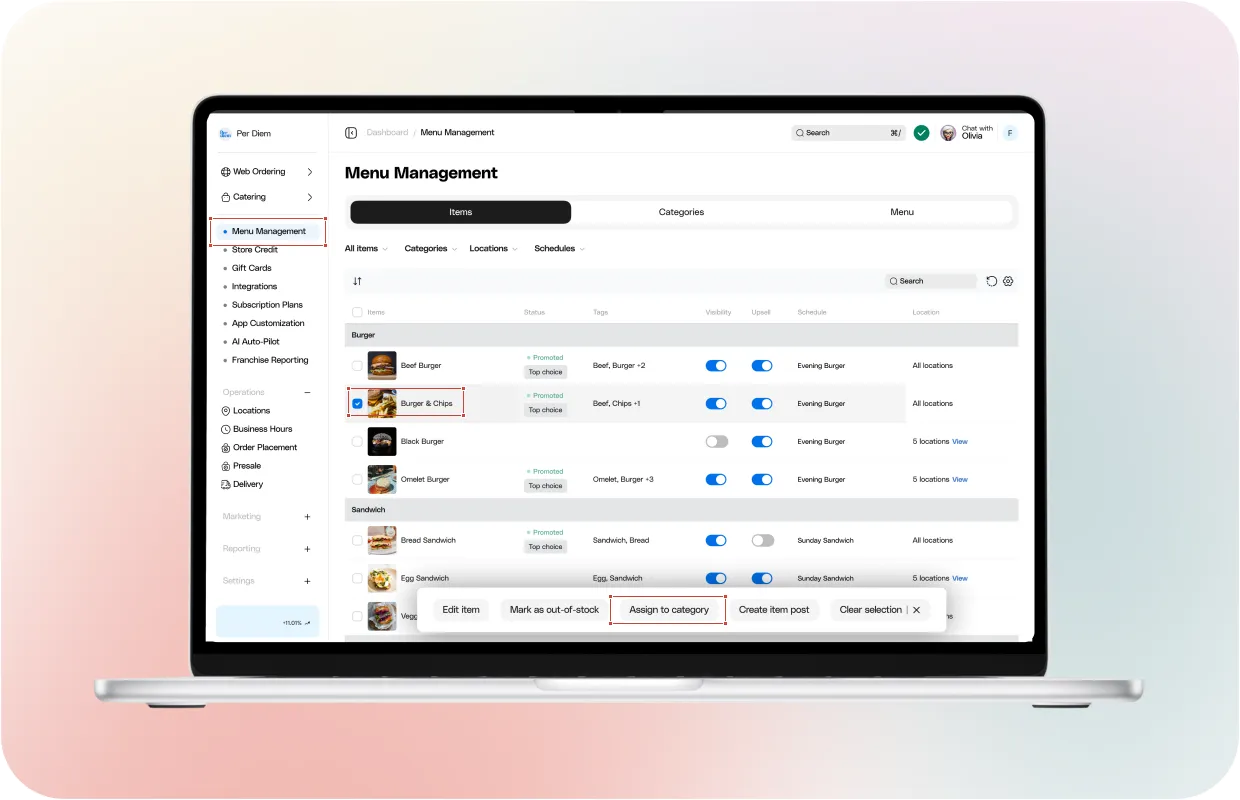
- Click Items in the left sidebar.
- Select an item from All Items.
- Click Assign to Category.
- Search and select the category, then click Add. Per Diem
This flow keeps category work quick and avoids editing items one by one.
How to reorder categories
Category order influences what customers notice first. Put your highest-selling categories near the top, then supporting categories after.
Reorder in Square
- Sign in to Square Dashboard.
- Go to Items & services, or Items & menus, or Items & inventory.
- Go to Items, then Categories.
- Click Rearrange.
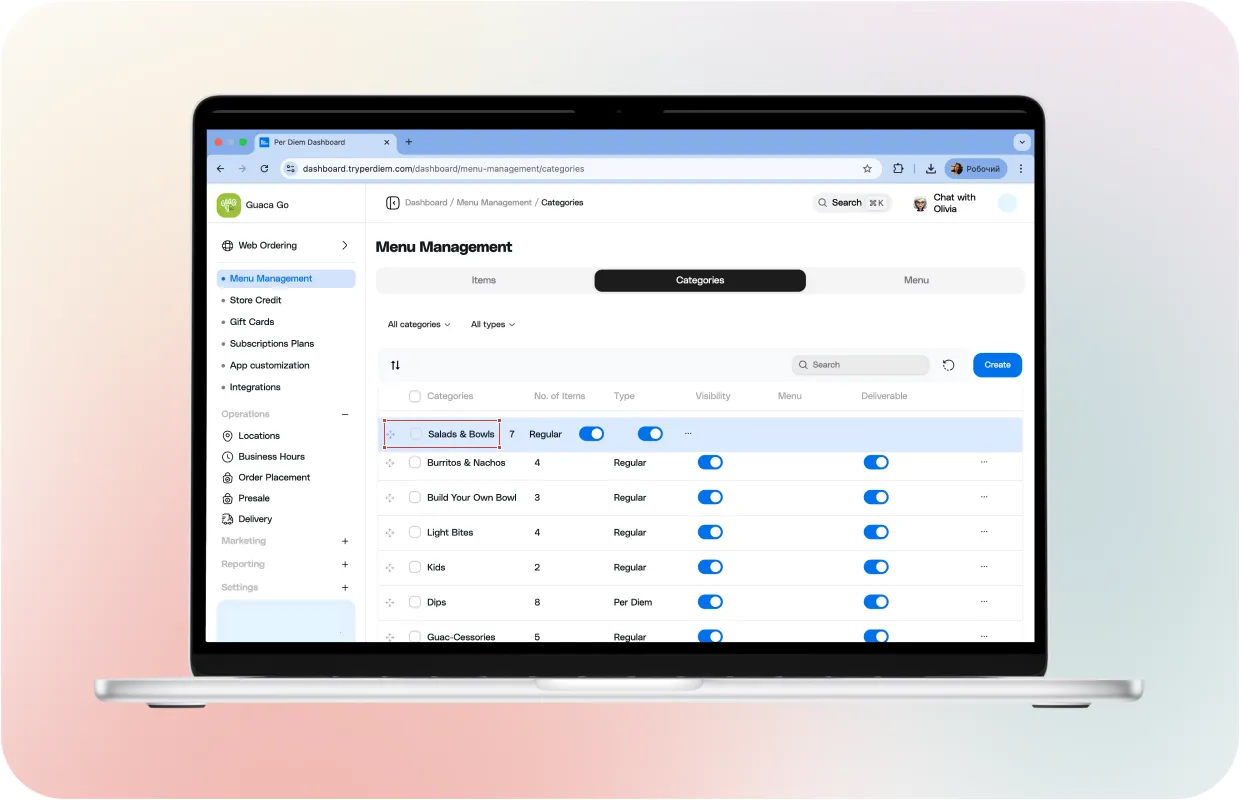
- Drag a category to the position you want.
- Click Done rearranging. Square
Reorder in your dashboard
Drag categories into the order you want, same idea as Square. Use this when you want the app browsing flow to match how customers shop.
Add a new product in Square and assign it to a category
When you add a new item, do two things: create it, then place it correctly so customers find it fast.
Create the item in Square first, then open the item in your app dashboard, set it visible if needed, and assign it to the right category so it appears in the correct menu section for customers.
Archiving categories
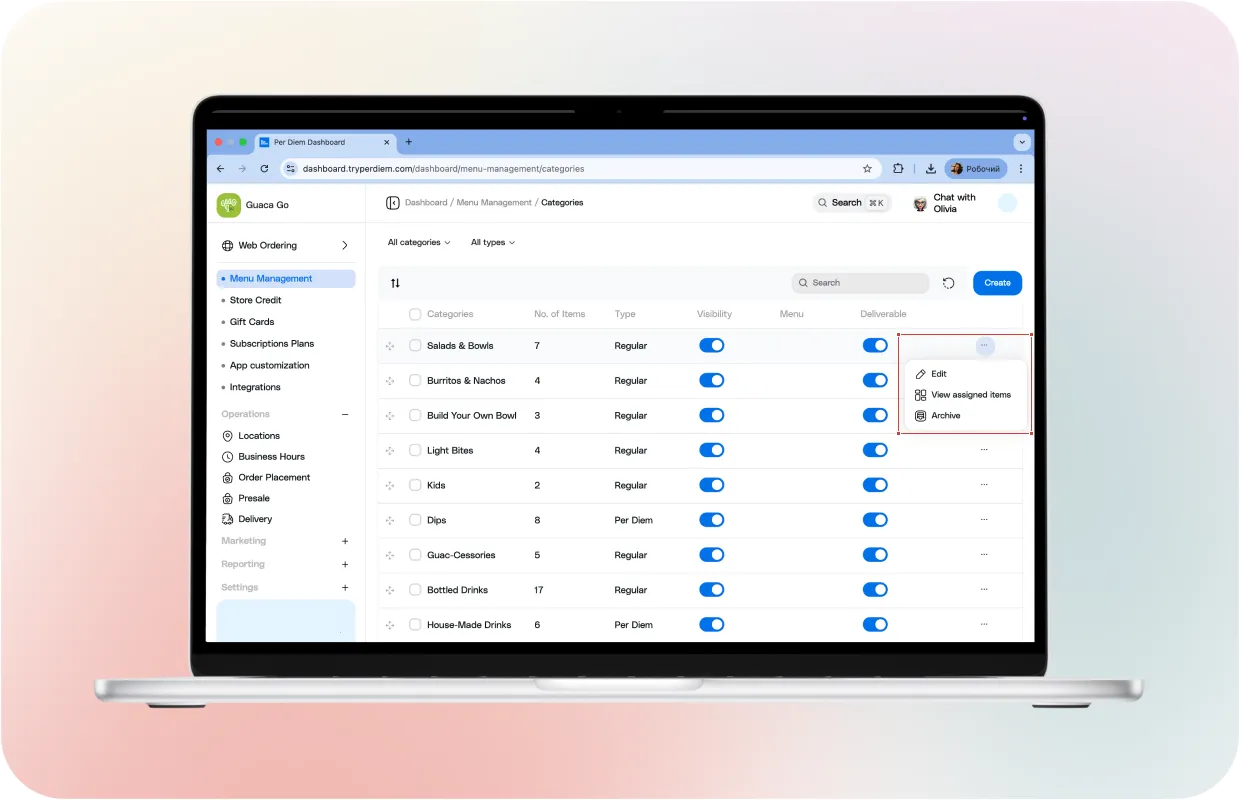
Archiving removes categories from active menus without deleting them. This is useful when a category is no longer needed but may return later.
You can archive a single category or multiple categories at once by selecting them and choosing the ‘Archive’ option in the dashboard. Archived categories disappear from the app but remain available for future use. Items inside archived categories are not deleted and can be reassigned if needed. Archiving keeps your menu clean while preserving historical structure. It is a better option than deleting categories when you want flexibility later.