

















Menu management
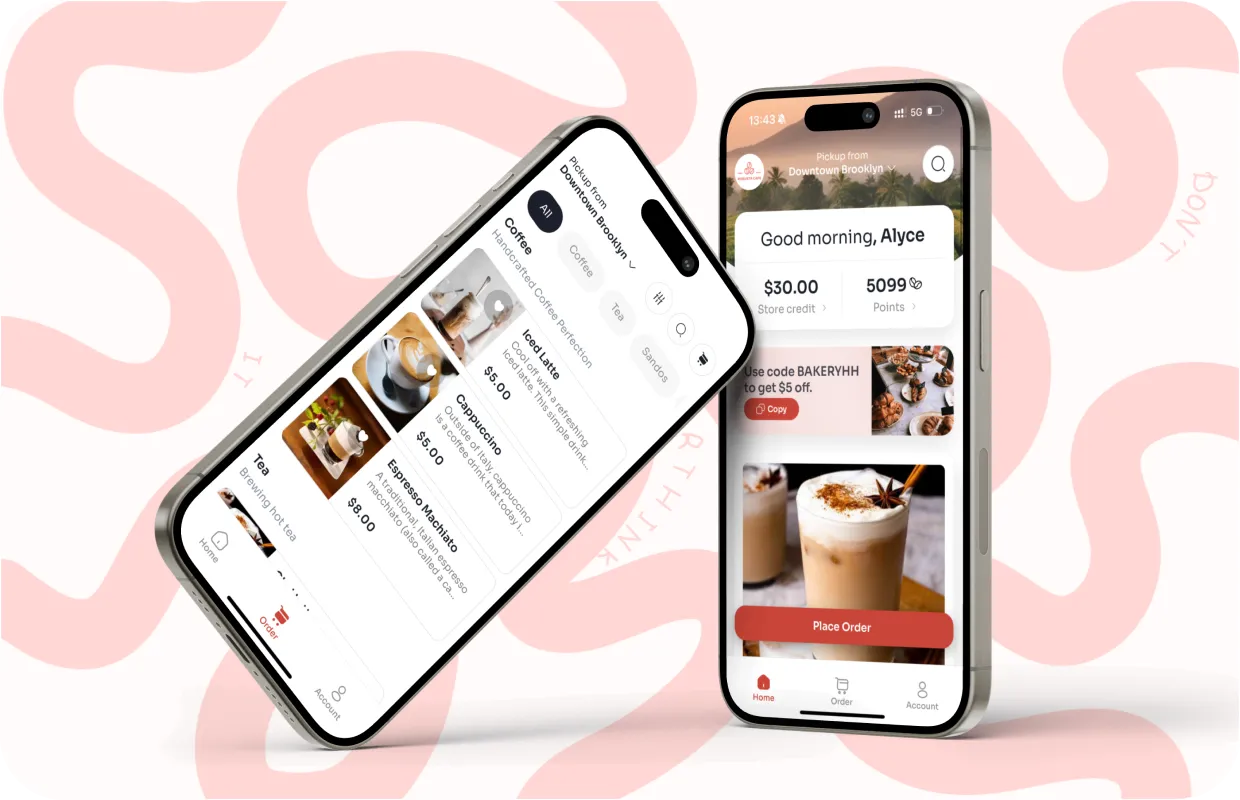
Menus give shape to how customers experience your business throughout the day. They decide which categories appear, where they appear, and during what hours. This structure becomes even more important as you add new items, introduce seasonal plans, or manage multiple locations. A strong menu setup keeps the customer experience smooth while saving your team time behind the scenes.
The Menu tab brings together category assignment, location control, and scheduling into one place. Instead of adjusting items one at a time, you use menus to orchestrate the flow of your entire offering. This section explains how menus work, how to align them with your business hours, and how to design a structure that adapts as your business grows.
Time-based menus reduce order errors by 30–50%, especially for breakfast, lunch, and late-night transitions.
Creating a menu
Creating a menu sets the foundation for how customers browse at specific times or locations.
To create a menu:
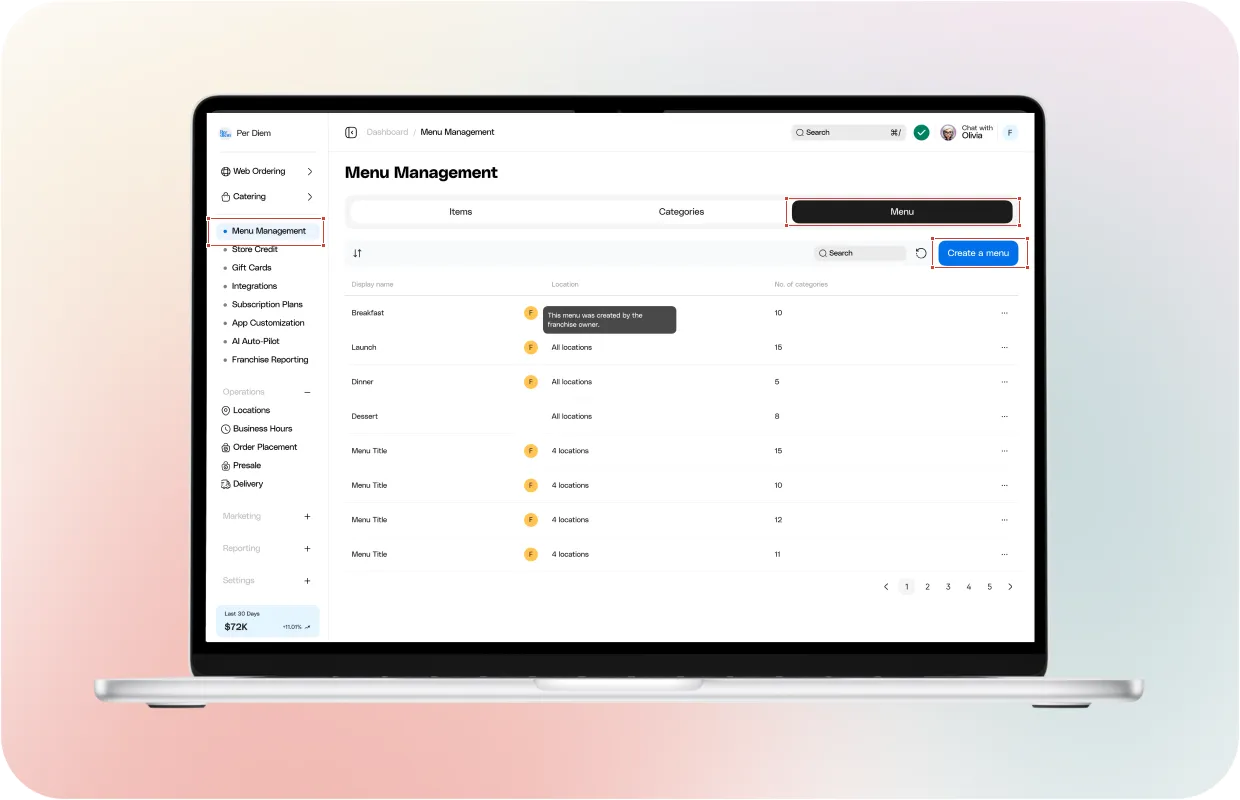
- Open your dashboard and go to Menu Management.
- Select the Menu tab.
- Click Add to create a new menu.
- Enter a menu name that reflects its purpose, such as Breakfast or Weekend Menu.
- Save to continue setup.
Once created, the menu becomes available for category assignment, location selection, and scheduling.
Assigning categories to a menu
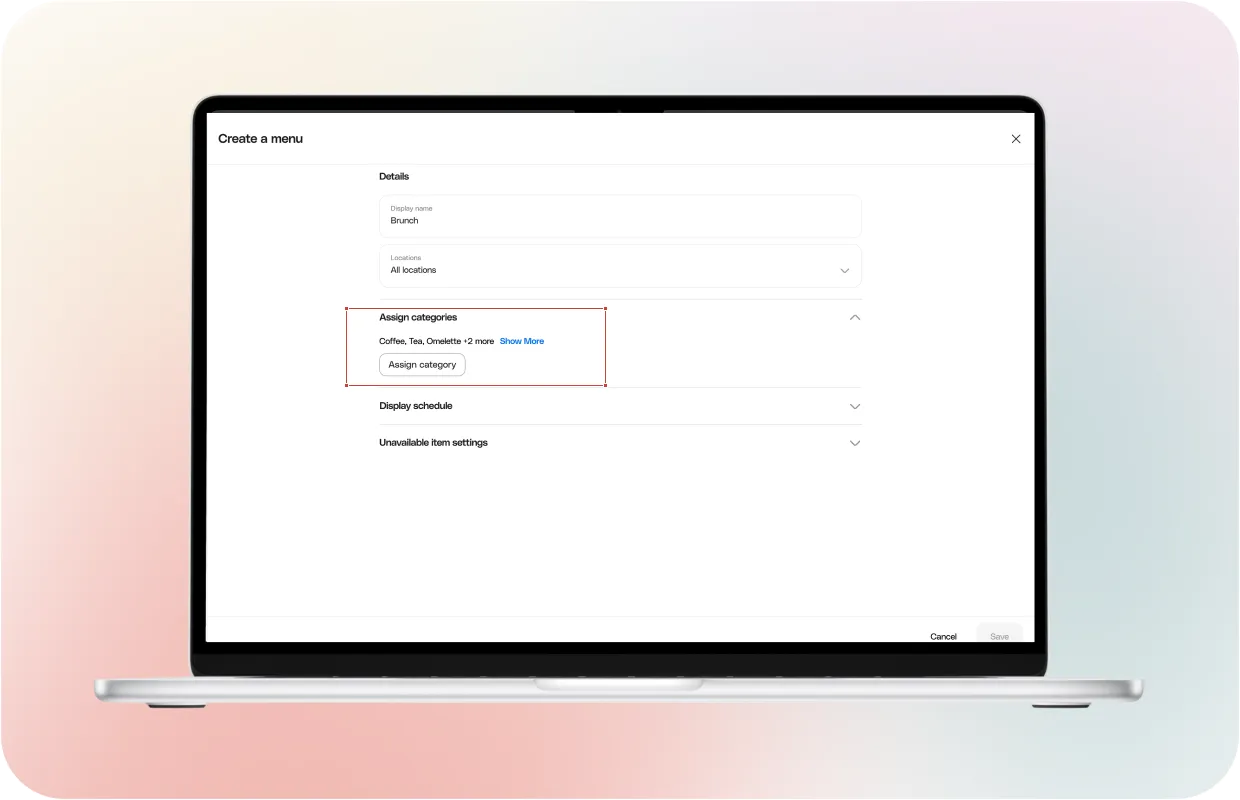
Categories determine what items appear inside a menu. A menu can include one or many categories.
After creating a menu, open it and expand the Assign categories section. Select the categories you want to include. Only selected categories will appear to customers when this menu is active.
This approach keeps menus focused. Instead of hiding individual items, you control visibility at the category level and apply it consistently across the menu.
Assigning menus to locations
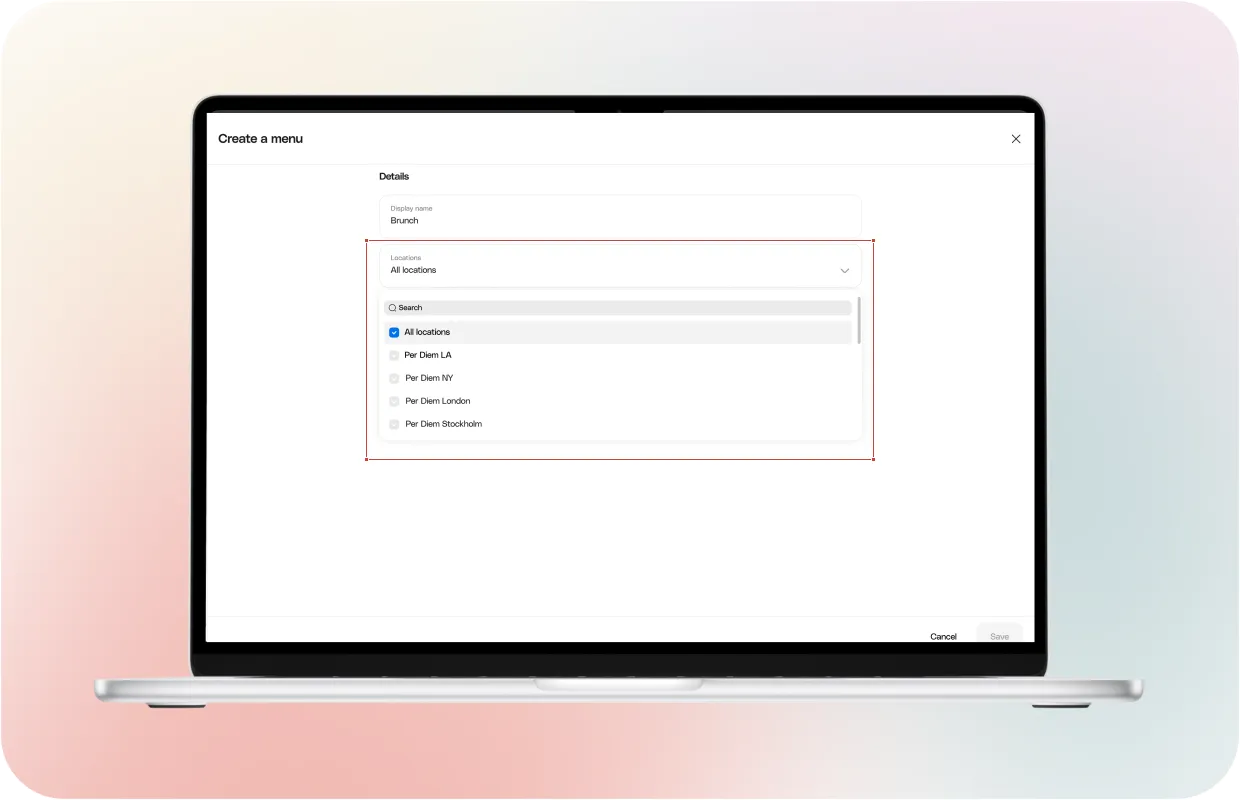
Menus can apply to one location or multiple locations. This matters for businesses that run different offerings by store or region.
Inside the menu setup, choose the locations where the menu should appear. If a menu is not assigned to a location, customers at that location will never see it, even if the categories exist.
This setup allows you to reuse the same menu logic across locations or create location-specific menus when needed.
Adding display schedules
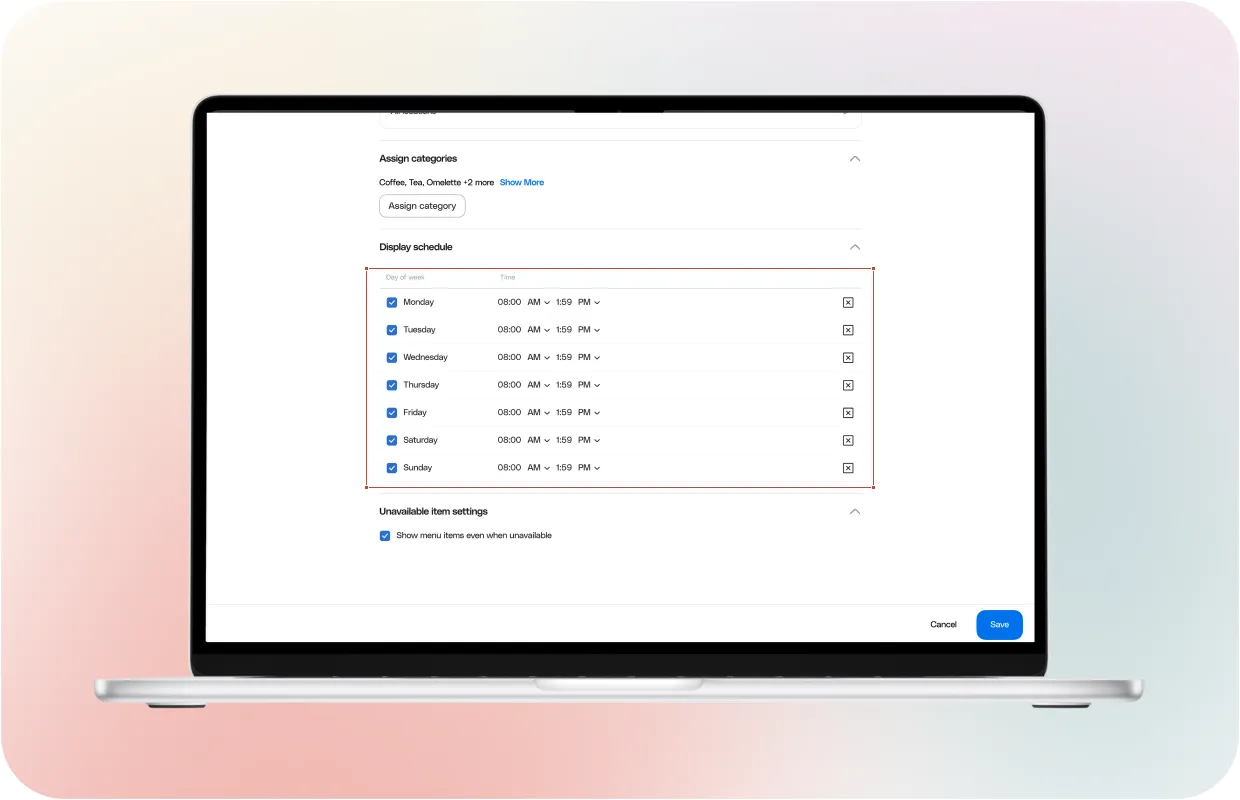
Display schedules control when a menu appears to customers. All scheduling now lives under the Menu tab. This change removes complexity from category-level timing and puts all scheduling rules in one place.
You can choose from two scheduling paths:
• Location Business Hours
Use this when a menu should follow the natural operating hours of the location. This works well for all-day menus or stores that keep a consistent schedule.
• Specific Custom Time Ranges
Use this when you want menus to appear only during certain periods, such as breakfast, lunch, evening service, happy hour, or weekend brunch.
Menus switch automatically based on the schedule you choose. You no longer need to adjust visibility during service or hide categories manually. When the active window ends, the menu hides and makes space for the next eligible menu. This keeps the customer experience accurate without daily intervention.
Multi-location menu strategies
When you manage more than one location, menus become one of your strongest tools. They give you a consistent structure while keeping room for differences between stores. A shared menu can be assigned to all locations when your offerings match. This keeps maintenance low. When you update a category or add a new item, those changes flow through every location using that menu.
For locations with unique needs, simply create additional menus and assign them independently. You can mix combinations of shared menus and location-specific menus without duplicating your item library. This structure scales well and keeps your catalog easy to maintain across locations.
Menu strategies often evolve. What begins as a single menu may eventually split into multiple menus as you introduce new services or expand. The menu system supports that flexibility without any disruption to customers.
Seasonal menus and automatic swaps
Seasonal menus let you prepare content ahead of time and activate it only when needed. Create a seasonal menu, assign the correct categories, choose locations, and set the future dates. When the schedule begins, the menu will appear automatically. This helps with holiday menus, promotional lineups, summer drink menus, or limited-time item collections. You can build everything early without showing it to customers before launch day.
When the end date arrives, the menu turns off automatically. Your regular menus take over again without requiring manual changes. The seasonal menu stays saved for future years, which reduces setup time season after season. Merchants who plan find that scheduled menus reduce stress during busy periods. Customers see the right offerings at the right time, and your staff spends less time adjusting menu settings during service.
Ready to improve your ordering flow?
Explore more guides and resources in the Per Diem Help Center.