



















Modifier management
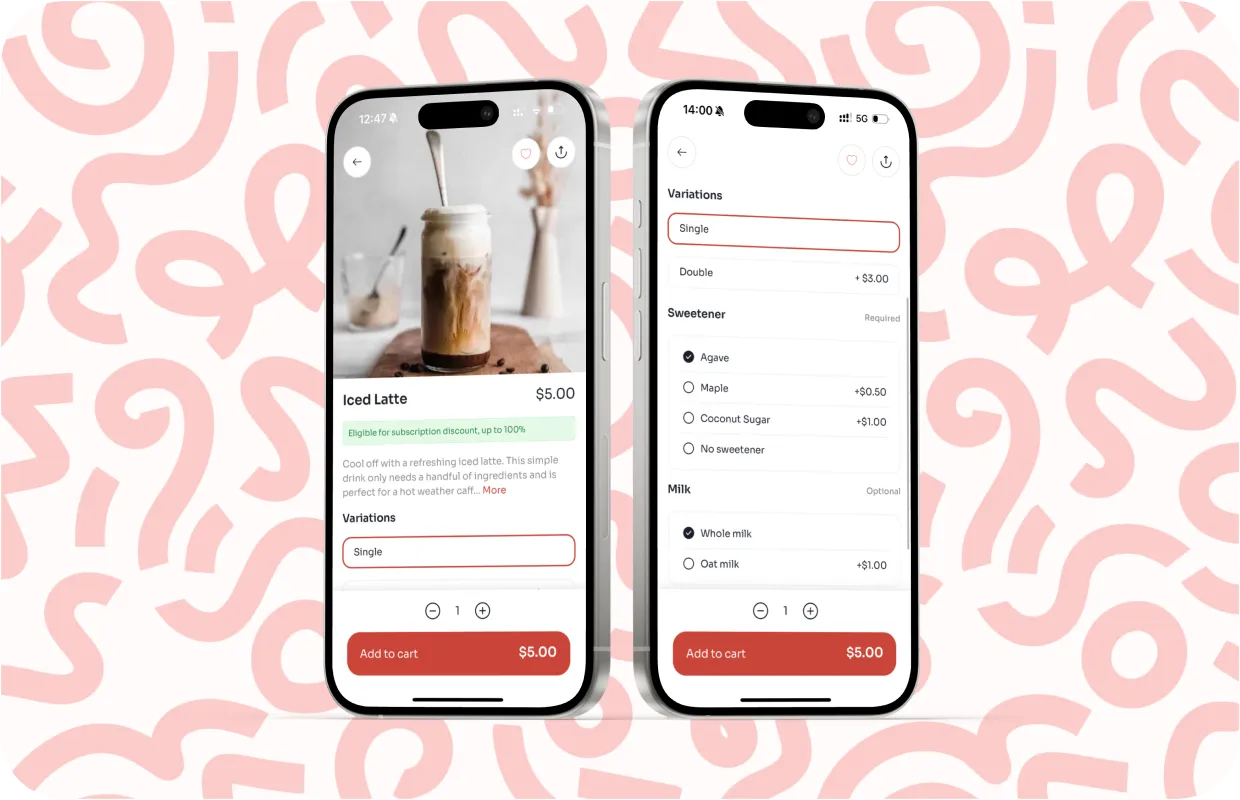
Modifiers shape how customers customize their orders. When managed well, they improve order accuracy, speed up checkout, and reduce back-and-forth with staff. When handled poorly, they overwhelm customers and increase mistakes. This section focuses on how to think about modifiers across Square and Per Diem so customization stays intentional and easy to manage.
Customization is one of the top reasons customers choose digital ordering
Understanding modifier groups in Per Diem
Modifier groups originate in Square and sync directly into the app. Each group contains related options that customers choose from when ordering an item. Per Diem does not create new modifier groups independently. Instead, it reflects the structure you define in Square and presents it in the app.
Per Diem pulls modifiers at the item level. This means customers only see modifier groups that are linked to the item they are ordering. Keeping modifier groups focused and relevant at the item level prevents customers from seeing unnecessary choices and keeps menus easier to navigate.
A strong modifier setup starts with grouping options by decision type, such as protein choice, add-ons, or preparation style. This makes customization feel natural instead of confusing.
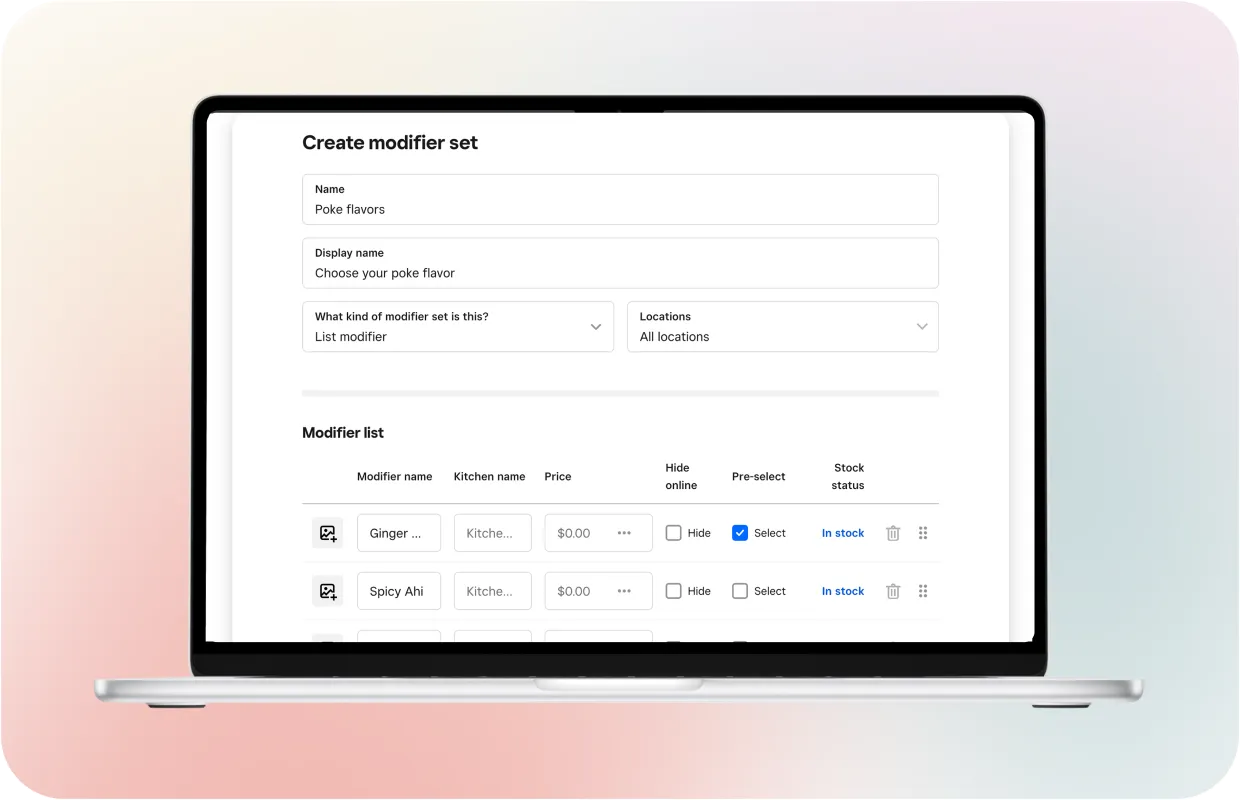
How modifier order syncs from Square to Per Diem
Modifier order affects how quickly customers make choices. When options appear in a logical order, customers move through customization faster and make fewer mistakes. Per Diem follows the order you define in Square, so you control modifier order once and trust it to carry through to the app.
Square supports two types of modifier ordering, and Per Diem supports both.
The first is the default order set in the main modifier list. This order applies across all items that use the same modifier set. If you want cheddar to appear before swiss everywhere, you set that order once in the modifier list. The app syncs that order automatically and applies it consistently across the app.
The second is item-level ordering. Square allows you to override the default order for a specific item. This is useful when the same modifier set needs to appear differently depending on the product. For example, an item may need its most popular option shown first, even if the global order stays the same. When you set a custom order at the item level in Square, Per Diem respects that override and displays the modifiers in the same order for that item only.
Per Diem always prioritizes item-level ordering when it exists. If no item-level override is set, it falls back to the default modifier list order. This approach gives you flexibility without duplication and ensures the app always reflects the most intentional version of your menu.
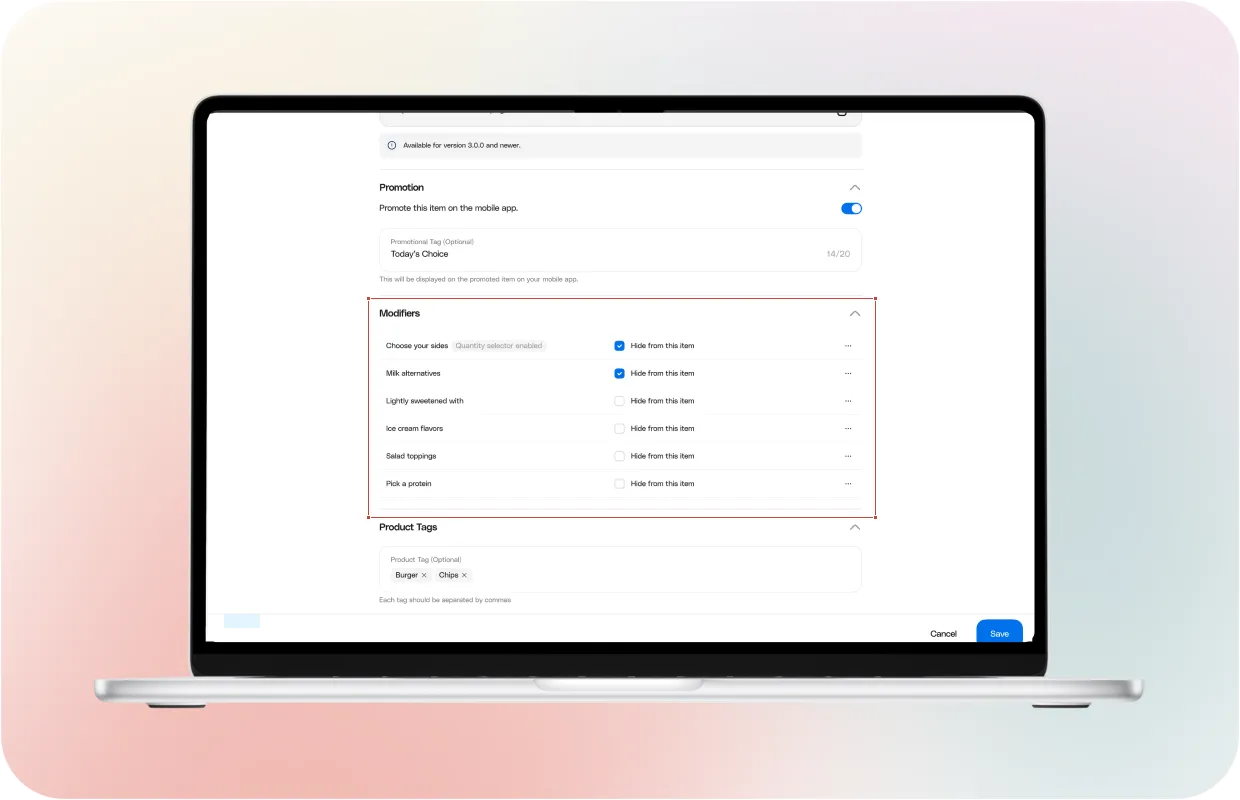
How to hide modifiers
Some modifiers should stay available in your system but not appear to customers when ordering online. Square controls this behavior, and Per Diem respects that setting automatically.
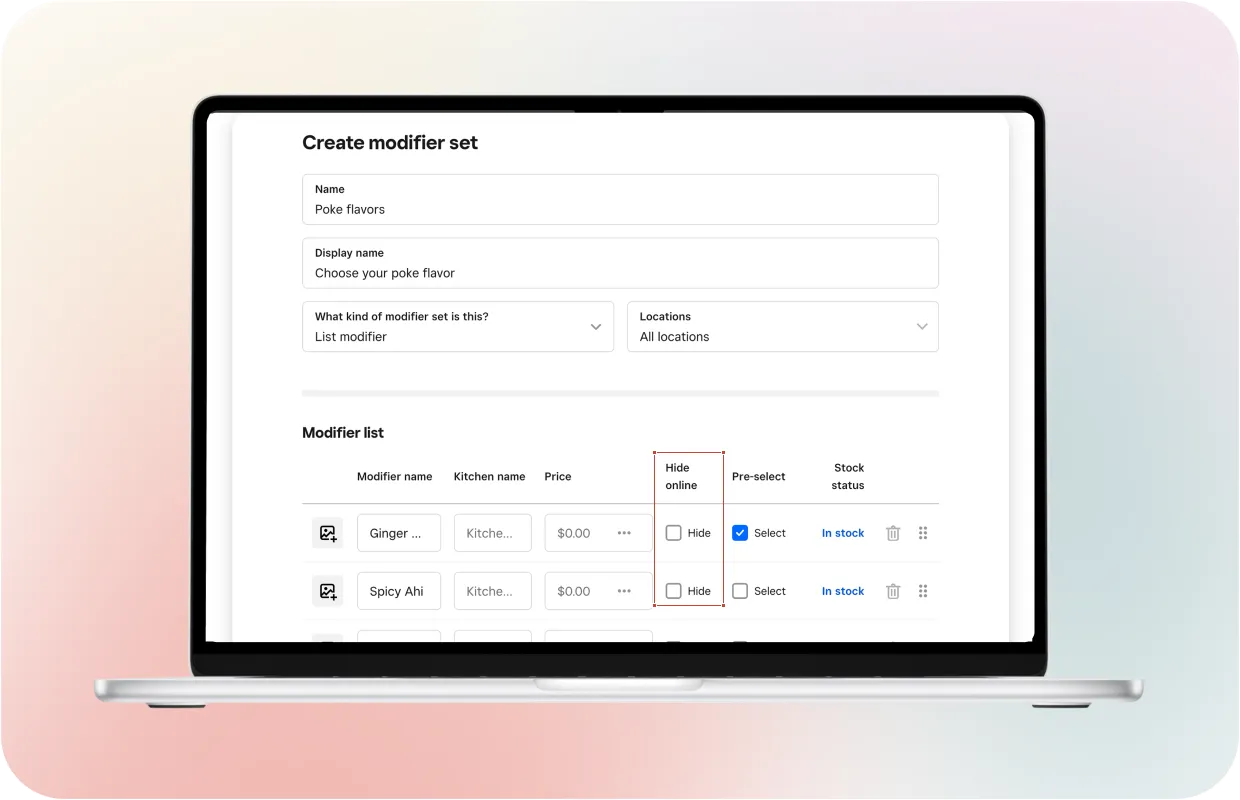
To hide a modifier from online ordering, open your Square Dashboard and go to Items. Select Modifier Sets, then choose the modifier set you want to update. Scroll to the modifier list where all individual modifiers appear. Find the modifier you want to hide and check the option to Hide online. Save your changes.
Once you hide a modifier in Square, it will no longer appear to customers in the Per Diem app. You do not need to make any additional changes in the Per Diem dashboard. This is the correct approach for internal modifiers, no longer offered, or should not be changed during online ordering.
Hiding modifiers this way keeps menus focused for customers while allowing you to keep the full modifier structure intact for internal use.
Troubleshooting modifiers not appearing
When modifiers do not appear in the app, the issue usually starts at the source. Because Per Diem syncs modifier data from Square, missing modifiers often point to settings or links that need attention.
Common causes include modifiers marked as unavailable online, modifier groups not linked to the correct items, or inactive modifier sets. In some cases, a sync refresh may be needed to pull recent changes into the app.
If modifiers still do not appear after checking these areas, our support can help review the setup and confirm sync status. Keeping modifier groups clean and properly linked prevents most visibility issues before they reach customers.
Best practices for combos and building your own flows
Combos and building your own menus rely on structure more than volume. Customers should move through choices in a clear order without feeling overwhelmed.
The best approach breaks decisions into logical steps. Start with required choices, then offer optional add-ons. Keep modifier groups focused on one type of decision at a time. Avoid mixing pricing, size, and extras in the same group.
Quantity selection works well for add-ons in build your own flows, while limits keep core choices simple. When modifiers follow a clear progression, customers customize faster, and orders arrive more accurately. We will cover how to design and launch, build your own box-style menus on Per Diem side, later in this ebook.