



















Upsells and add-ons that increase order value
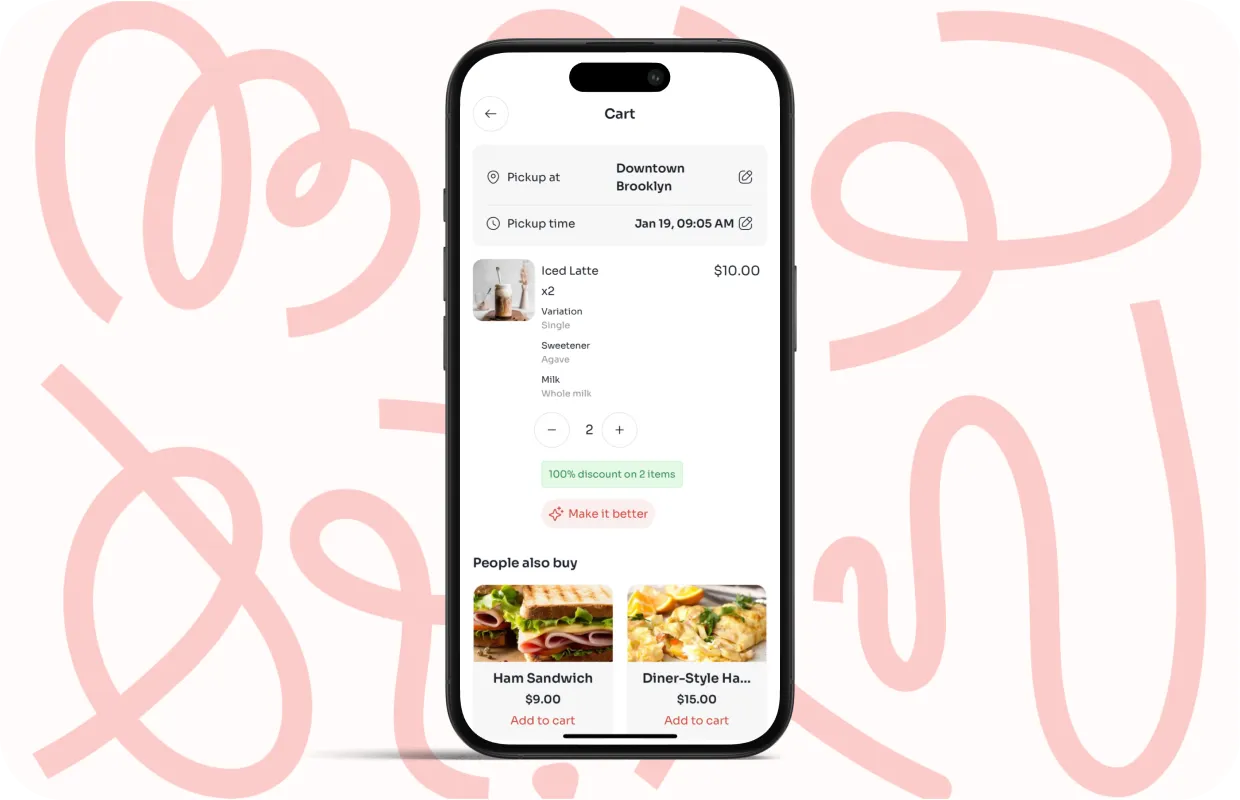
Upsells work best when they feel natural. Most guests already have a rough idea of what they want to order, and a small, well-placed suggestion can help them finish that decision. The goal is not to overwhelm them. It is to surface options that make sense for the item in front of them.
Customers are up to 3x more likely to accept an add-on when it is presented as part of the ordering flow, not as a separate decision at checkout.
Upselling individual items
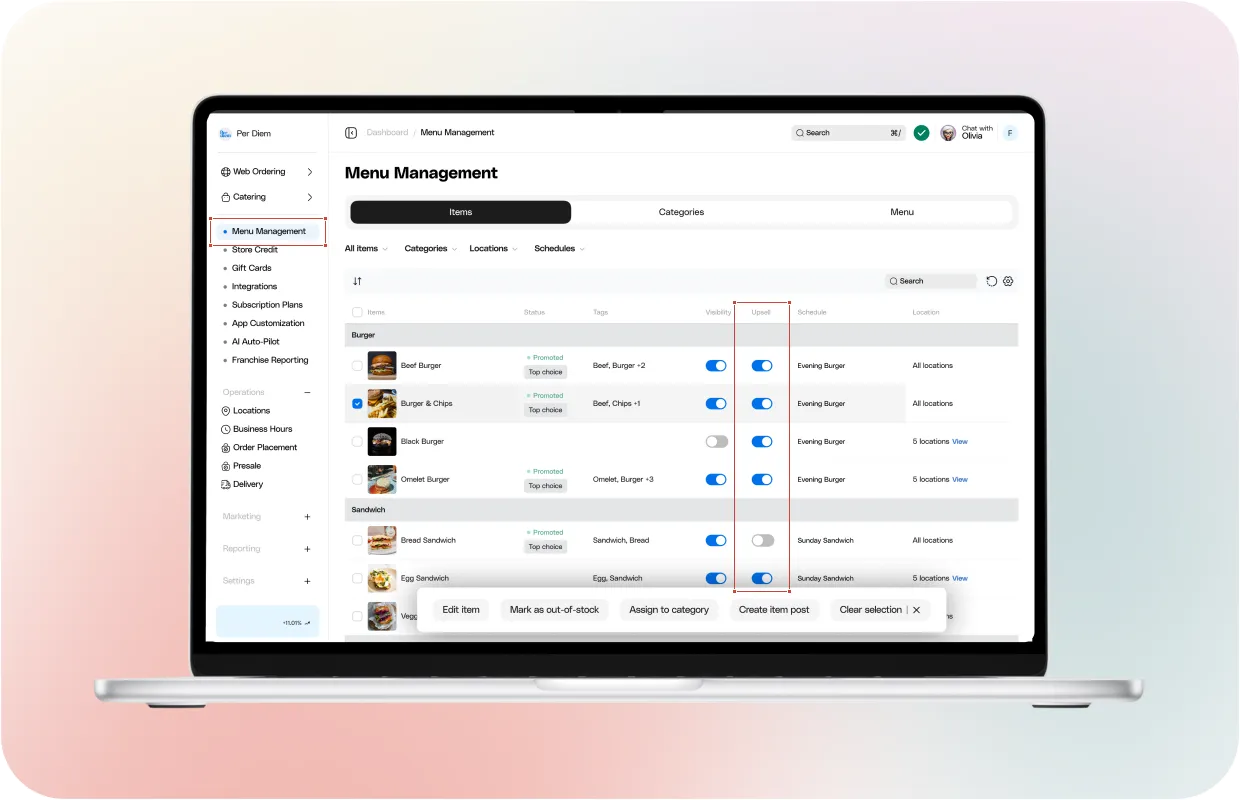
You can add an upsell to any item directly inside your items tab. This appears during checkout as a suggestion and works well for items that pair naturally with each other. A pastry that matches a latte, a dip that complements a wrap, or a side that completes a lunch box, these suggestions act like gentle nudges rather than hard sells.
To set an upsell, select the item, choose the Enable Upsell option, and hit save for the item you want to upsell. You can choose more than one, but keeping upsells focused usually performs better. Once you save, customers see these suggestions right after they add the main item to their cart.
Good upsells feel helpful. When a suggestion matches the moment, customers respond to it and treat it as part of the experience.
Strategies for high-converting upsells
A high-converting upsell shares one simple quality. It removes friction. Customers want choices that fit their intent and that do not slow them down. Strong performing upsells usually follow these patterns:
1. Match based on behavior
Look at what customers already order together. If they often buy a sweet treat with a morning drink, keep that pairing in your upsell list.
2. Suggest items with clear value
Small additions that justify their price, like protein add ons, syrups, dips, or sides, convert better than upsells that significantly raise the order cost.
3. Keep the number of suggestions small
Two or three focused choices outperform long lists. Customers move faster and feel more in control.
4. Use fresh photography
Clear photos help customers make quick decisions, especially for visually appealing items like pastries or bowls.
When upsells fit naturally, customers complete their orders with confidence, and average order value climbs without forcing anything on them.
Keep learning at your own pace
Browse our full ebook collection for more tips on menu design, customer experience, and sales strategies.