

.svg)

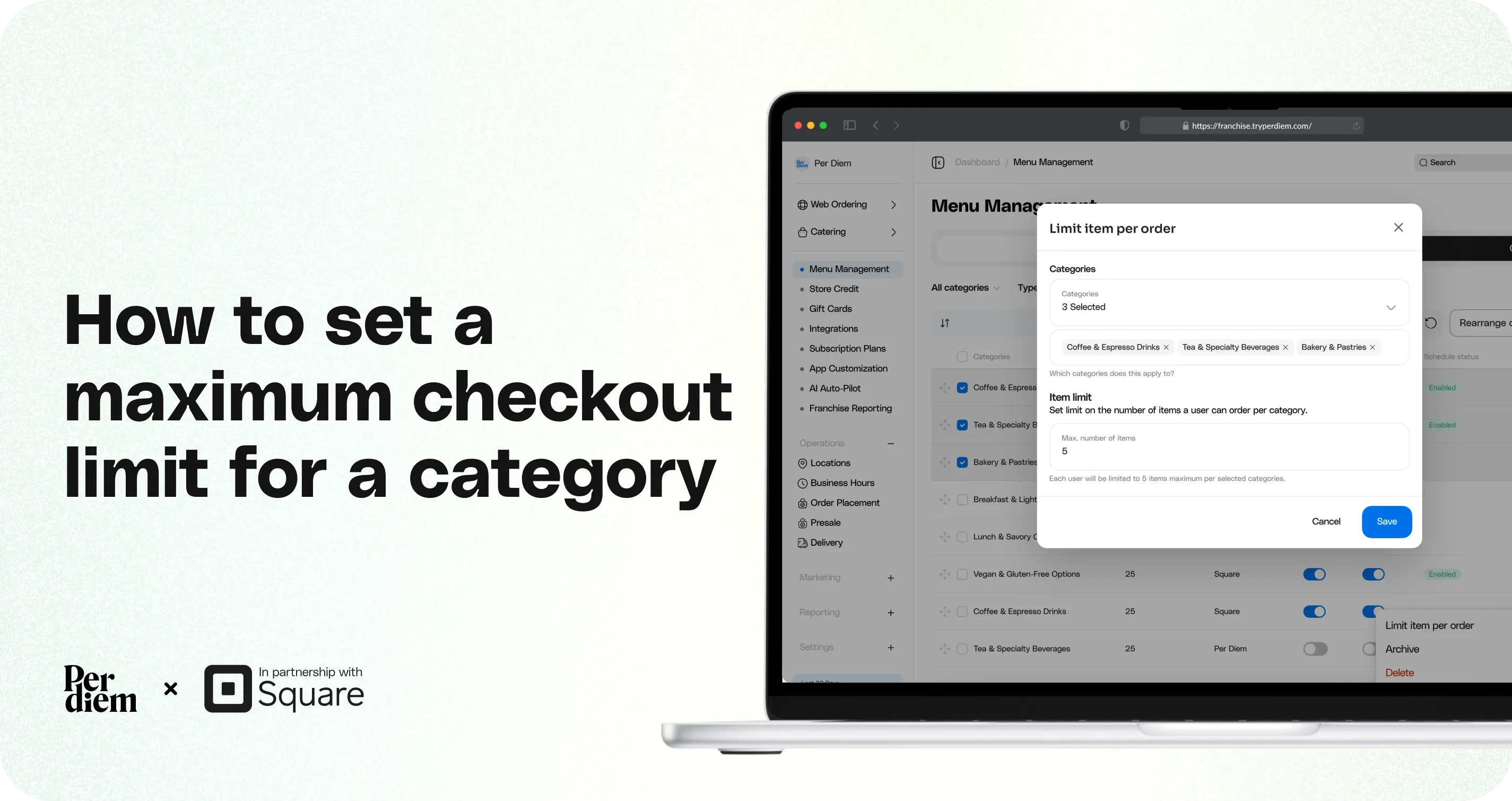
How to set a Maximum Checkout Limit for a category
Instructions
- Log in to your Per Diem Merchant Dashboard
- Navigate to Menu Management → Categories
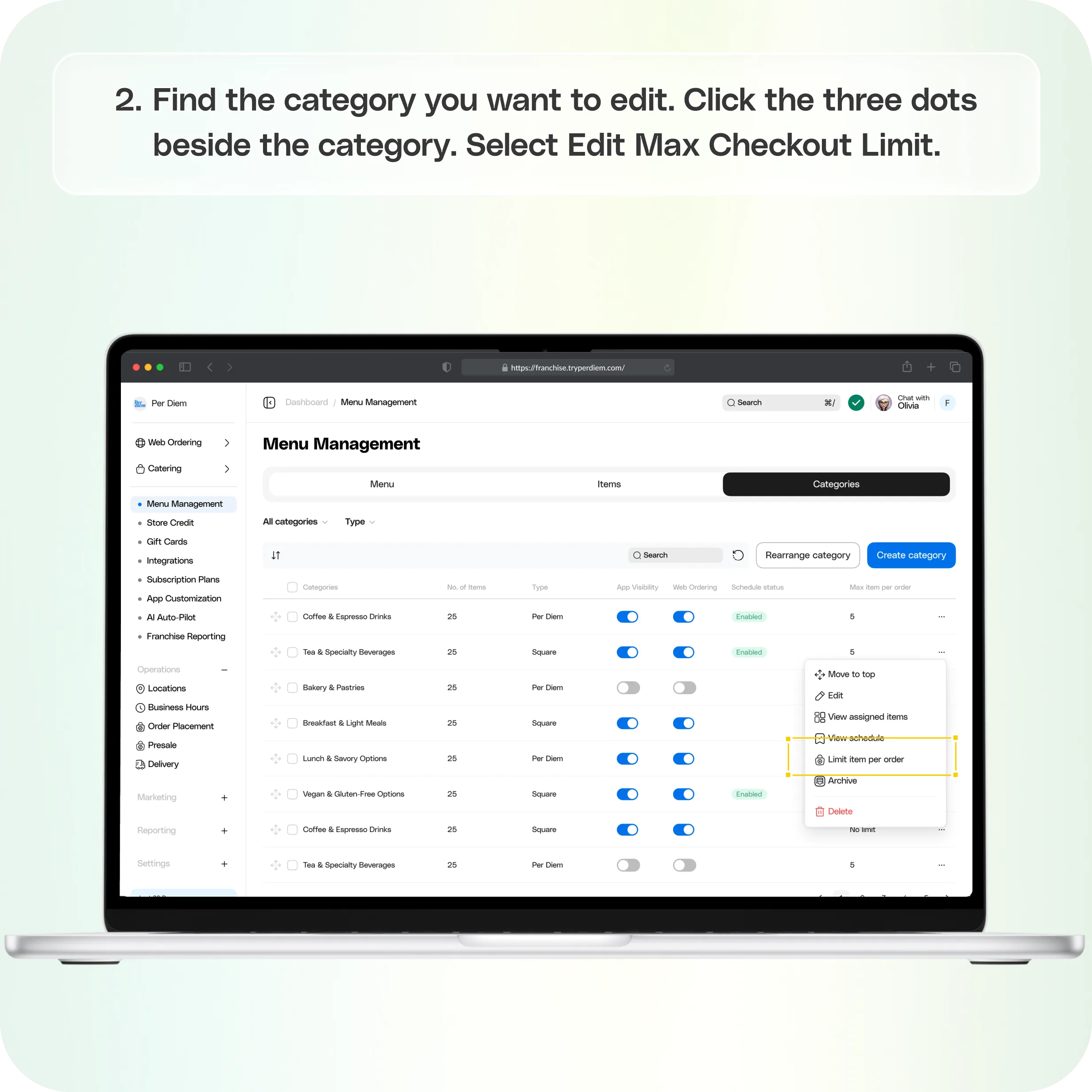
- Find the category you want to edit
- Click the three dots beside the category
- Select Edit Max Checkout Limit
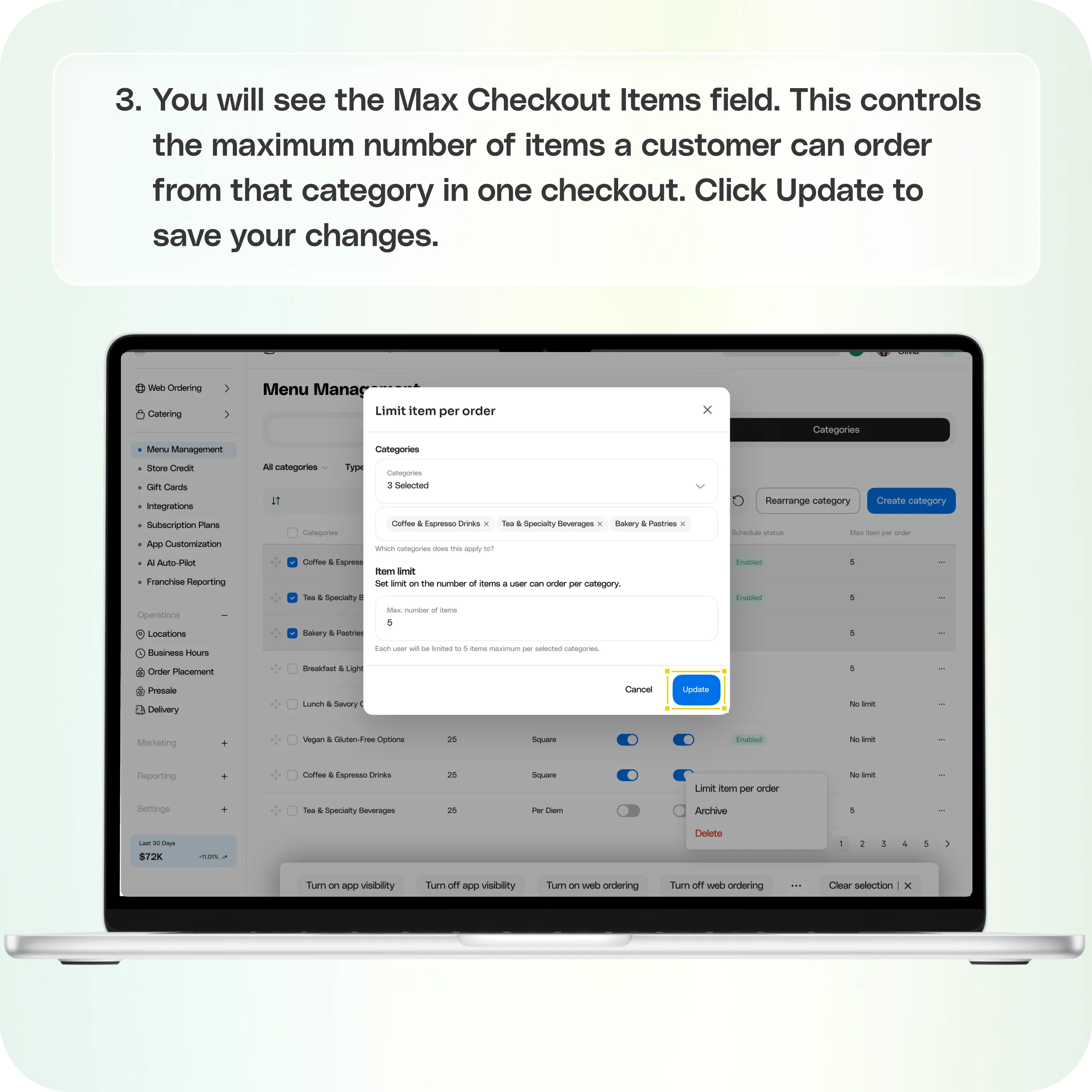
- You will see the Max Checkout Items field. This controls the maximum number of items a customer can order from that category in one checkout
- Enter 0 if you want no limit
- Use the up and down arrows to increase or decrease the number
- Click Update to save your changes
Still require support?
Contact support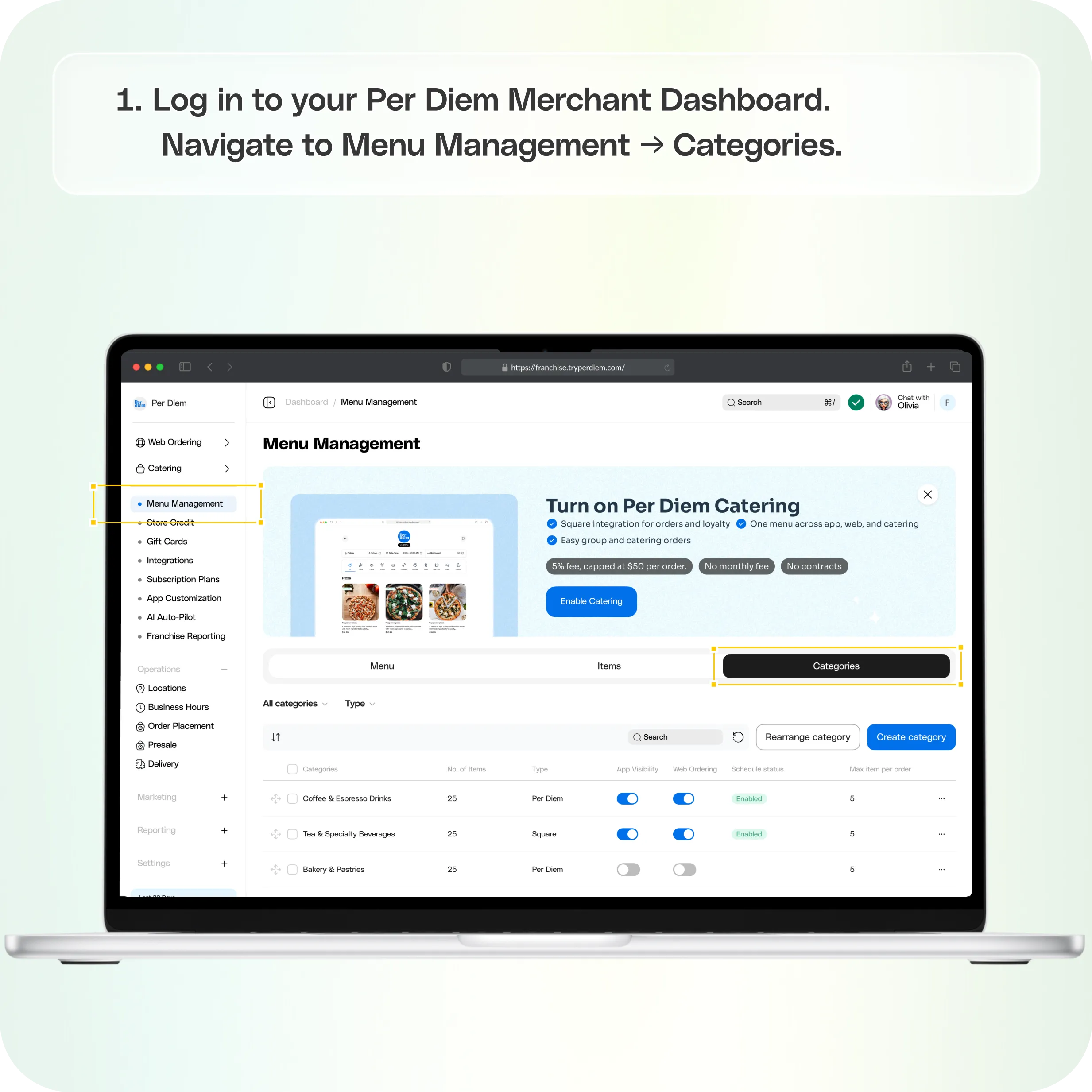


1. Go to Category Settings
Log in to your Per Diem Merchant Dashboard.
Navigate to Menu Management → Categories.
2. Open the Category Limit Settings
Find the category you want to edit.
Click the three dots beside the category.
Select Edit Max Checkout Limit.
Note: Category limits require app version 7.4 or higher.
3. Set the Maximum Checkout Limit
You will see the Max Checkout Items field.
This controls the maximum number of items a customer can order from that category in one checkout.
• Enter 0 if you want no limit
• Use the up and down arrows to increase or decrease the number
• Example: Enter 10 to limit customers to 10 items from that category per order
Click Update to save your changes.
When to Use Category Limits
Category limits are helpful when you want to:
• Prevent bulk ordering of high-demand items
• Manage production capacity during busy hours
• Control limited time or seasonal product availability
• Balance orders across multiple categories
Join the Per Diem Local Partner Program
Submit updates to your business details for review by Per Diem’s moderation team before they go live.


.svg)


Still have questions?Contact us
Ask anything or just say hi


