


























Set Up and Optimize Your Square Menu in Per Diem
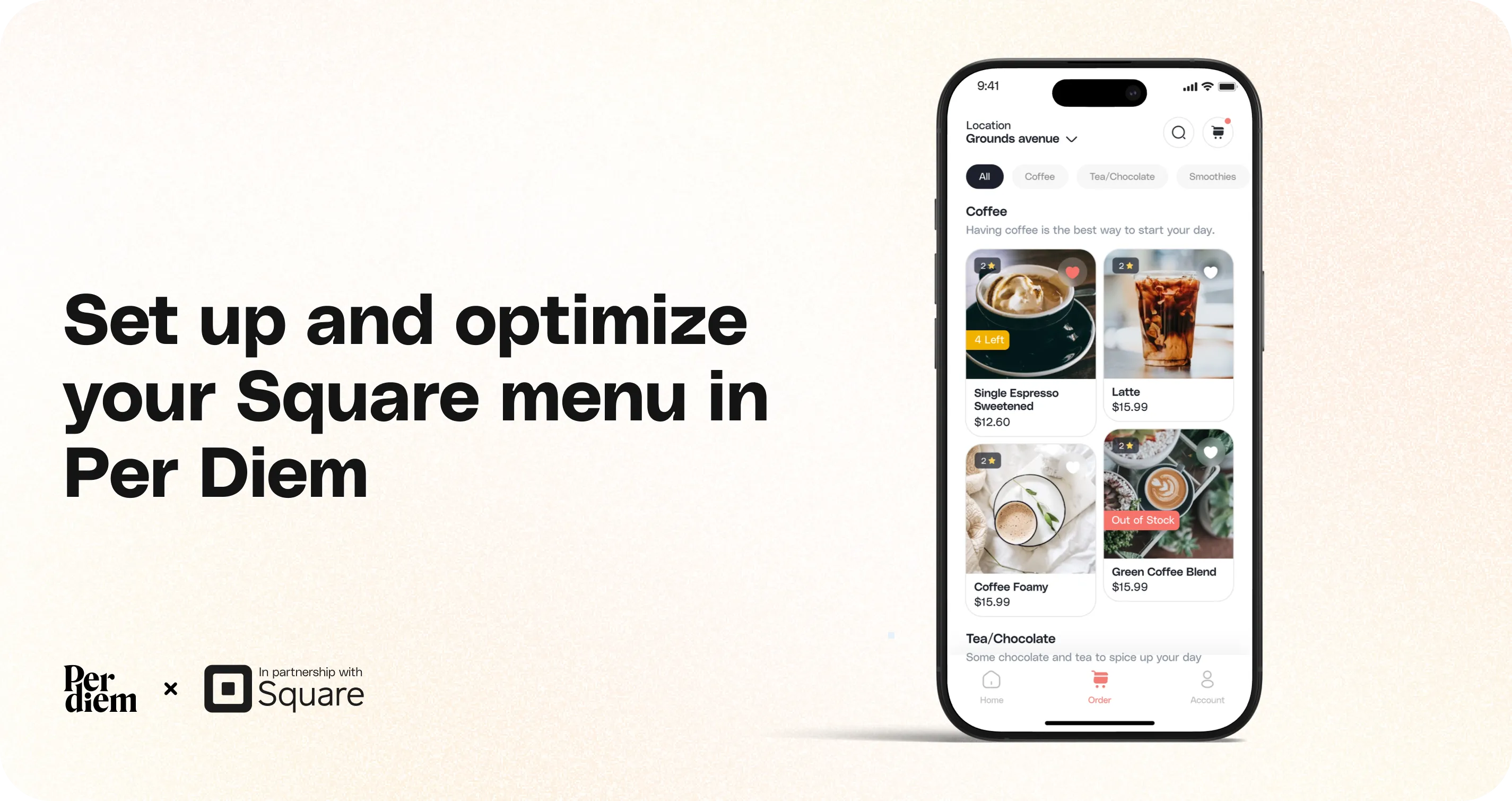
Per Diem pulls your menu structure, categories, items, modifiers, prices, and order directly from Square. That means your Square menu should be complete before you turn it on in Per Diem.
For help creating or updating your menu in Square, follow Square’s guide.
Once your Square menu is ready, you can enable it in Per Diem and control which items and categories appear in your app and web ordering.
To make sure your menu appears correctly, there are a few key steps and best practices to follow.
- Go to Menu Management → Menu
- Enable the Square menu
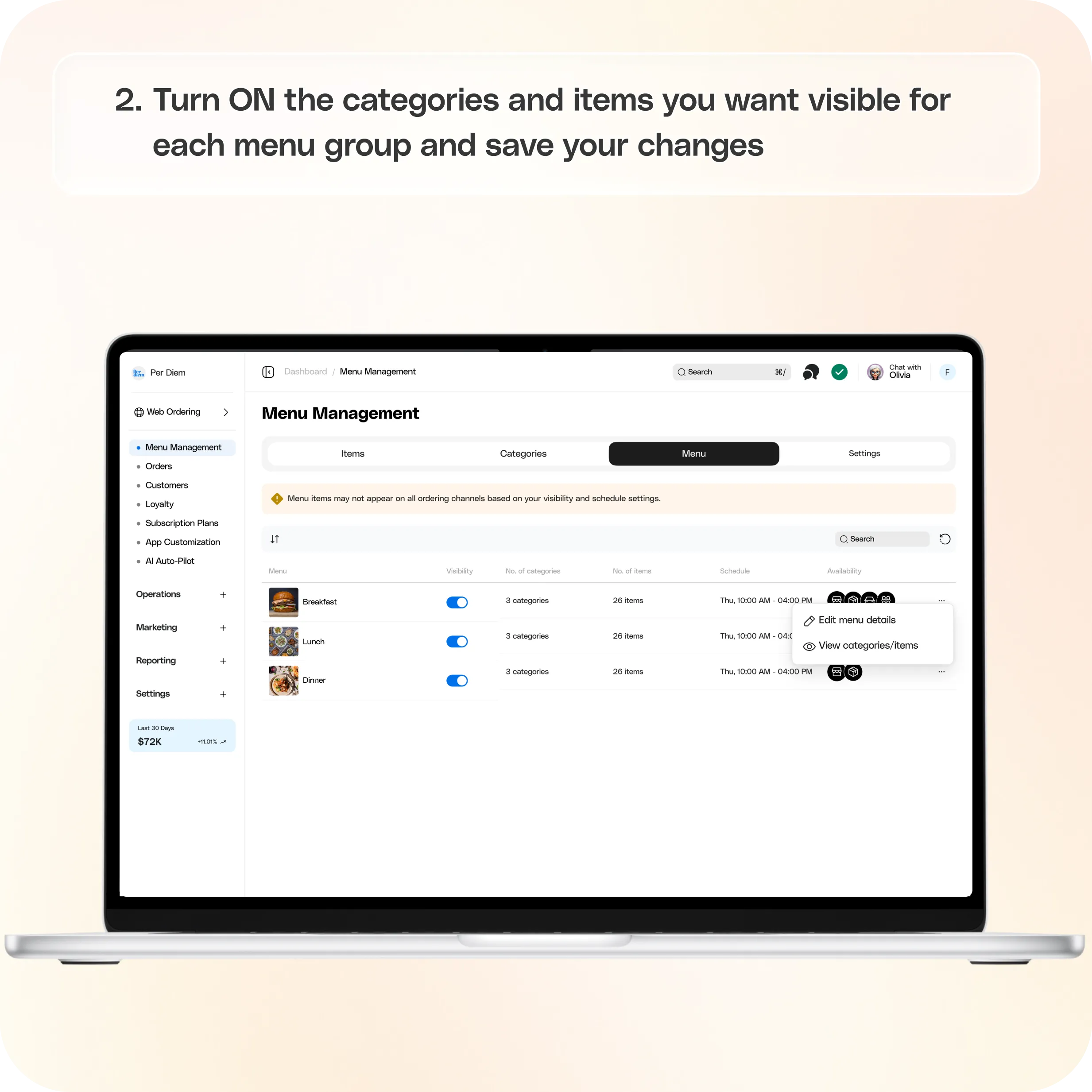
- Go to Menu Management → Settings
- For each menu group:
- Turn ON the categories you want visible
- Turn ON the items you want visible
- Once Square menu is enabled, all item and category order comes directly from Square. You cannot drag and drop or reorder items in Per Diem.
- Per Diem only controls visibility (on/off). To change menu order or structure, update it in Square → Menu.
- If item or category visibility is turned off in Per Diem, it will not appear in:
- Your app
- Your web ordering
- Click Save after updating visibility settings.
Still require support?
Contact support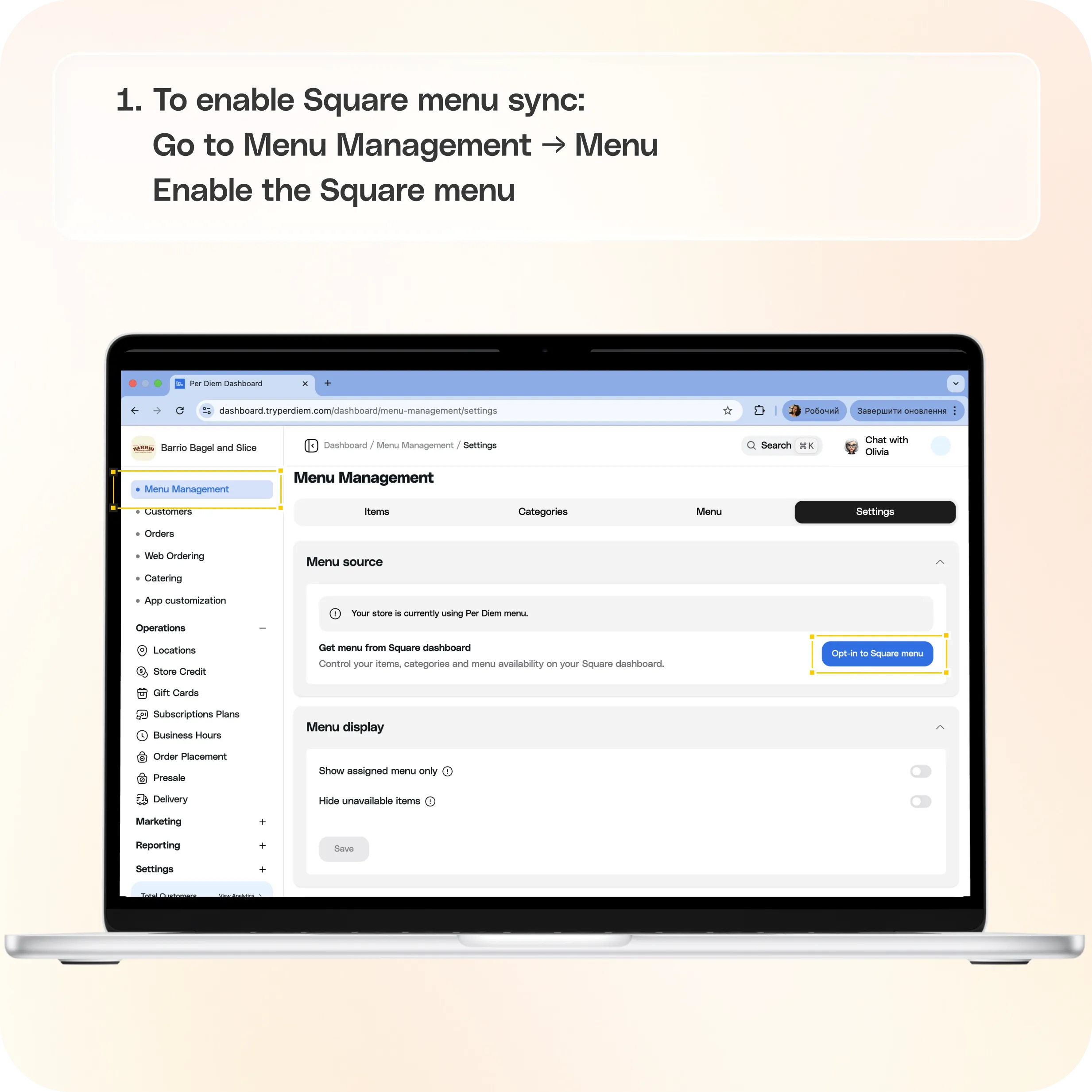
What this setup does
With Square menu enabled:
- Your menu syncs directly from Square
- Menu structure, items, and modifiers are managed in Square
- Visibility of items and categories is controlled in Per Diem
**
Where to find Square menu settings**
In your Per Diem dashboard:
- Menu source:
Menu Management → Menu - Visibility settings:
Menu Management → Settings
**
How to enable Square menu**
Step 1: Enable Square menu
- Go to Menu Management → Menu
- Enable the Square menu
This connects your Square menu to Per Diem.
Step 2: Turn on item and category visibility
After enabling the Square menu:
- Go to Menu Management → Settings
- For each menu group:
- Turn ON the categories you want visible
- Turn ON the items you want visible
- Once Square menu is enabled, all item and category order comes directly from Square. You cannot drag and drop or reorder items in Per Diem.
- Per Diem only controls visibility (on/off). To change menu order or structure, update it in Square → Menu.
This step is required.
If item or category visibility is turned off in Per Diem, it will not appear in:
- Your app
- Your web ordering
Step 3: Save your changes
Click Save after updating visibility settings.
Important: Where to manage your menu
Once Square menu is enabled:
- All menu structure changes must be done in Square
- This includes:
- Item names
- Pricing
- Modifiers
- Category structure
- Item order
Per Diem only controls what is visible, not how the menu is built.
**
Best Practices for Square Menu Setup**
To make sure your menu looks and works perfectly in your app and web ordering, follow these best practices.
1. Organize categories clearly in Square
Your category structure in Square becomes your navigation in Per Diem.
Keep categories:
- Simple and easy to scan
- Grouped logically
- Not overly long
Good example:
- Coffee
- Breakfast
- Pastries
2. Control item order in Square
The order of items and categories is pulled directly from Square.
If something looks out of place in your app, update the order in Square, not in Per Diem.
3. Use visibility in Per Diem intentionally
Use Per Diem visibility settings to:
- Hide items temporarily
- Test menu changes
- Control what appears in app vs what exists in Square
If something is missing in your app, this is the first place to check.
4. Avoid empty categories
If a category has no visible items, it may not display properly.
Make sure:
- Categories have active items
- Items inside them are toggled ON in Per Diem
5. Keep menu clean and updated
Since your menu syncs from Square:
- Remove outdated items
- Keep pricing accurate
- Avoid duplicate categories
A clean Square menu ensures a smooth ordering experience.
**
Common issues and quick checks**
Menu not showing in app or web ordering?
Check:
- Square menu is enabled
- Categories are toggled ON in Per Diem
- Items are toggled ON in Per Diem
Items missing?
Check:
- Item visibility in Per Diem settings
- Item is active in Square
- Item belongs to a visible category
Menu order looks wrong?
Update item or category order directly in Square.
Still have questions?Contact us
Ask anything or just say hi