




















Help center
How to set up Dietary Preferences for items
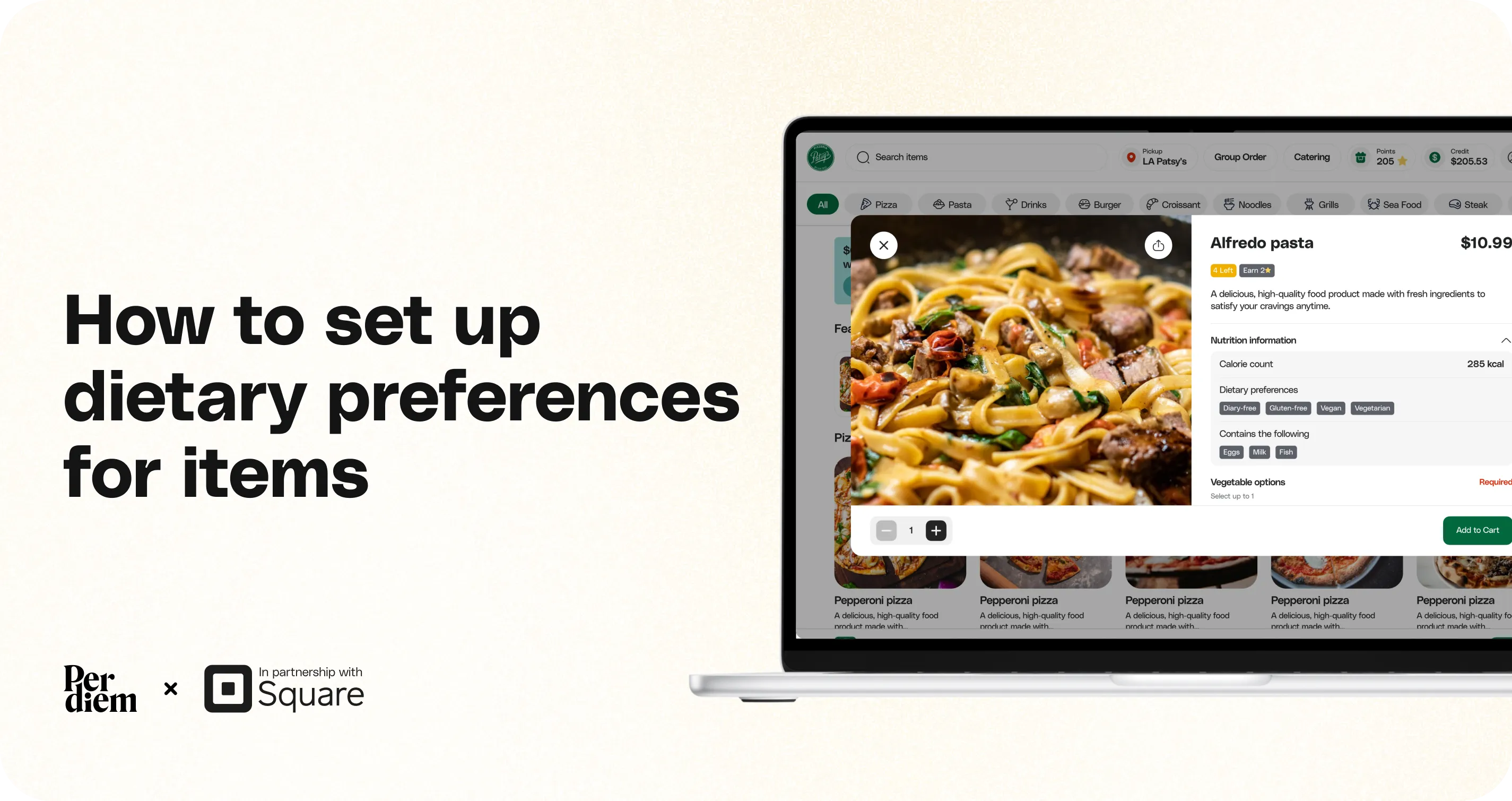
Setting dietary preferences helps customers quickly understand item details like vegan, gluten-free, or dairy-free. Once configured in Square, this information will sync automatically and display in Per Diem across Web and Mobile ordering.
Instructions
- Log in to your Square Dashboard.
- Go to Items → Item Library
- Select the item you want to update.
- Confirm the Item Type is set correctly.
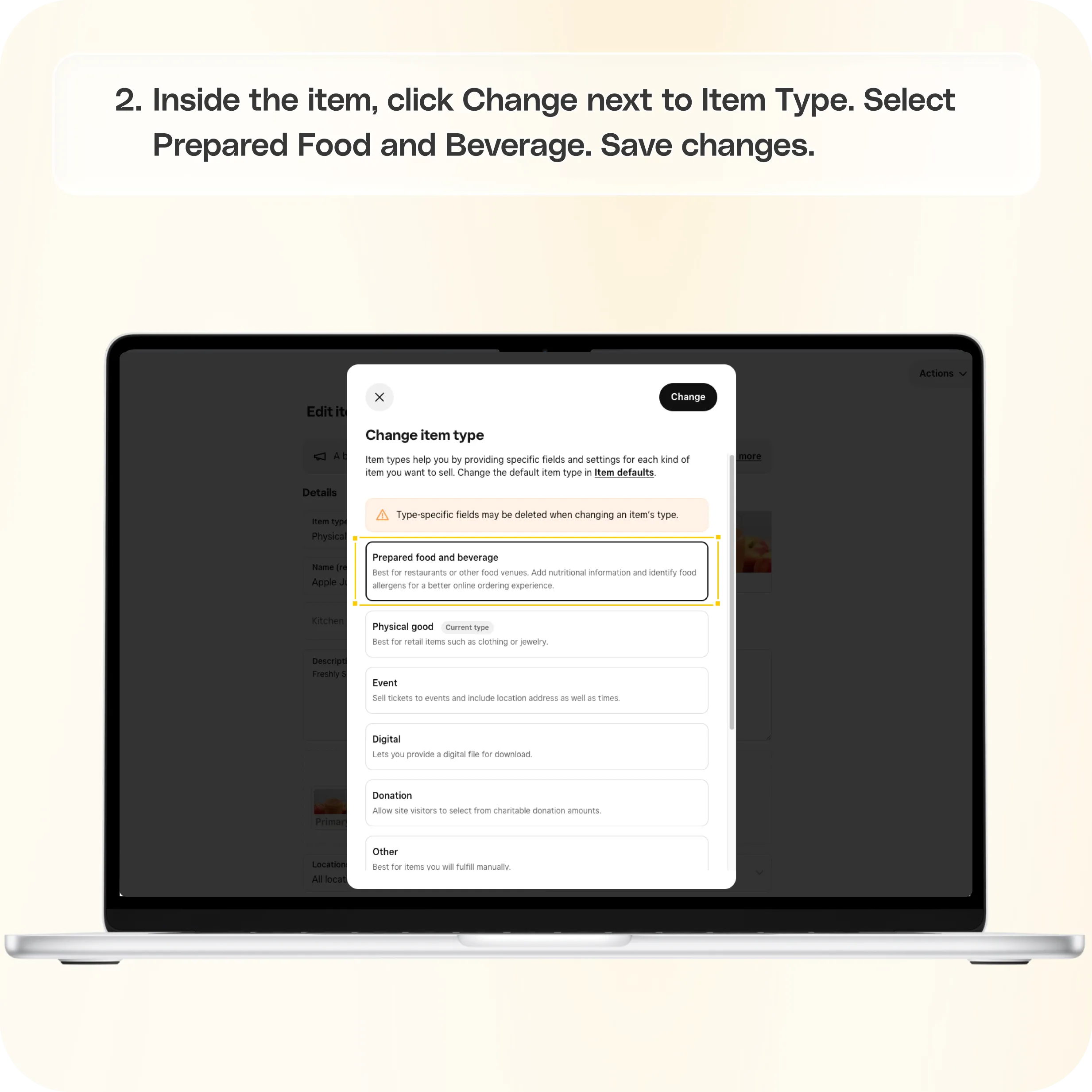
- Inside the item, click Change next to Item Type.
- Select Prepared Food and Beverage.
- Save changes.
- Scroll to the Nutritional Information section.
- Add calories if available.
- Select applicable Dietary Preferences (for example, Vegan, Gluten Free, Dairy Free).
- Click Save.
- Per Diem automatically pulls this data via sync.
- Dietary preferences will show on item pages in Web Ordering and the Mobile App.
Still require support?
Contact support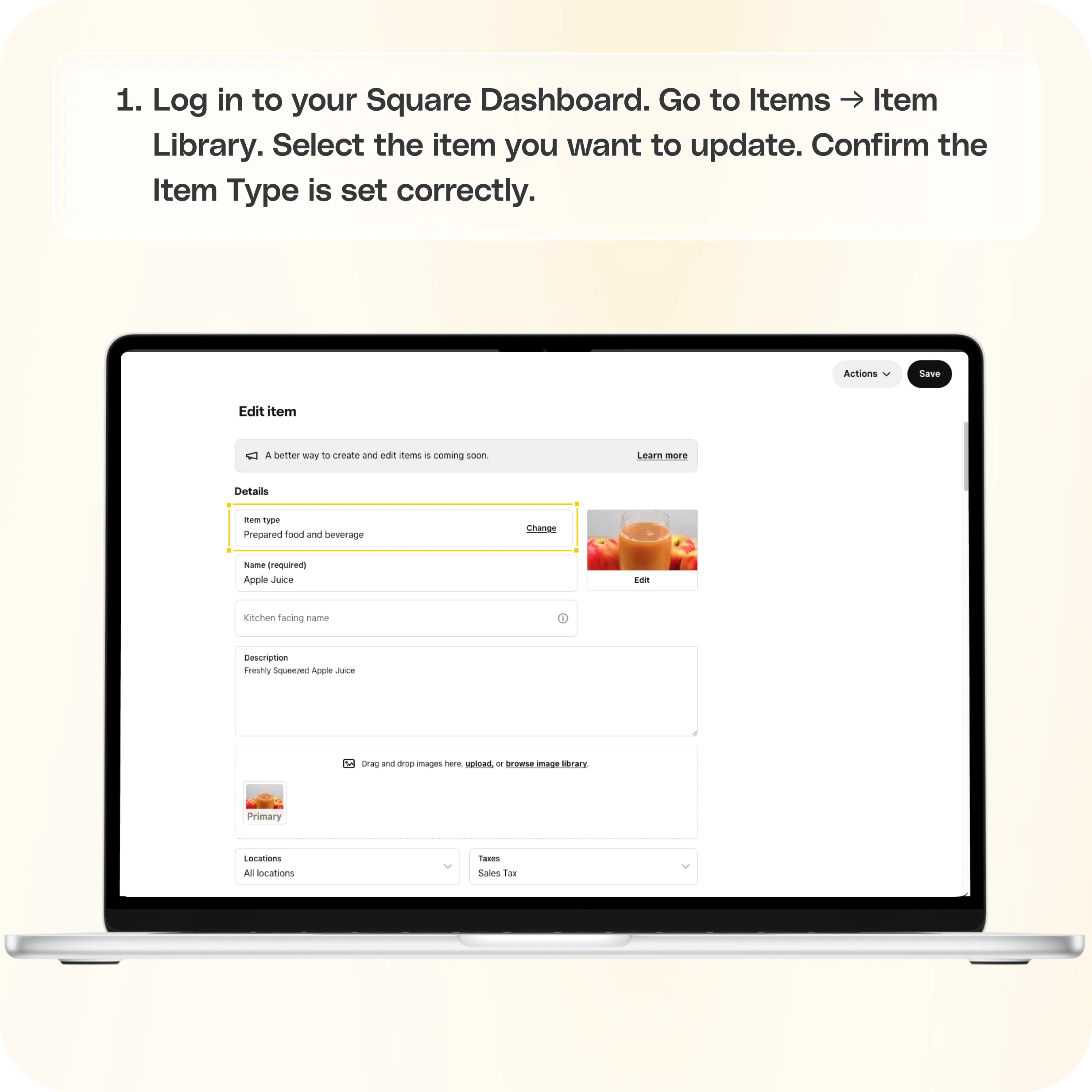
1. Log in to Square and Open the Item
- Log in to your Square Dashboard.
- Go to Items → Item Library
- Select the item you want to update.
- Confirm the Item Type is set correctly.
This ensures nutrition and dietary fields are available.
2. Set the Correct Item Type (If Needed)
- Inside the item, click Change next to Item Type.
- Select Prepared Food and Beverage.
- Save changes.
Note: Changing item type may remove some type-specific fields, so double-check before saving.
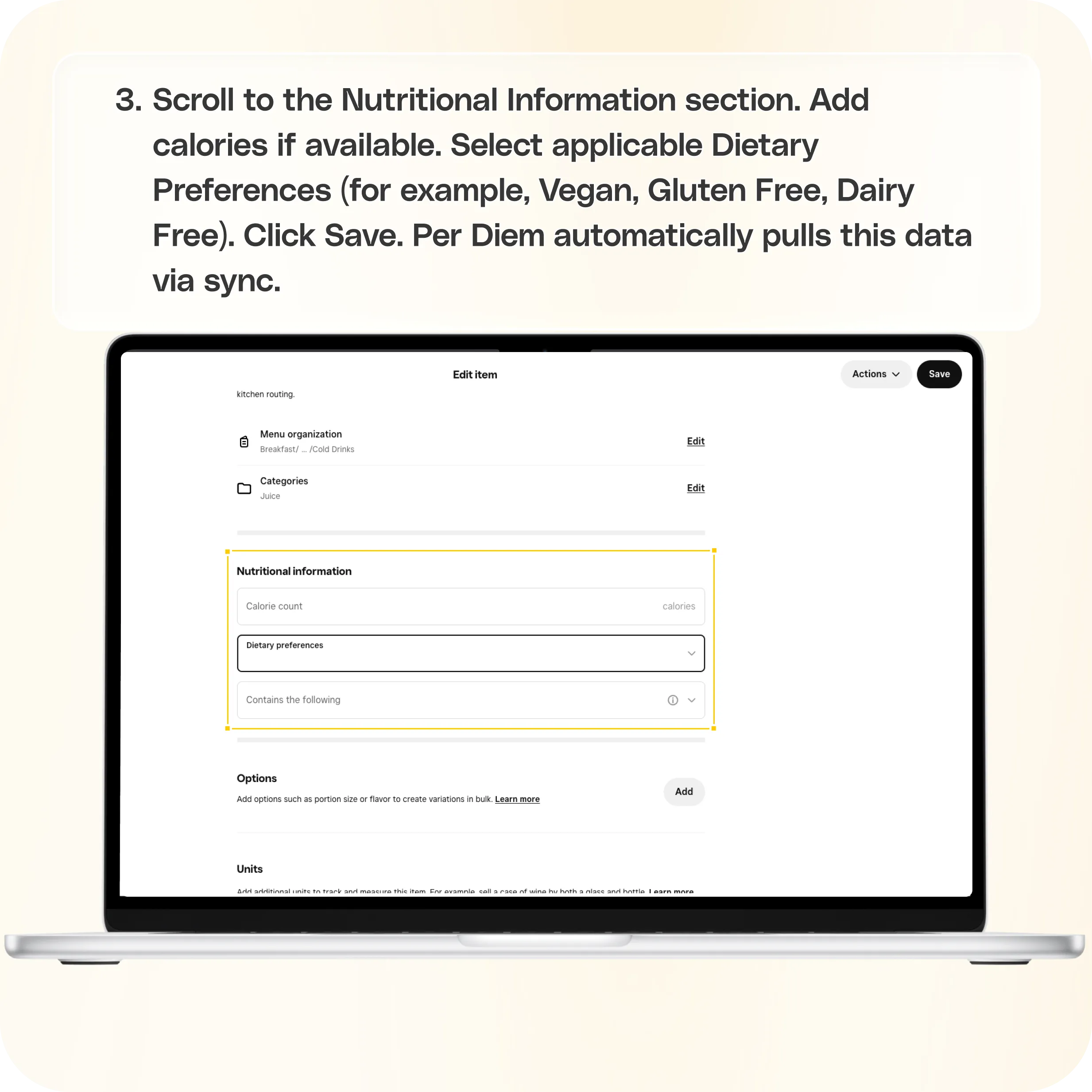
3. Add Dietary Preferences and Nutritional Information
- Scroll to the Nutritional Information section.
- Add calories if available.
- Select applicable Dietary Preferences (for example, Vegan, Gluten Free, Dairy Free).
- Click Save.
How This Appears in Per Diem
Once saved in Square:
- Per Diem automatically pulls this data via sync.
- Dietary preferences will show on item pages in Web Ordering and the Mobile App.
Still have questions?Contact us
Ask anything or just say hi