


























Promote and upsell items in Per Diem
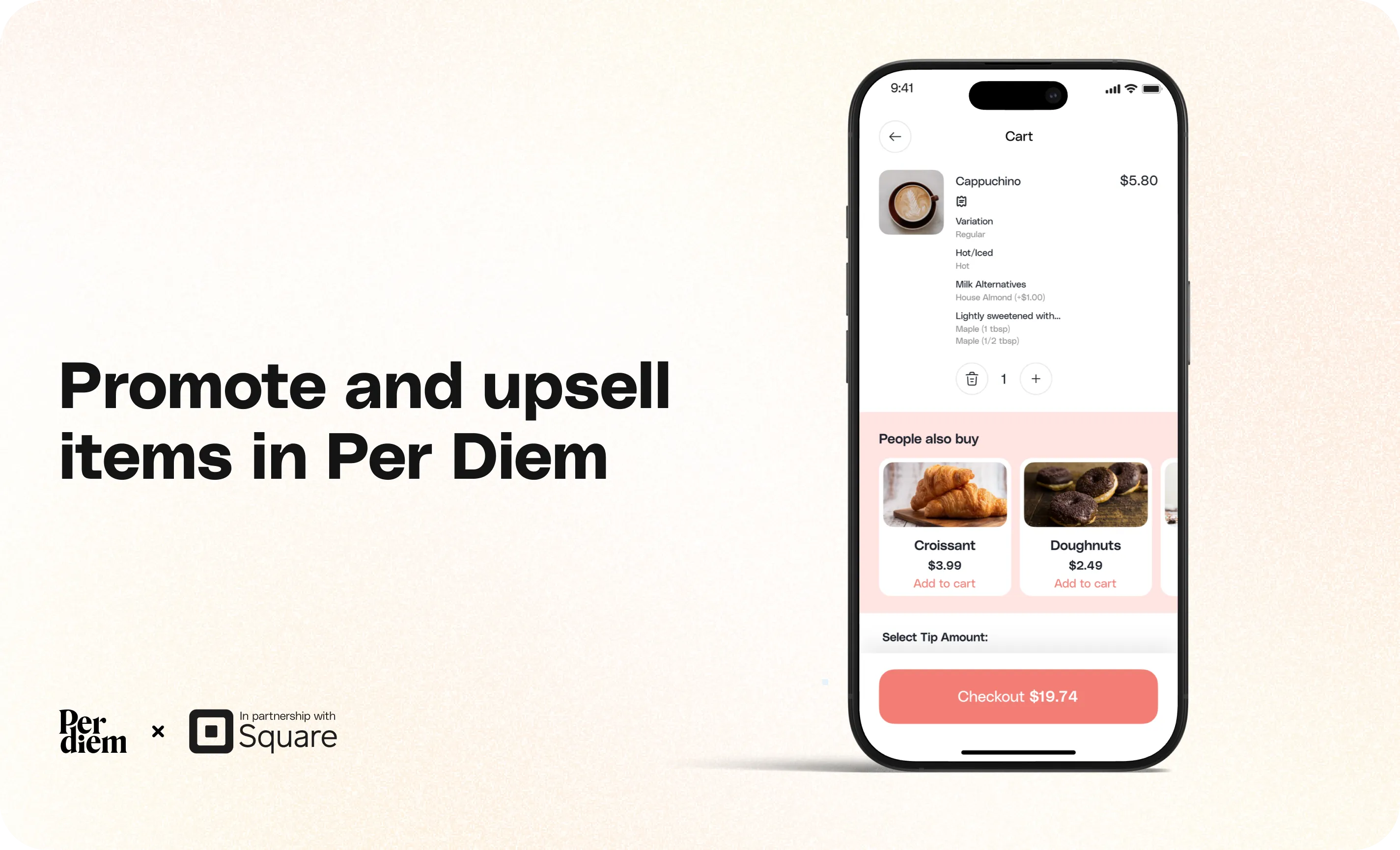
Per Diem makes it easy to highlight popular menu items and encourage customers to add more to their order. You can promote items to make them stand out in your app or enable upsells to recommend them as additional purchases. Both features are managed from the Items page in your merchant dashboard.
Still require support?
Contact support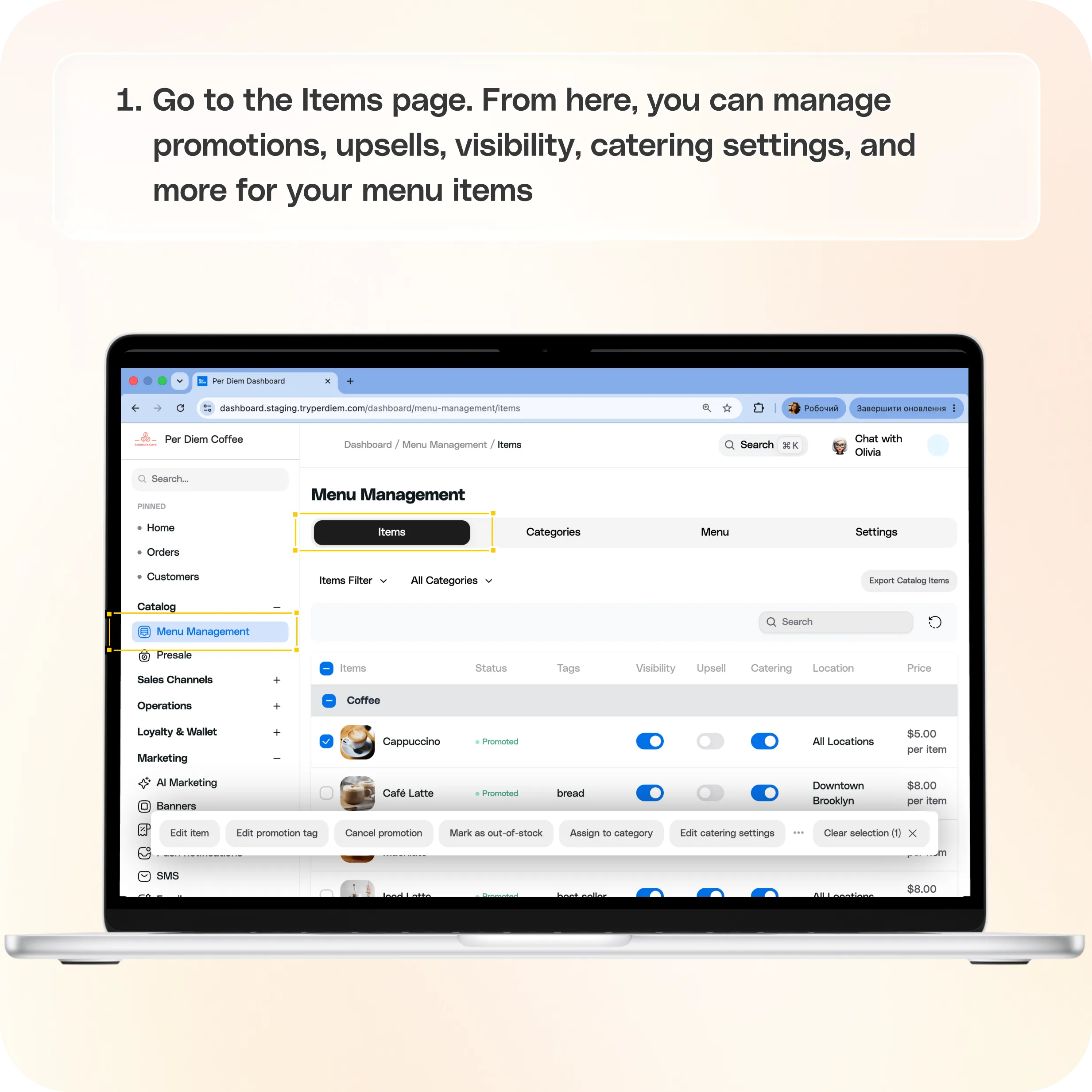
1. Go to the Items page
Log in to your Per Diem Merchant Dashboard and navigate to:
Menu Management → Items
From here, you can manage promotions, upsells, visibility, catering settings, and more for your menu items.
2. Promote an item
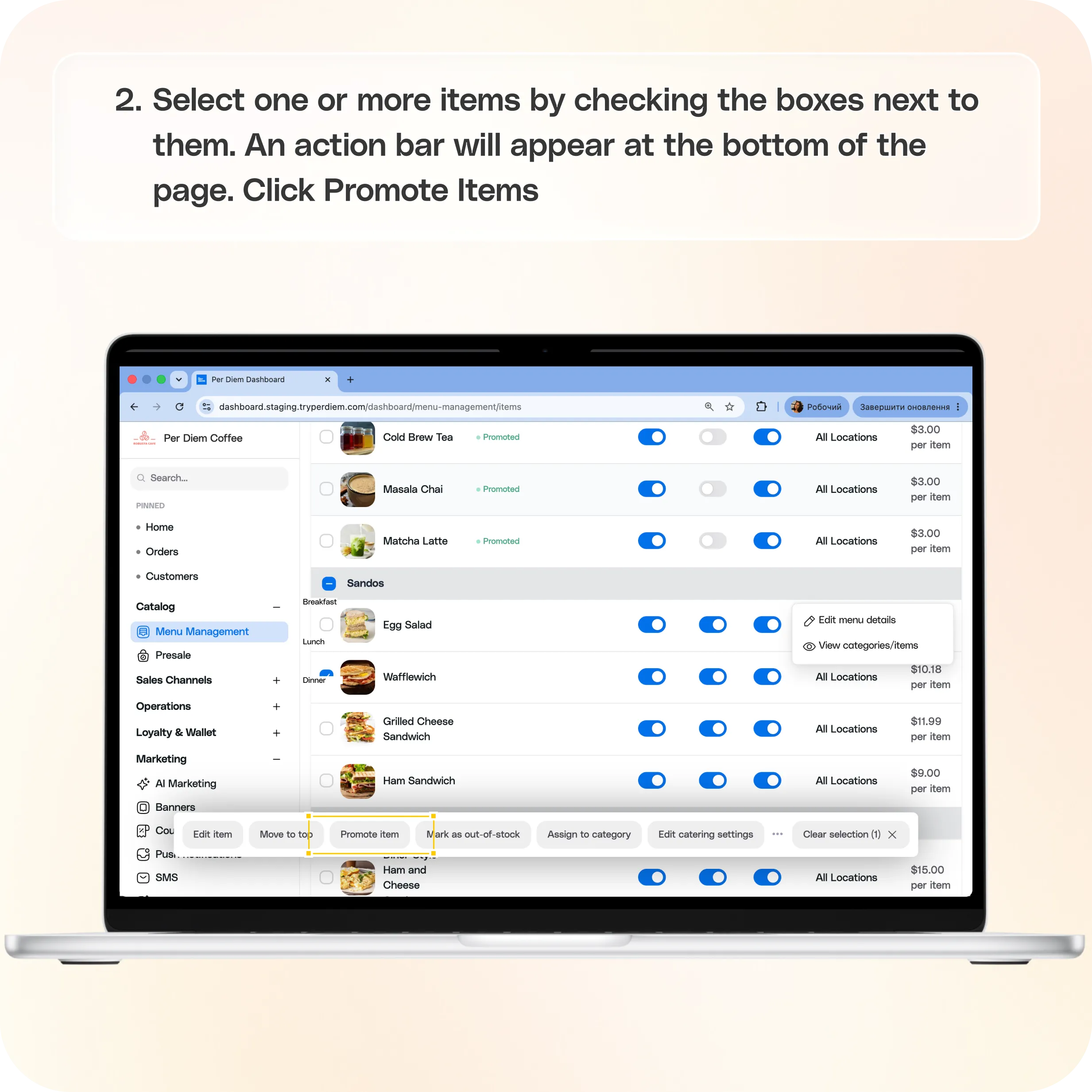
To feature an item in your mobile app:
- Select one or more items by checking the boxes next to them.
- An action bar will appear at the bottom of the page.
- Click Promote Items.
A confirmation window will appear showing how many items you're about to promote.
Optionally, add a Promotion Tag to display a short label on the promoted item, such as New, Popular, or Limited Time.
When you're ready, click Promote.
Your selected items will now be highlighted in your mobile app, making them more visible to customers.
3. Cancel a promotion
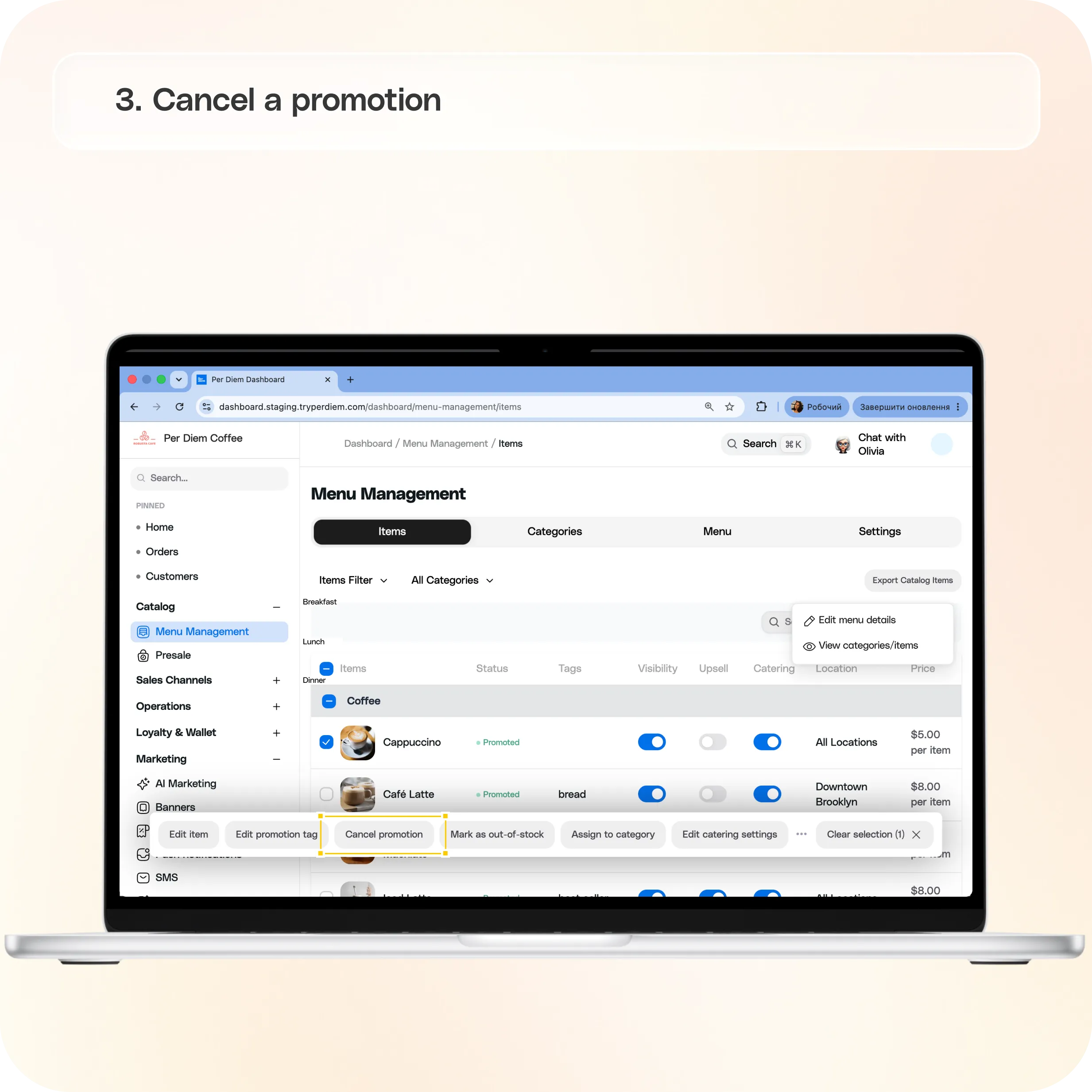
If you no longer want an item to be promoted:
- Select the promoted item or items.
- Click Cancel Promotion from the action bar.
This removes both the promotional highlight and any promotion tag from the selected items.
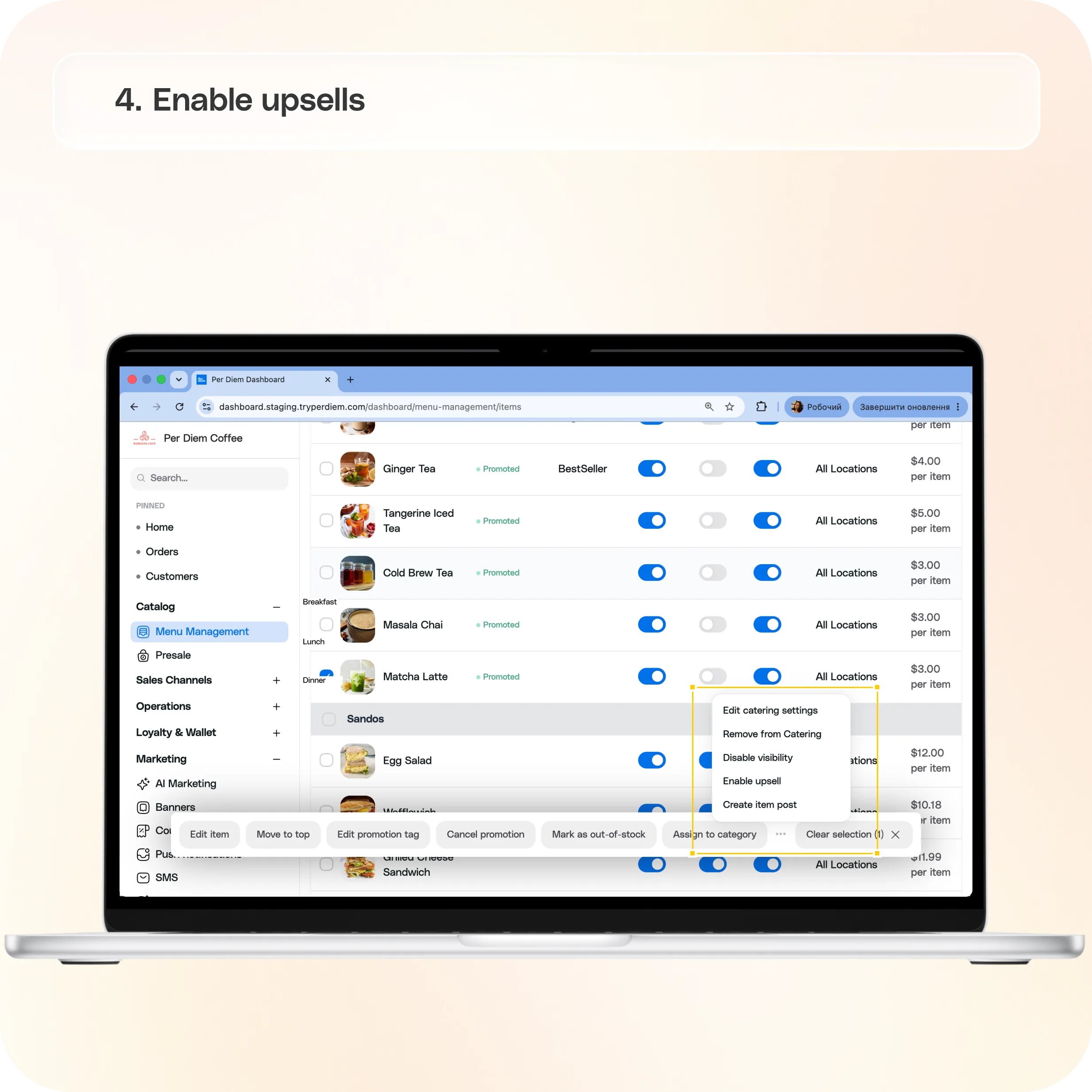
4. Enable upsells
Upsells help encourage customers to add featured items to their order during the ordering process.
To enable upsells:
- Select one or more items; the action bar appears below.
- From the action bar, select Enable Upsell.
The selected items will now be available as upsell recommendations.
To disable upselling later, simply turn off the Upsell toggle in the Upsell column for that item.
5. Other actions available for selected items
While selecting multiple items, you can also use the same action bar to make other updates in bulk, including:
- Mark items as Out of Stock
- Assign items to a Category
- Add items to Catering
- Enable or disable Visibility
- Create an Item Post
These bulk actions make it easy to update multiple menu items at the same time, helping you manage your menu more efficiently.
Still have questions?Contact us
Ask anything or just say hi