


























Order Throttling
Order Throttling helps you pace incoming orders, prevent kitchen overload, and manage peak hours more efficiently. With order pacing, you can control how many orders are accepted within specific time windows across locations.
- Log in to your Per Diem Merchant Dashboard.
- Go to Operations from the left sidebar.
- Click Order Placement.
- Open the Order Throttling tab.
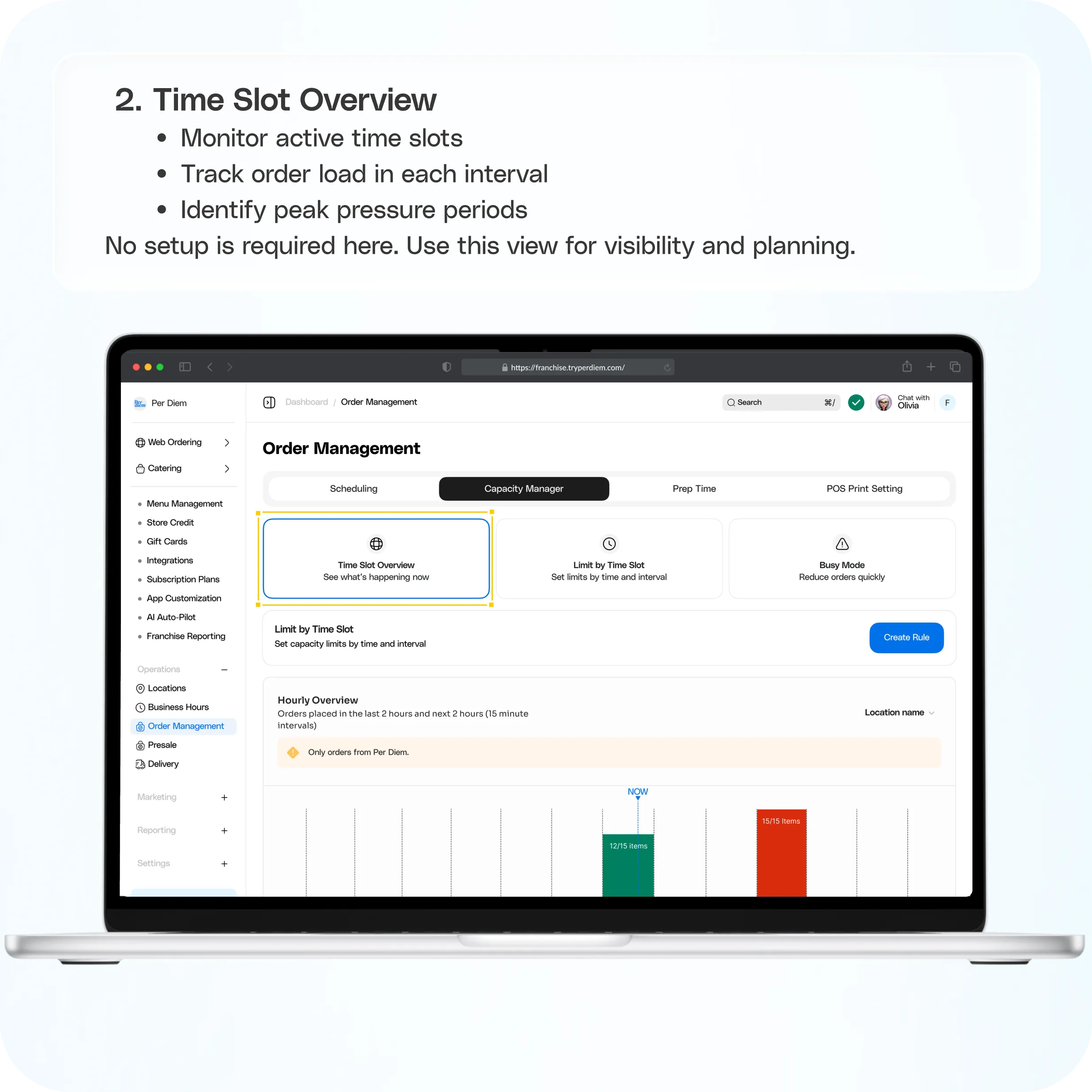
Time Slot Overview. No setup is required here. Use this view for visibility and planning.
- Identify peak pressure periods
- Monitor active time slots
- Track order load in each interval
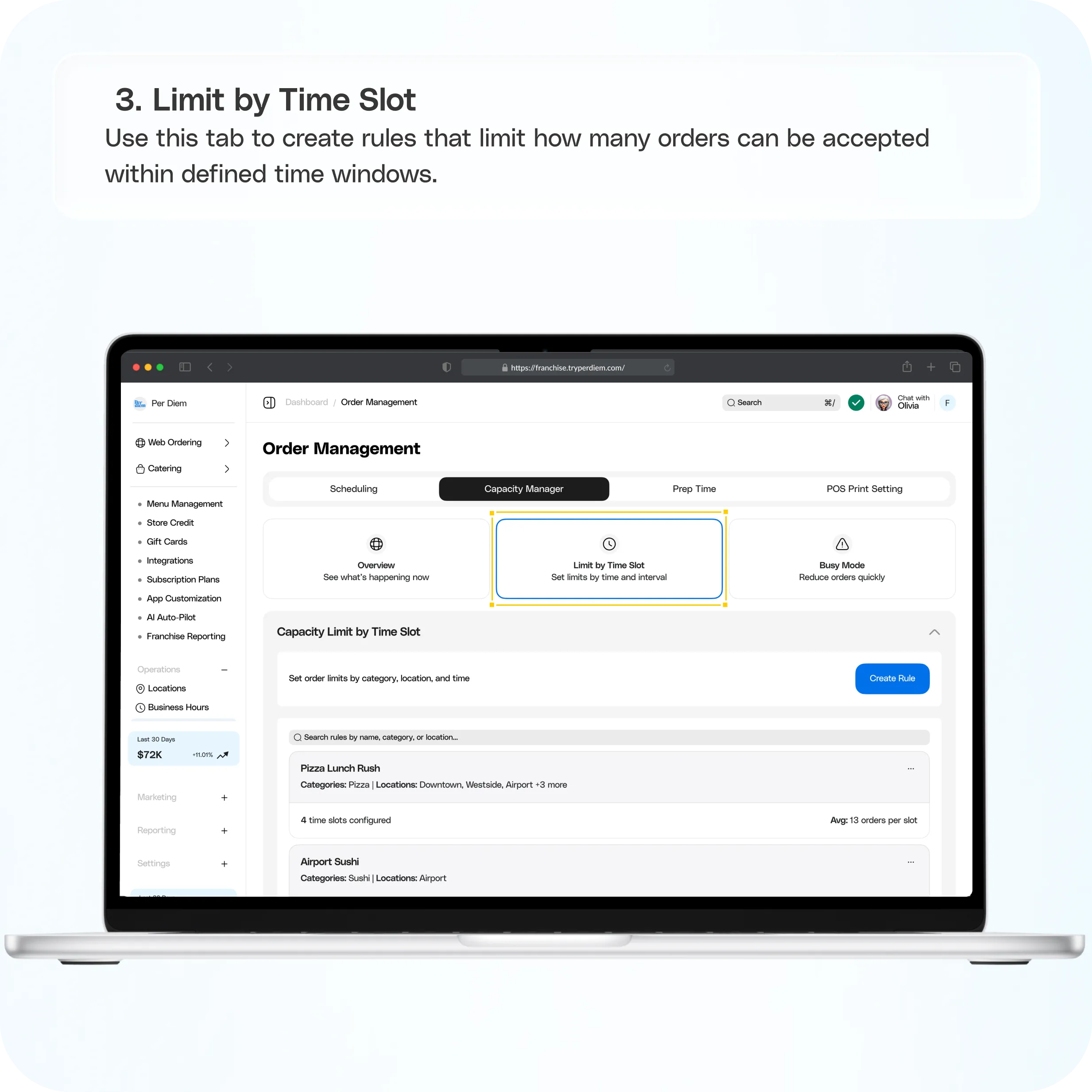
Limit by Time Slot. Use this tab to create rules that limit how many orders can be accepted within defined time windows.
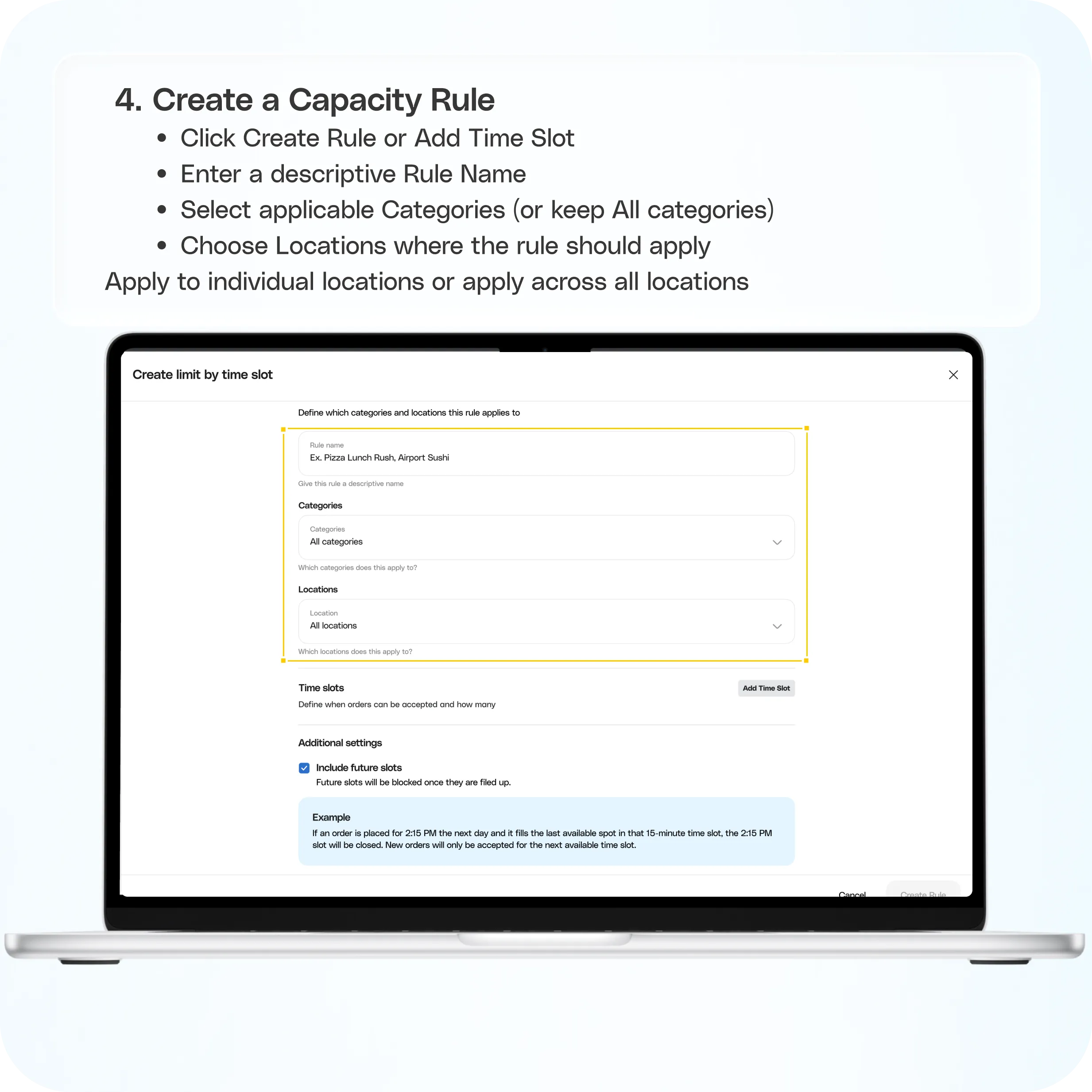
- Click Create Rule or Add Time Slot
- Enter a descriptive Rule Name
- Select applicable Categories (or keep All categories)
- Choose Locations where the rule should apply
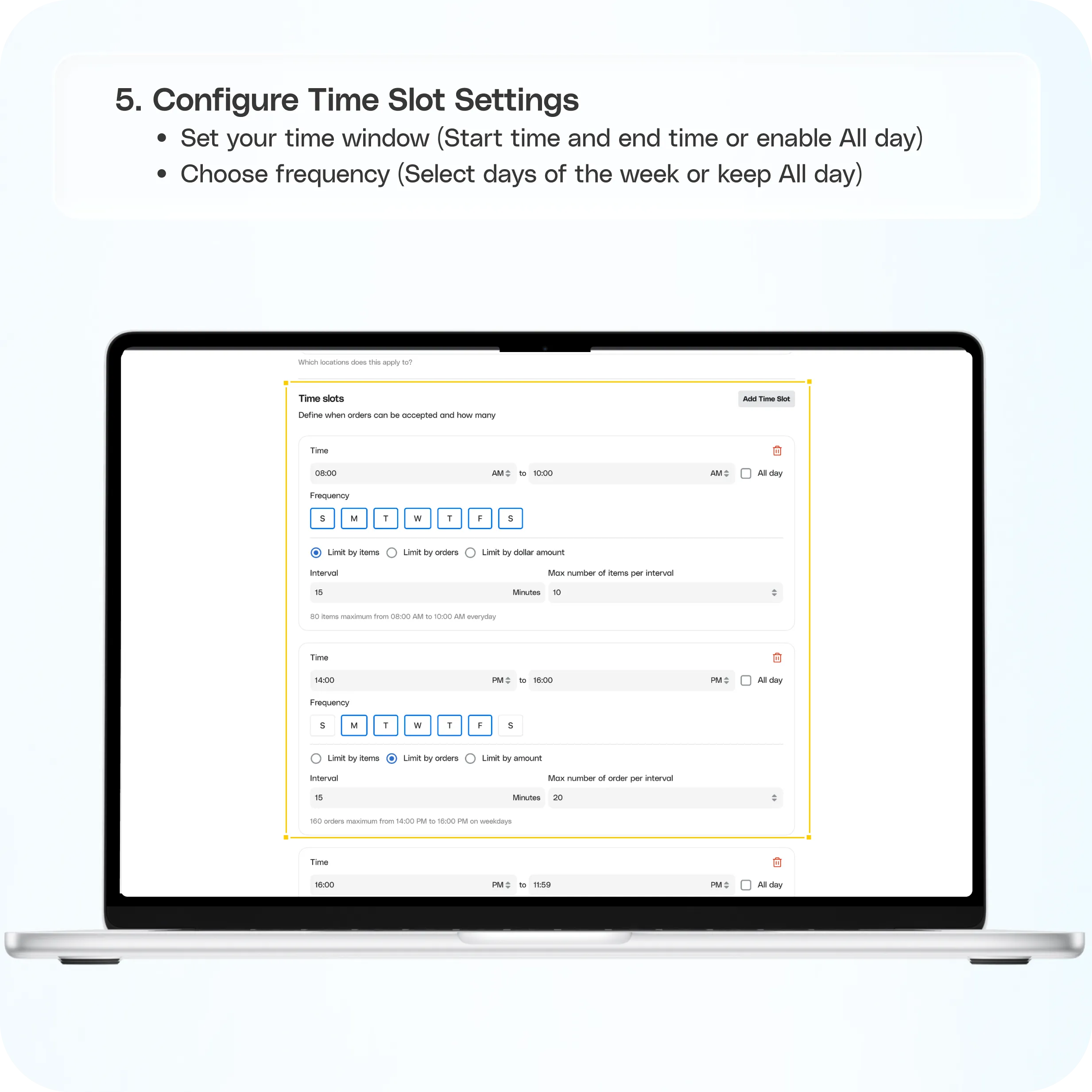
- Set your time window
- Choose frequency
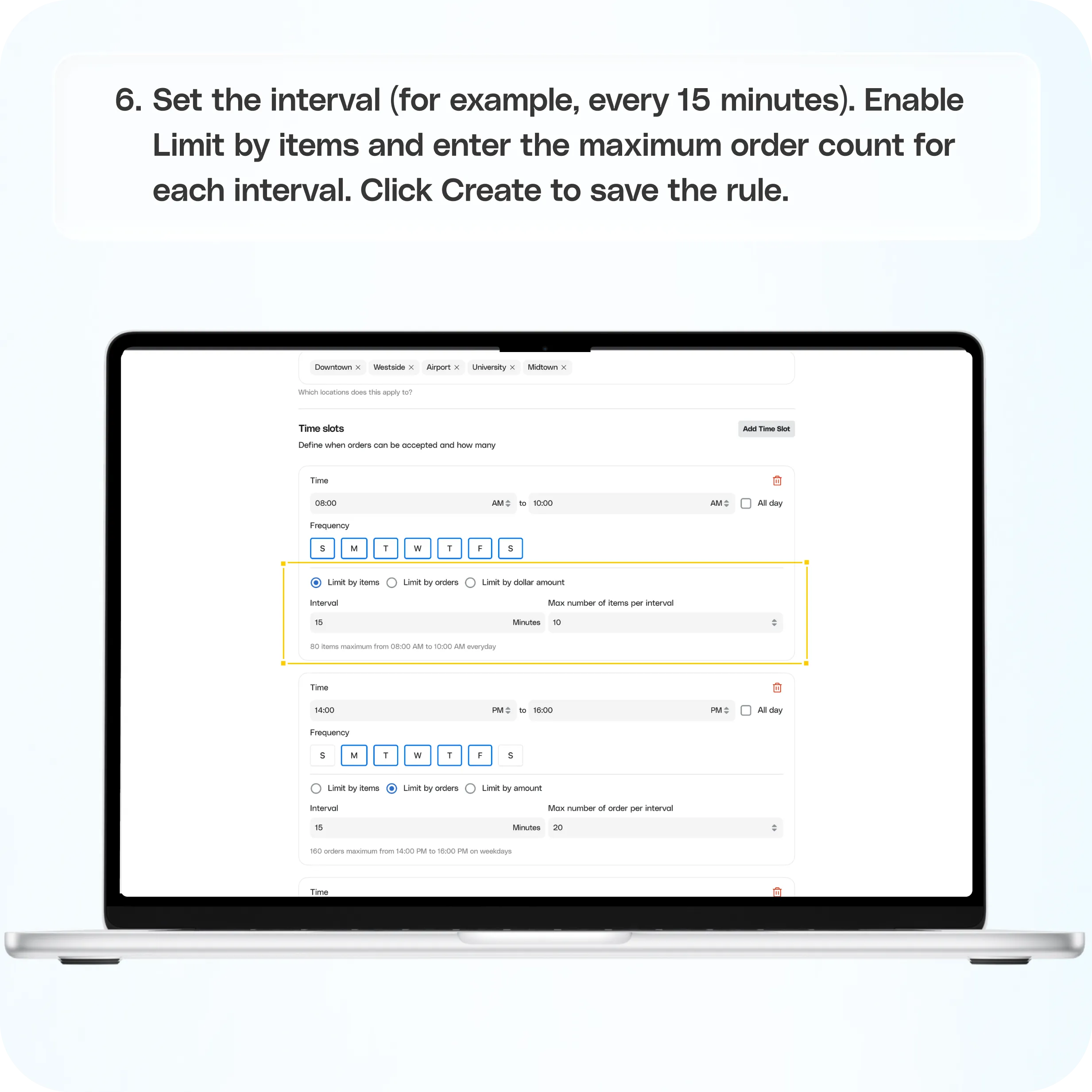
- Set the interval (for example, every 15 minutes)
- Enable Limit by items and enter the maximum order count for each interval
- Click Create to save the rule
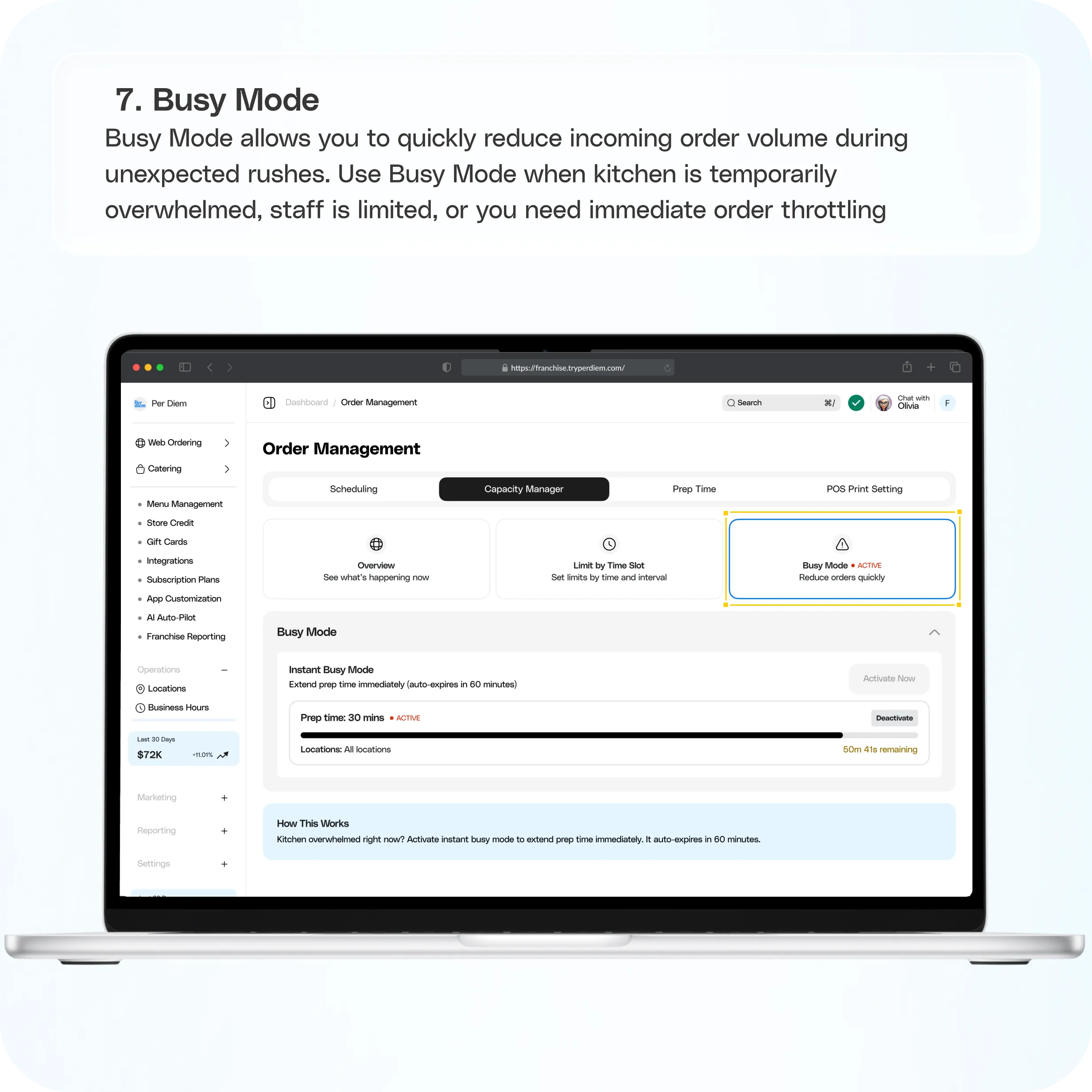
Busy Mode. Busy Mode allows you to quickly reduce incoming order volume during unexpected rushes.
Still require support?
Contact support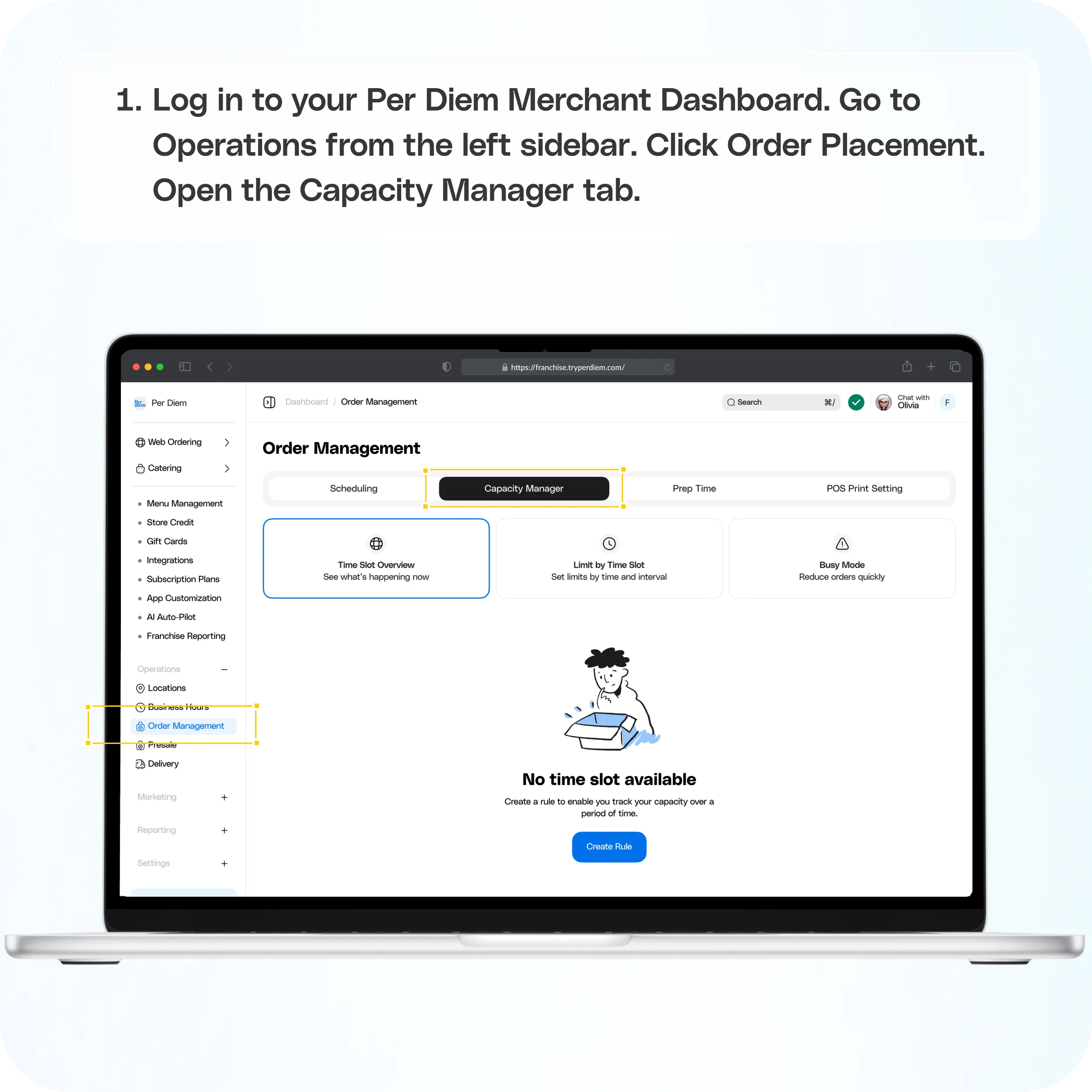
Where to Find It
Step 1: Log in to your Per Diem Merchant Dashboard
Step 2: Go to Operations from the left sidebar
Step 3: Click Order Placement
Step 4: Open the Order Throttling tab
Within Capacity Manager, you will see three subtabs:
- Time Slot Overview
- Limit by Time Slot
- Busy Mode
Time Slot Overview
This tab gives you a real time view of your current capacity usage.
What you can do:
- Monitor active time slots
- Track order load in each interval
- Identify peak pressure periods
No setup is required here. Use this view for visibility and planning.
Limit by Time Slot
Use this tab to create rules that limit how many orders can be accepted within defined time windows.
Create a Capacity Rule
Step 1: Click Create Rule or Add Time Slot
Step 2: Enter a descriptive Rule Name
Step 3: Select applicable Categories (or keep All categories)
Step 4: Choose Locations where the rule should apply
- Apply to individual locations
- Or apply across all locations
Configure Time Slot Settings
Step 5: Set your time window
- Start time and end time
- Or enable **All day
**
Step 6: Choose frequency
- Select days of the week
- Or keep **All week
**
Step 7: Set the interval (for example, every 15 minutes)
Step 8: Enable Limit by items and enter the maximum order count for each interval
Step 9: Click Create to save the rule
You can create multiple rules to handle different rush periods.
Busy Mode
Busy Mode allows you to quickly reduce incoming order volume during unexpected rushes.
Use Busy Mode when:
- Kitchen is temporarily overwhelmed
- Staff is limited
- You need immediate order throttling
Simply enable Busy Mode from the third sub tab when needed. Here is the detailed guide on how to enable Busy Mode.
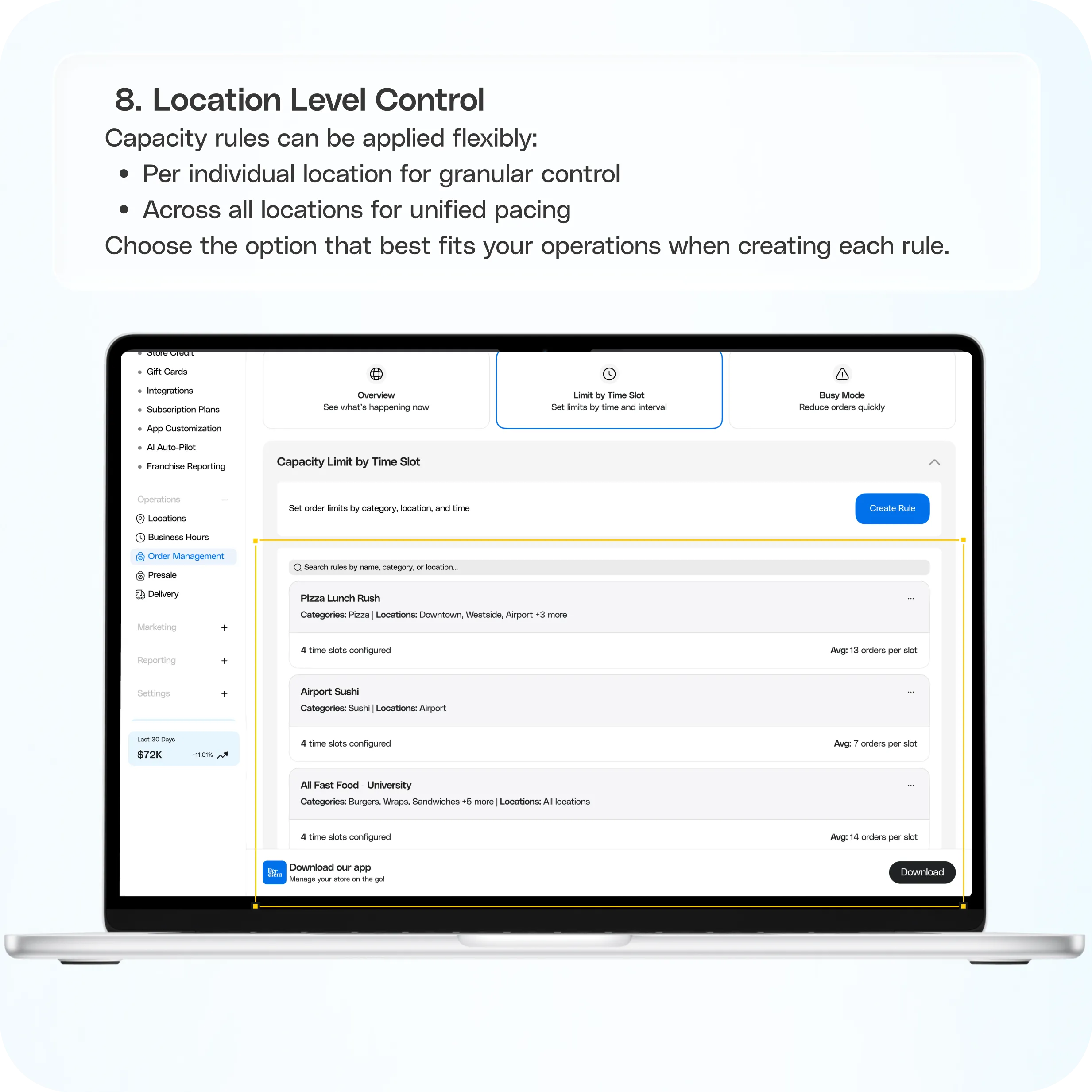
Location Level Control
Capacity rules can be applied flexibly:
- Per individual location for granular control
- Across all locations for unified pacing
Choose the option that best fits your operations when creating each rule.
Once configured, Capacity Manager will automatically pace incoming orders based on your rules, helping your team maintain smooth and predictable fulfillment.
Still have questions?Contact us
Ask anything or just say hi