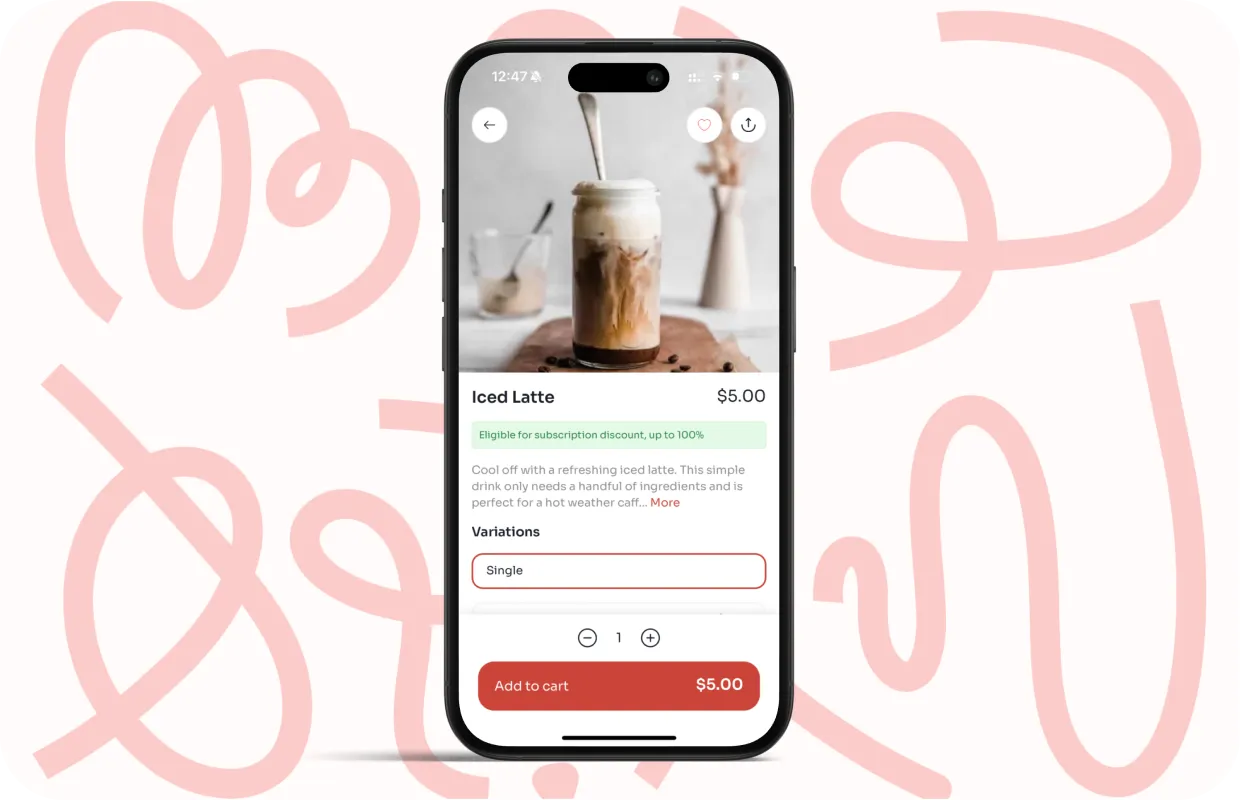
Items are the starting point for everything customers see in your app. When you connect your Square POS with Per Diem, items flow automatically between both systems. Understanding where items are created, how updates sync, and which settings live in each platform helps you manage your menu with confidence and speed.
This section explains how item syncing works, how visibility is controlled, and how to keep item details accurate across your menu.
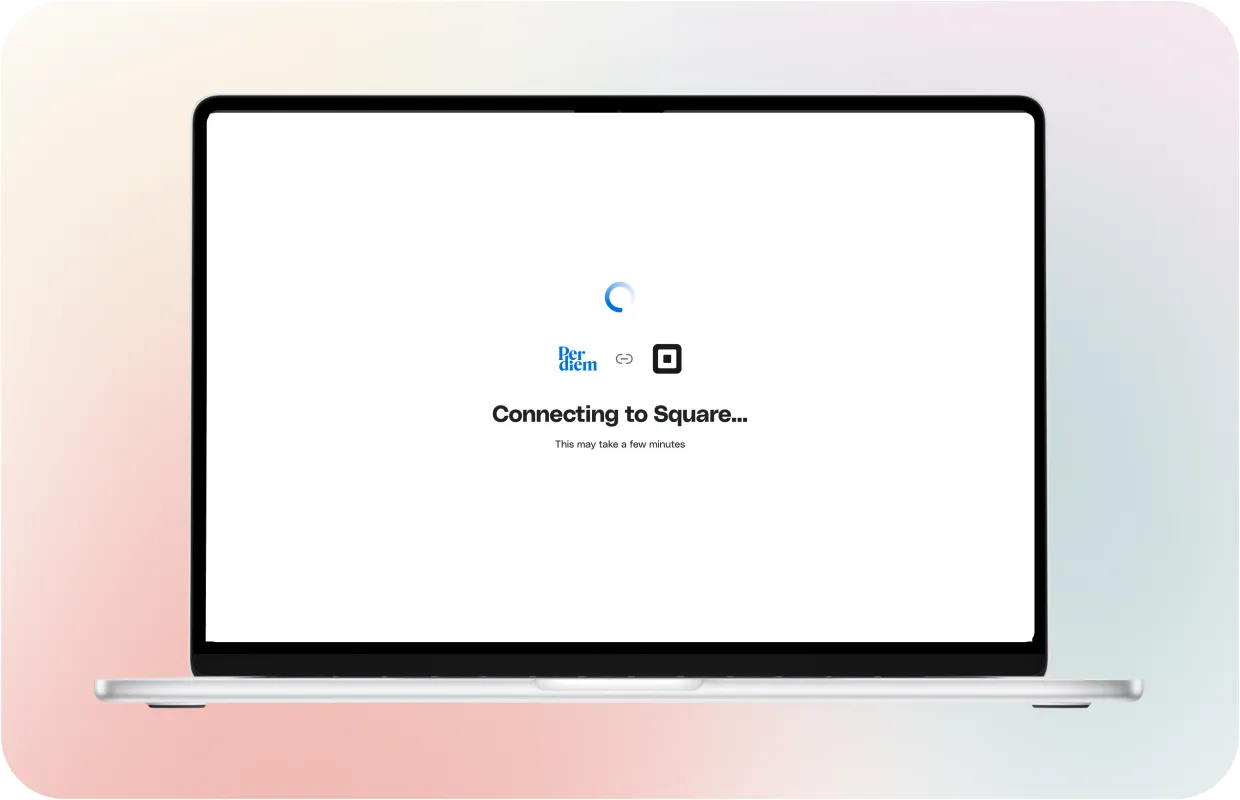
All items are created and stored in your Square item library. Per Diem does not replace Square as the source of truth for items. Instead, it pulls item data directly from Square and keeps it updated automatically.
After connecting the app with the POS, the following item information syncs from Square into your merchant dashboard:
Any time you add a new item in Square or update an existing one, those changes sync to Per Diem without extra steps. This means you should always create and edit core item data in Square first. Per Diem then builds on top of that data to control how items appear in your app.
This setup reduces duplication and keeps your menu consistent across in-store and online ordering.
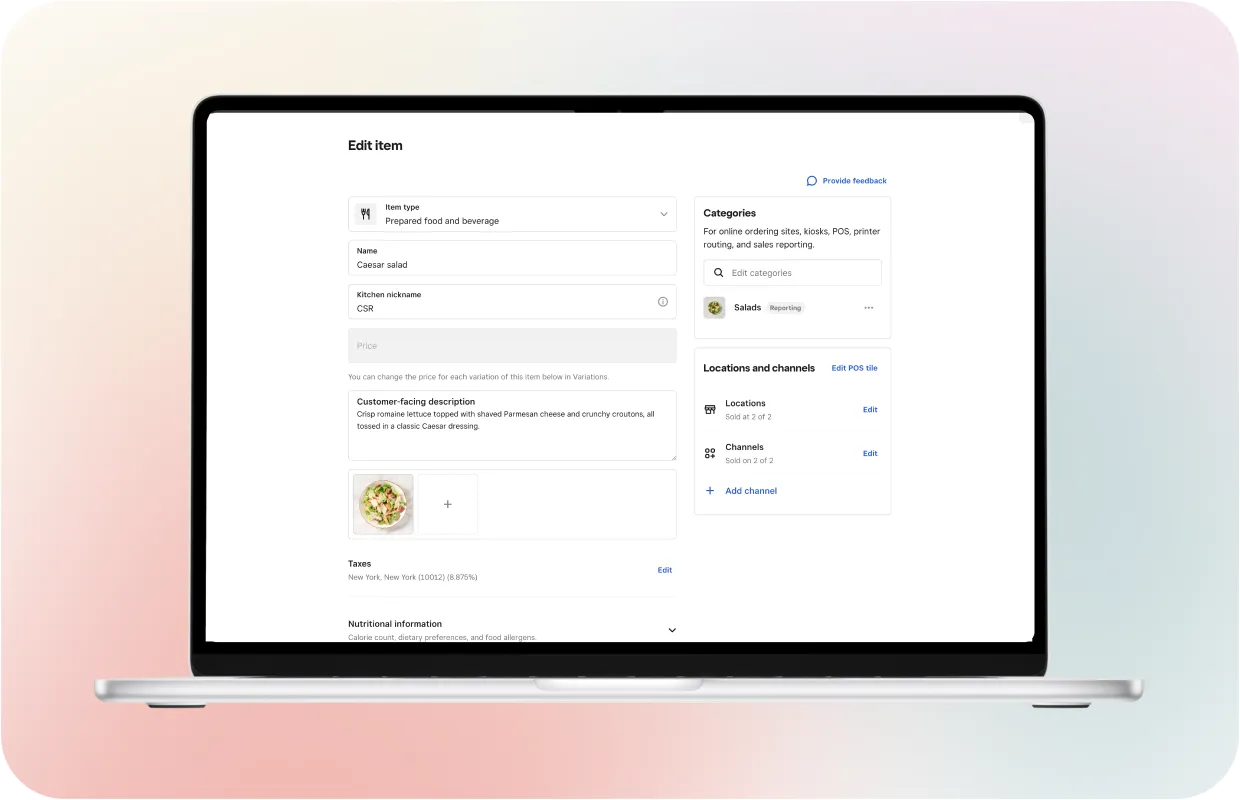
Once an item syncs from Square, the app displays the name, description, and image exactly as they appear in your Square item library. Per Diem does not allow editing these fields because Square remains the single source of truth for item content. If you want to update an image or adjust a description, you can make that change directly in Square. After you save the update, the new details sync into your app automatically.
Your dashboard still gives you control over settings that shape the customer experience, such as visibility, search behavior, promotions, upsells, and modifier rules. These adjustments do not affect inventory, pricing, or reporting in Square. They simply refine how customers see and interact with your menu while keeping all core data consistent across both systems.
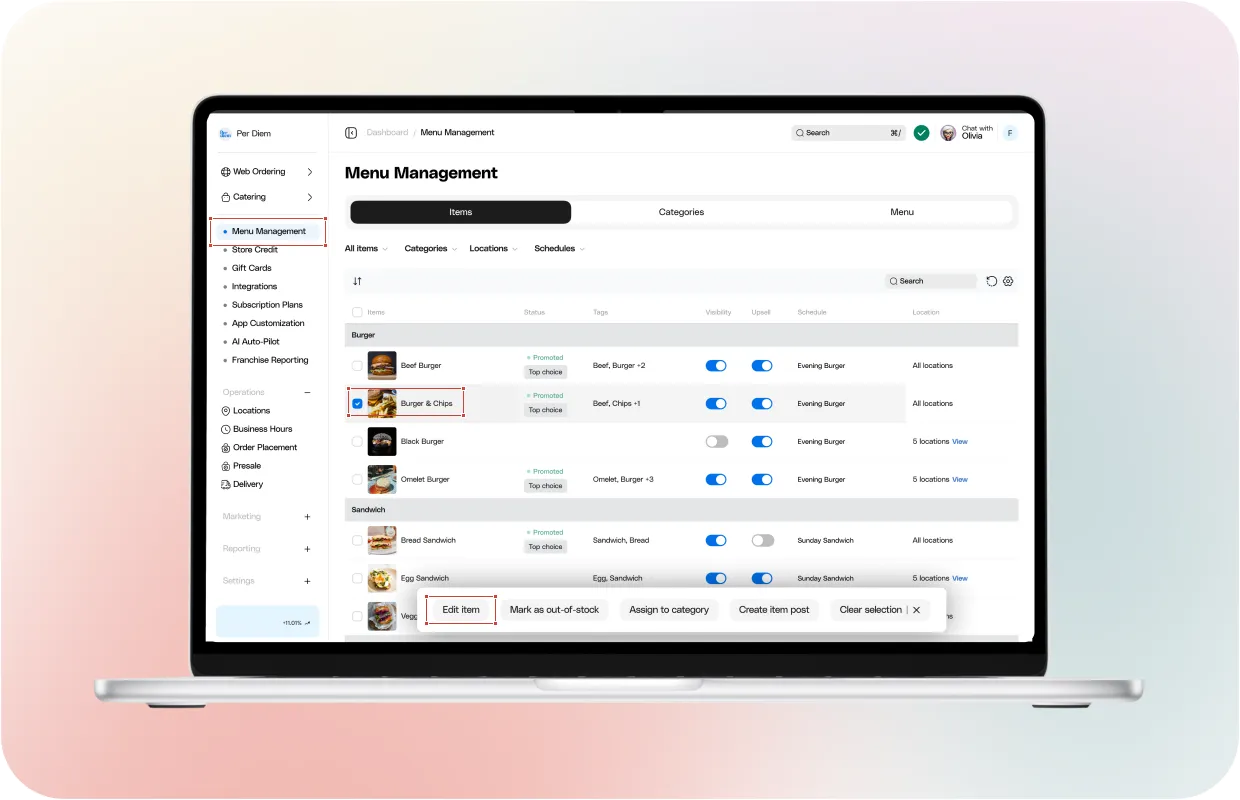
Every item synced from Square appears in the Per Diem dashboard, but visibility is controlled separately.
Visibility determines whether an item shows to customers in the app menu. Turning visibility off hides the item from customers while keeping it active in Square. This is useful when you want to pause an item, remove it temporarily, or prepare items ahead of time.
Visibility controls in Per Diem do not disable the item in Square and do not affect in-store ordering. This separation allows you to manage digital menus without disrupting daily operations.
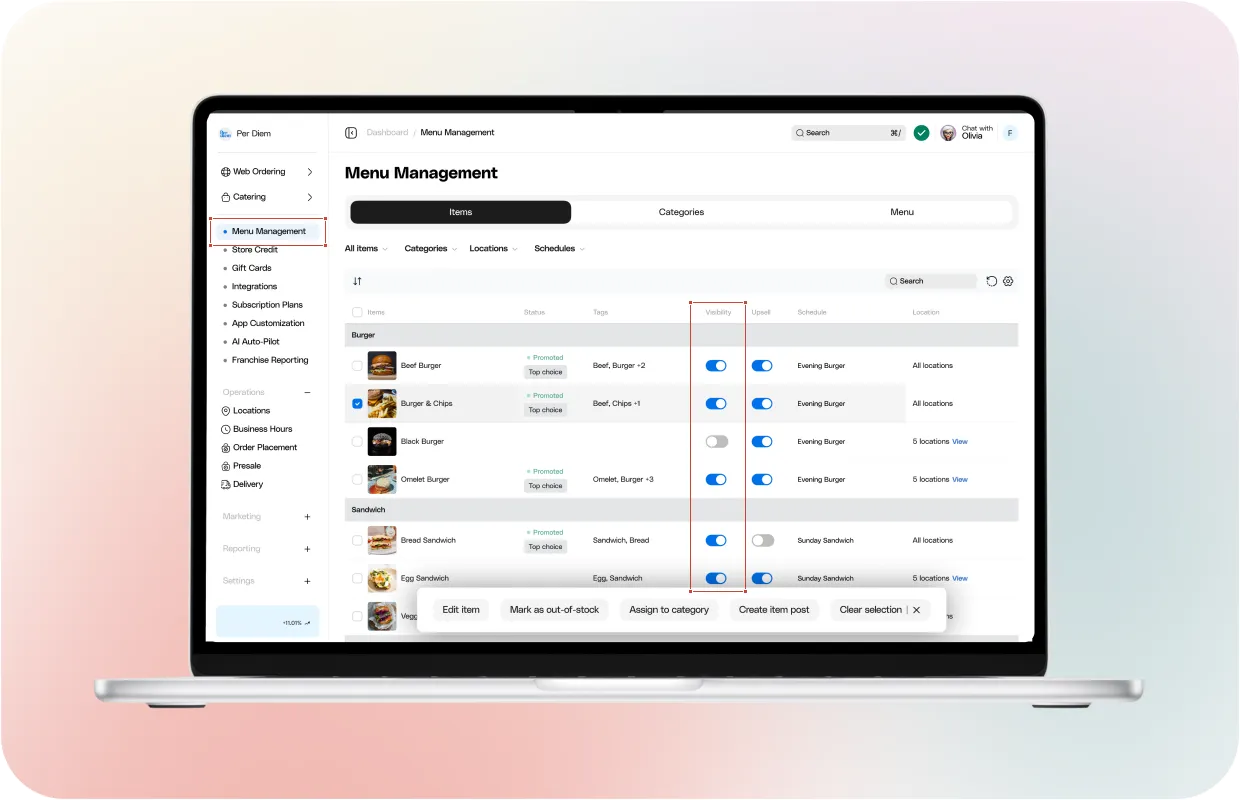
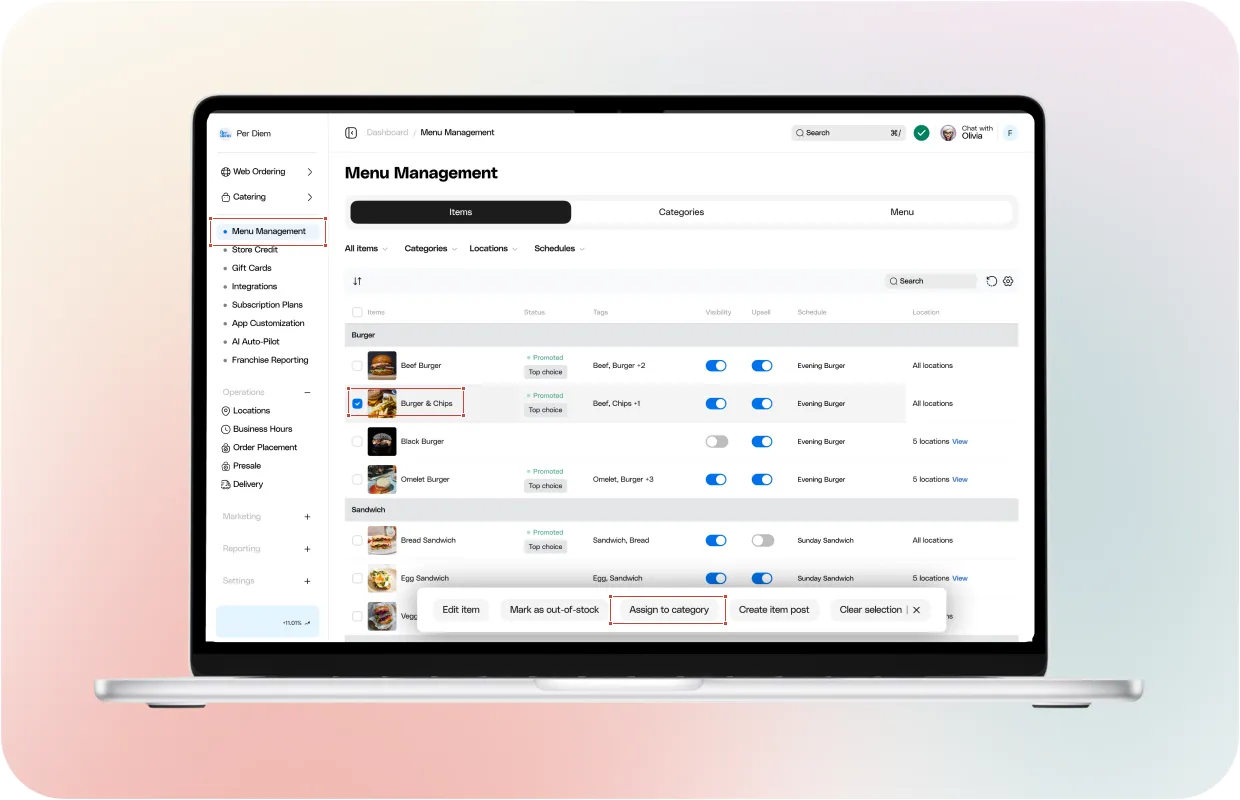
Categories help customers browse faster and understand your menu at a glance. With Per Diem, you can assign items to categories directly from the Items view without leaving the dashboard.
From the items list, you can select one or more items and use the Assign to category action in the bottom bar. This opens a category selector where you can search, review existing categories, and assign items with a single click. Changes apply immediately to how items appear in the app.
This flow is especially useful when you are reorganizing your menu, launching a new section, or correcting misplaced items. You do not need to edit each item one by one. Bulk assignment helps keep your menu structure clean and saves time during updates.
If you see multiple categories with the same name, this usually means similar categories exist across different menus or locations. Assigning an item to the correct category ensures it appears in the right place for customers based on menu and location rules.
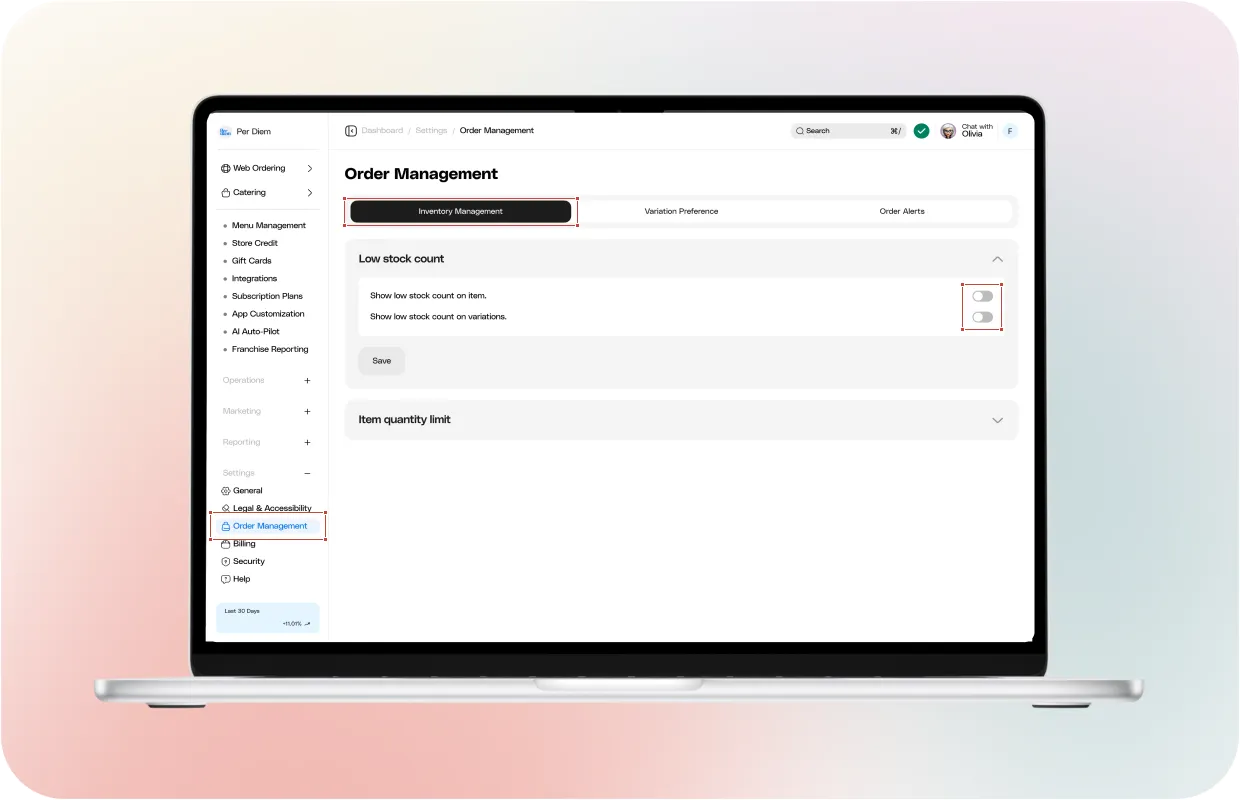
Per Diem allows you to show low stock counts to customers through a single setting in your dashboard.
You can control this from Settings, then Order Management, then Inventory Management. In the Low stock count section, you can choose whether you want to show low stock counts on items or on item variations. Once enabled and saved, the app displays low stock information based on available inventory data.
This gives customers clearer expectations while ordering and helps reduce situations where an item or specific variation runs out unexpectedly. Showing low stock counts is especially helpful for items with multiple sizes, flavors, or options where availability may differ.
Images and descriptions play a direct role in how quickly customers decide to order. When they are missing, customers hesitate, scroll longer, or abandon the item altogether.
To save time and avoid duplicate work, add and update item images and descriptions directly in Square. Once you do that, those details automatically appear in the Per Diem app. You do not need to enter the same information twice. This keeps your menu consistent across in store orders and digital ordering while reducing manual updates.
Strong descriptions explain what makes the item appealing in a few clear words. They work best when they focus on what the customer gets rather than internal details. Images should match how the item looks when served so customers know what to expect at pickup. Managing this content in one place helps you maintain accuracy and frees up time to focus on other parts of your menu.
On web ordering, customers often search instead of browsing. They type what they are looking for and expect results that make sense right away. When items appear clearly in search, customers order faster and with more confidence.
Search visibility for web ordering starts with how items are named and described in Square. Since Per Diem pulls item data from Square, you only need to manage this content once. When you update item names and descriptions in Square, those updates appear automatically in your Per Diem web ordering menu. This saves time and keeps everything consistent.
Item names should clearly match what customers search for. Avoid internal naming or creative titles that hide the product. If you sell burgers, the word burger should appear in the item name. Descriptions then support search by adding context in natural language. For example, a description like “Classic cheeseburger made fresh daily, popular with customers searching for burgers near downtown” helps customers recognize the item quickly and supports how web ordering search works.
Clear names and simple descriptions improve how items surface in search results and reduce the need for customers to scroll or guess. When customers find what they want easily, web ordering feels faster and more reliable.
Seasonal and limited-time items give your menu energy and keep regular customers engaged. These items work best when they feel intentional and easy to manage behind the scenes.
Instead of creating entirely new menu structures each time, seasonal items can be prepared ahead of time and activated when needed. Once the promotion ends, those items can be hidden without being removed, making them easy to reuse later.
Grouping seasonal items under dedicated categories helps keep your core menu focused. When the season passes, those categories can be hidden from active menus while everything else stays untouched. This approach keeps menus flexible while maintaining a consistent structure year-round.
Managing seasonal items this way allows you to experiment, rotate offerings, and respond to demand without disrupting your main menu.
Visit our syncing and menu management articles for detailed guidance.


.svg)