


























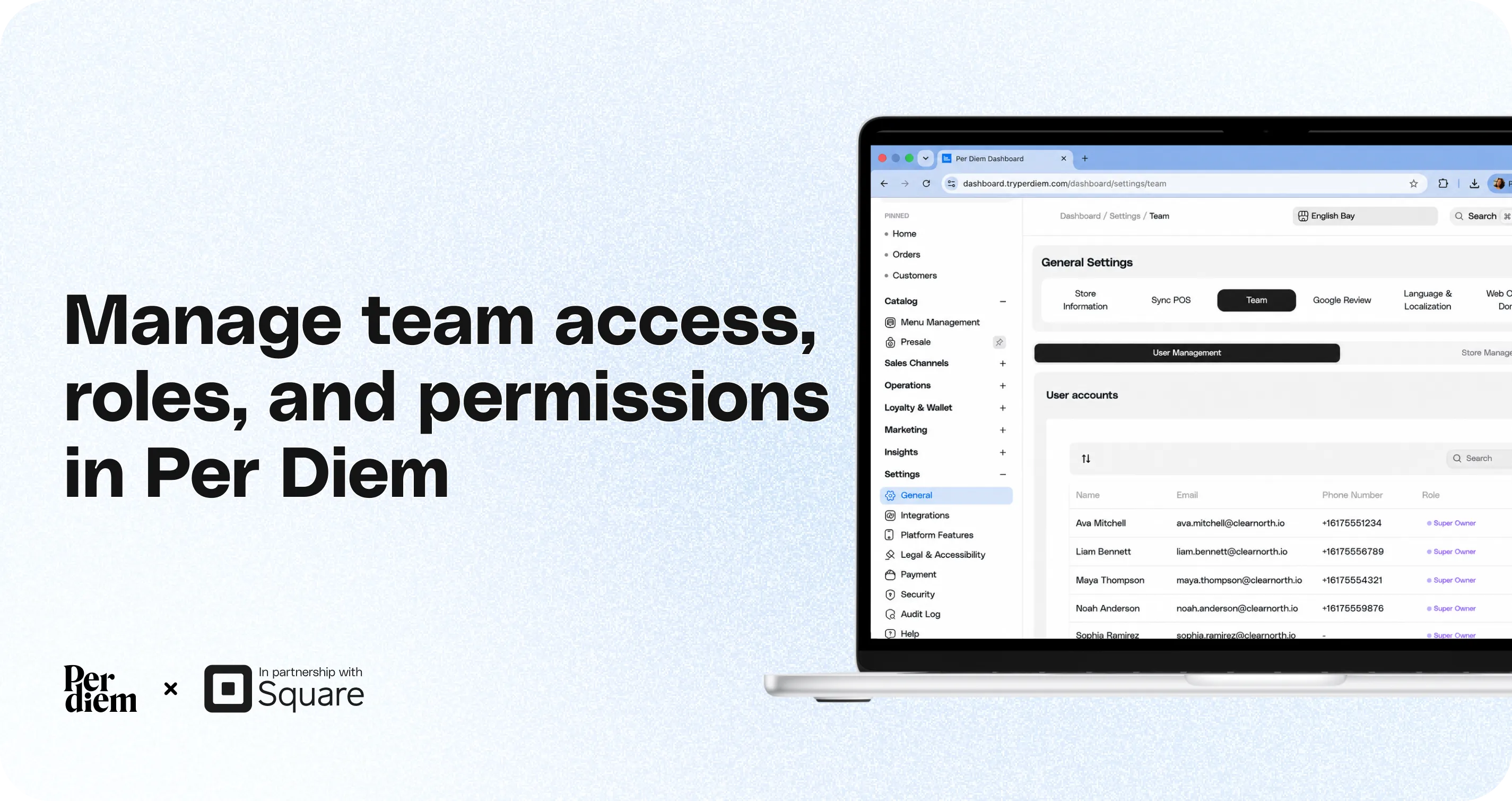
Manage Team Access, Roles, and Permissions in Per Diem
Team Settings lets you give employees, managers, owners, and franchise teams access to your Per Diem Merchant Dashboard while controlling exactly what they can see and manage. For multi-location and franchise businesses, you can also limit each team member to specific locations, so they only have access to the stores they are responsible for.
- Log in to your Per Diem Merchant Dashboard and go to: Settings → General → Team
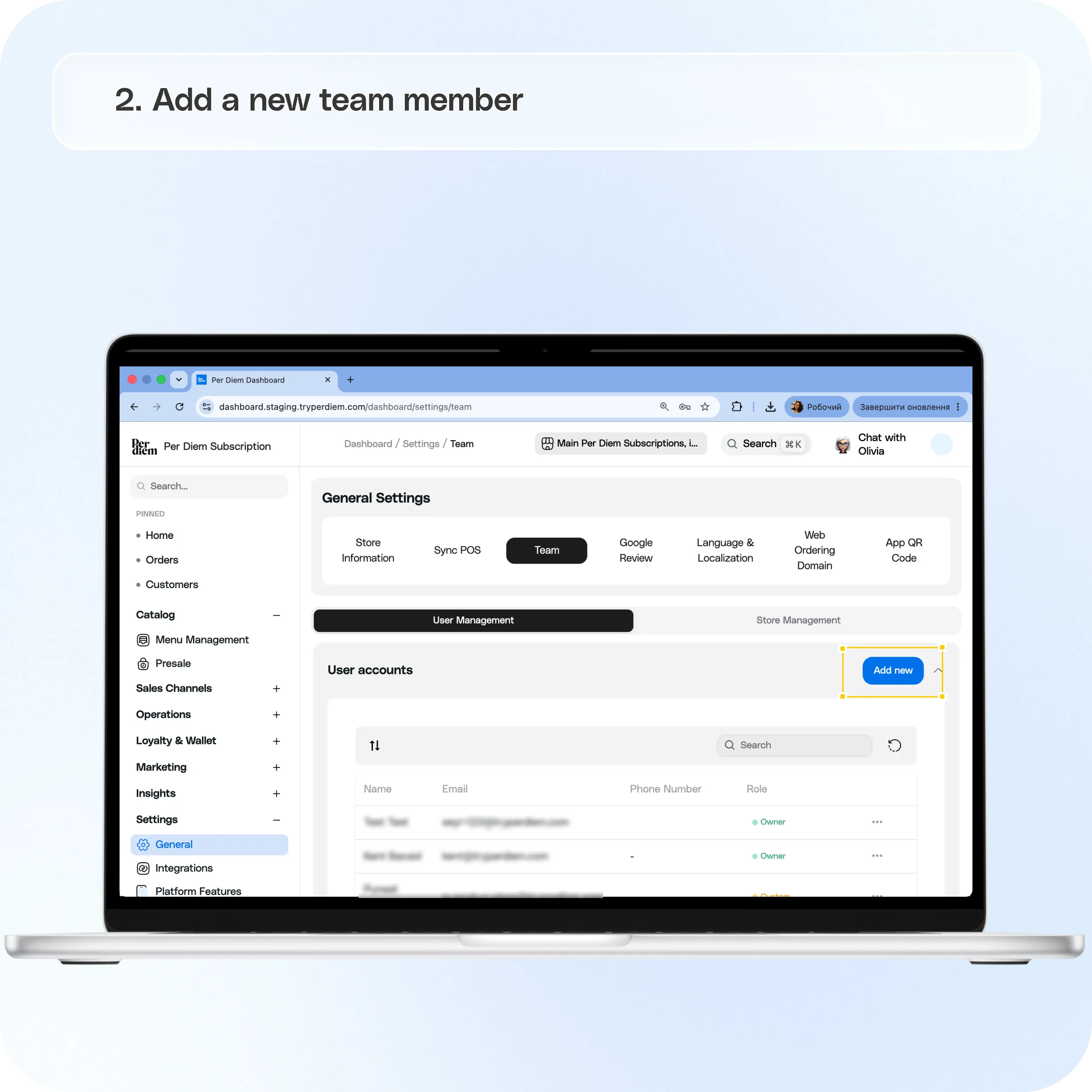
- Add a new team member
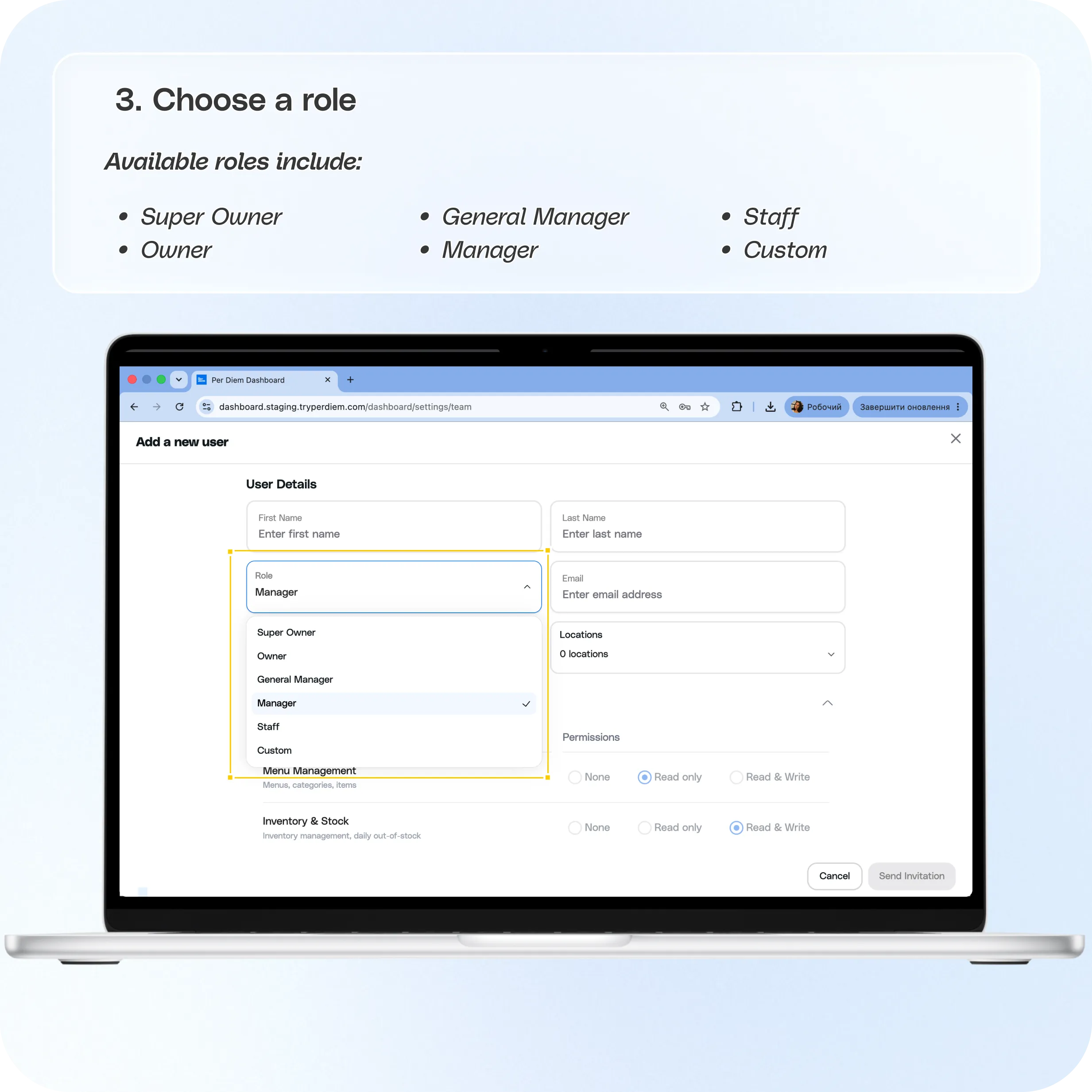
- Choose a role
- Choose which locations they can access
- Set dashboard permissions
- Send the invitation
- Edit or remove a team member
- Manage sub stores for franchise accounts
Still require support?
Contact support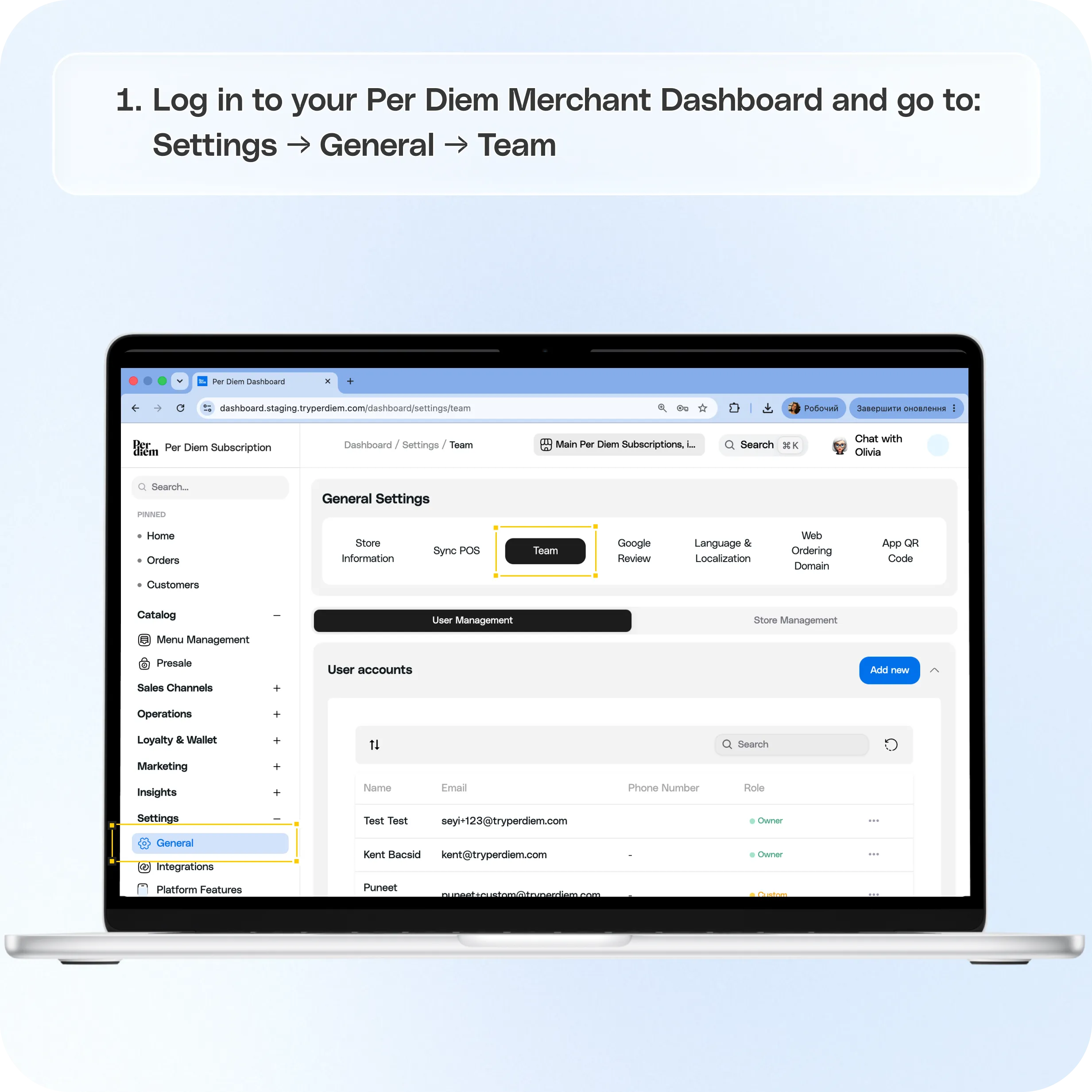
Where to find Team Settings
Log in to your Per Diem Merchant Dashboard and go to:
Settings → General → Team
From here, you'll find two sections:
User Management lets you invite team members and manage their roles, locations, and permissions. Store Management lets corporate and franchise accounts manage sub stores under their account.
Add a new team member
Under User Management, click Add new.
Enter the team member's:
- First name
- Last name
- Email
- Phone number, optional
Then choose the role and locations they should have access to.
Choose a role
Select the role that best matches what the team member needs to do in the dashboard.
Available roles include:
- Super Owner
- Owner
- General Manager
- Manager
- Staff
- Custom
Choosing a preset role automatically applies its associated permissions.
If you need more control over what someone can access, choose Custom and configure their permissions individually.
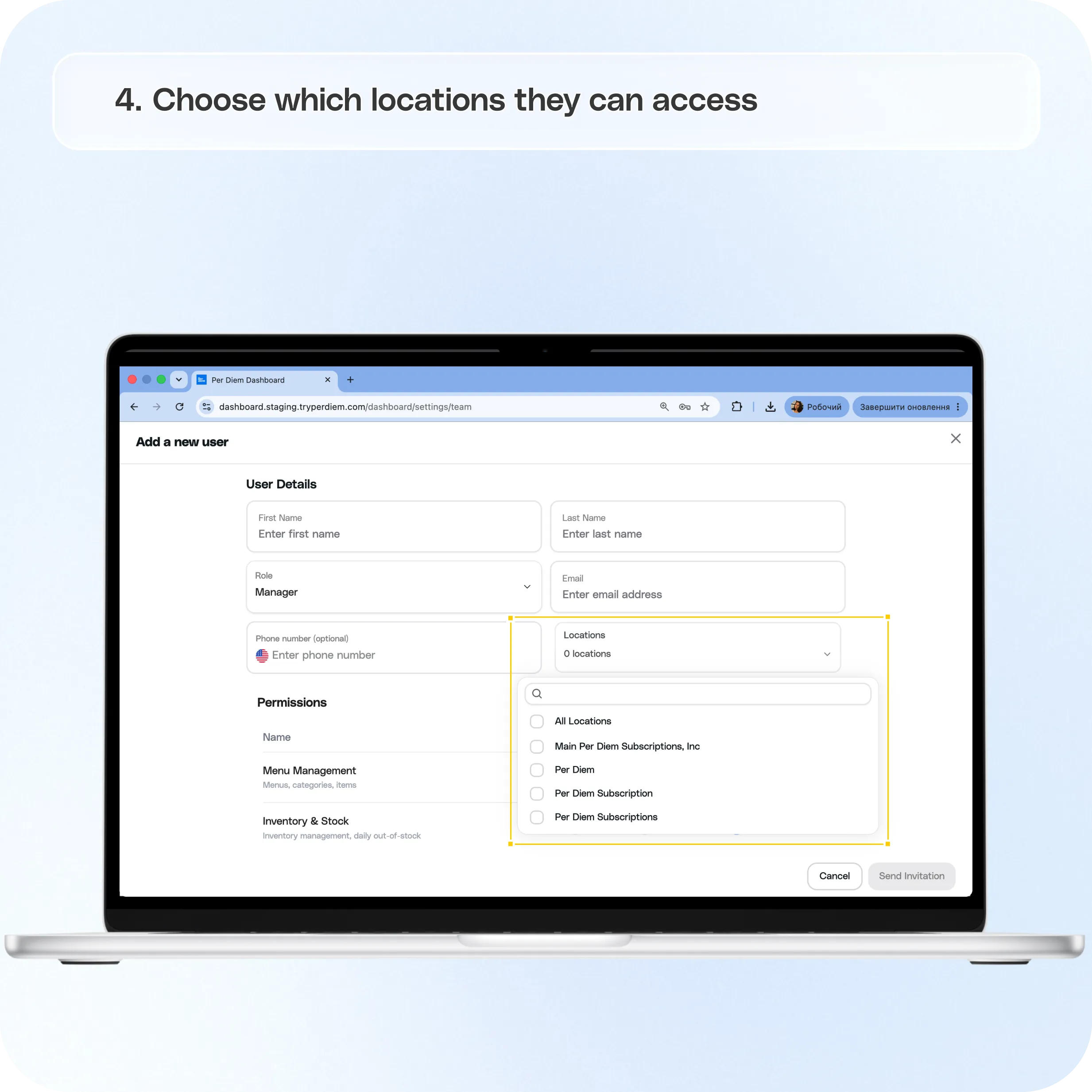
Choose which locations they can access
If you operate multiple locations, use the Locations field to decide which stores the team member can access.
You can give someone access to all locations or select only the locations they manage.
This is especially useful for franchise and multi location businesses. A store manager, for example, can be given access only to their own location instead of seeing every store connected to the account.
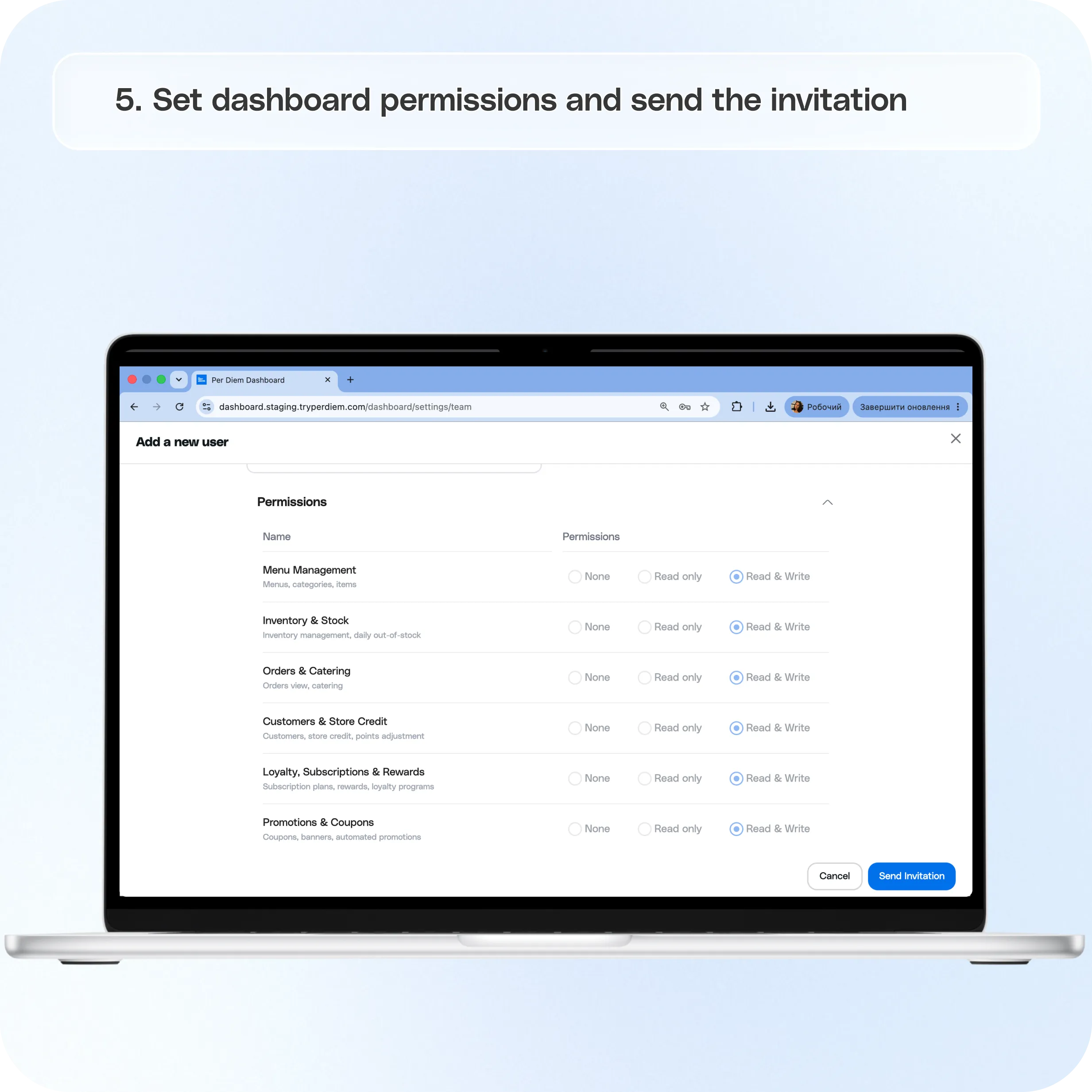
Set dashboard permissions
You can control access to different areas of the Merchant Dashboard from the Permissions section.
For each available module, choose:
None: The user does not have access.
Read only: The user can view information but cannot make changes.
Read & Write: The user can view and make changes.
Permissions can be configured for areas including menu management, inventory, orders and catering, customers and store credit, loyalty and subscriptions, promotions, notifications, and other dashboard tools.
This lets you give each person the access they need without opening up parts of the dashboard they do not manage.
Send the invitation
Once you've selected the user's role, locations, and permissions, review the settings and click Send Invitation.
The team member will receive an email invitation to set up their dashboard access.
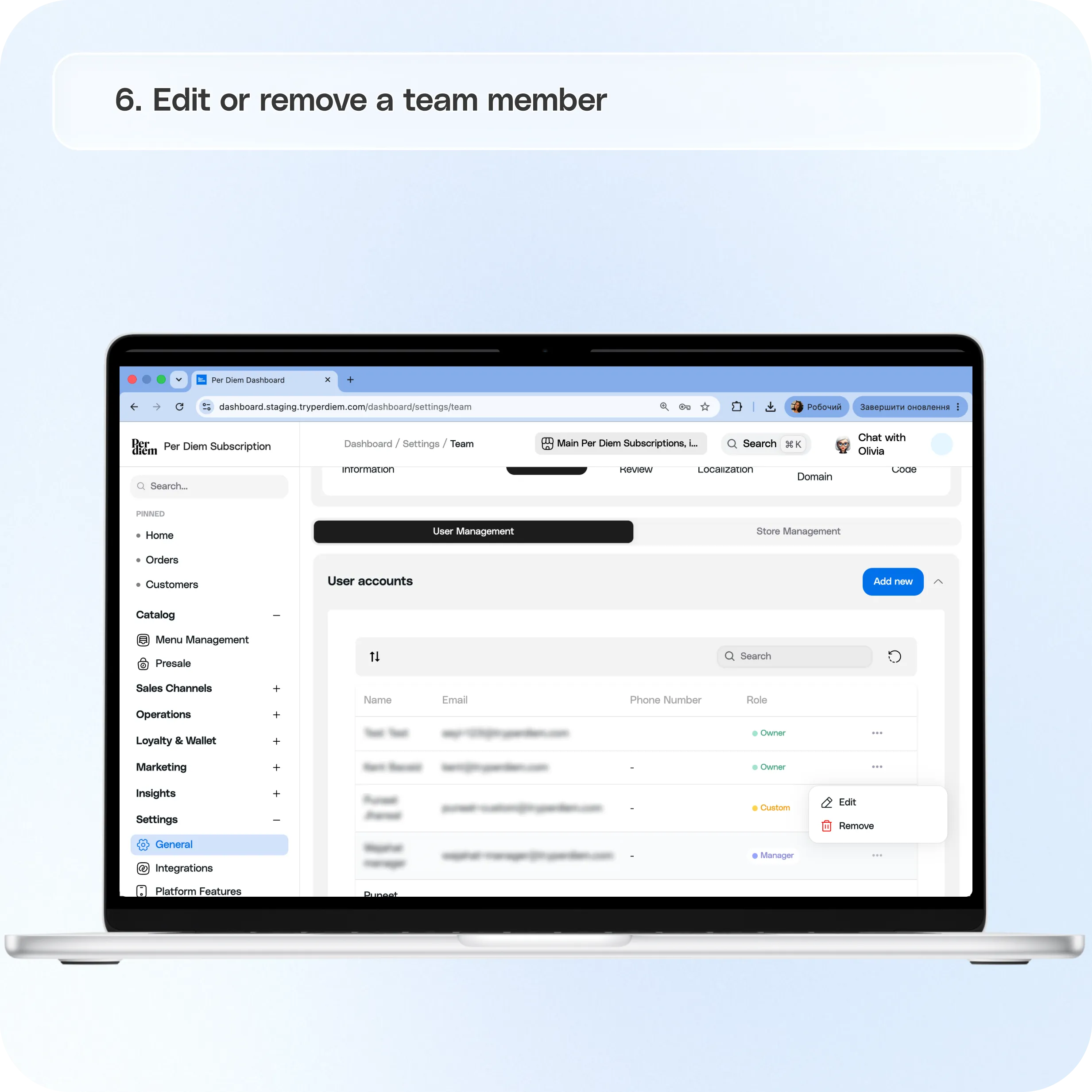
Edit or remove a team member
You can change someone's access at any time.
Go back to:
Settings → General → Team → User Management
Find the team member and open the ••• menu beside their account.
From here, you can update their role or permissions, change their location access, or remove their dashboard access entirely.
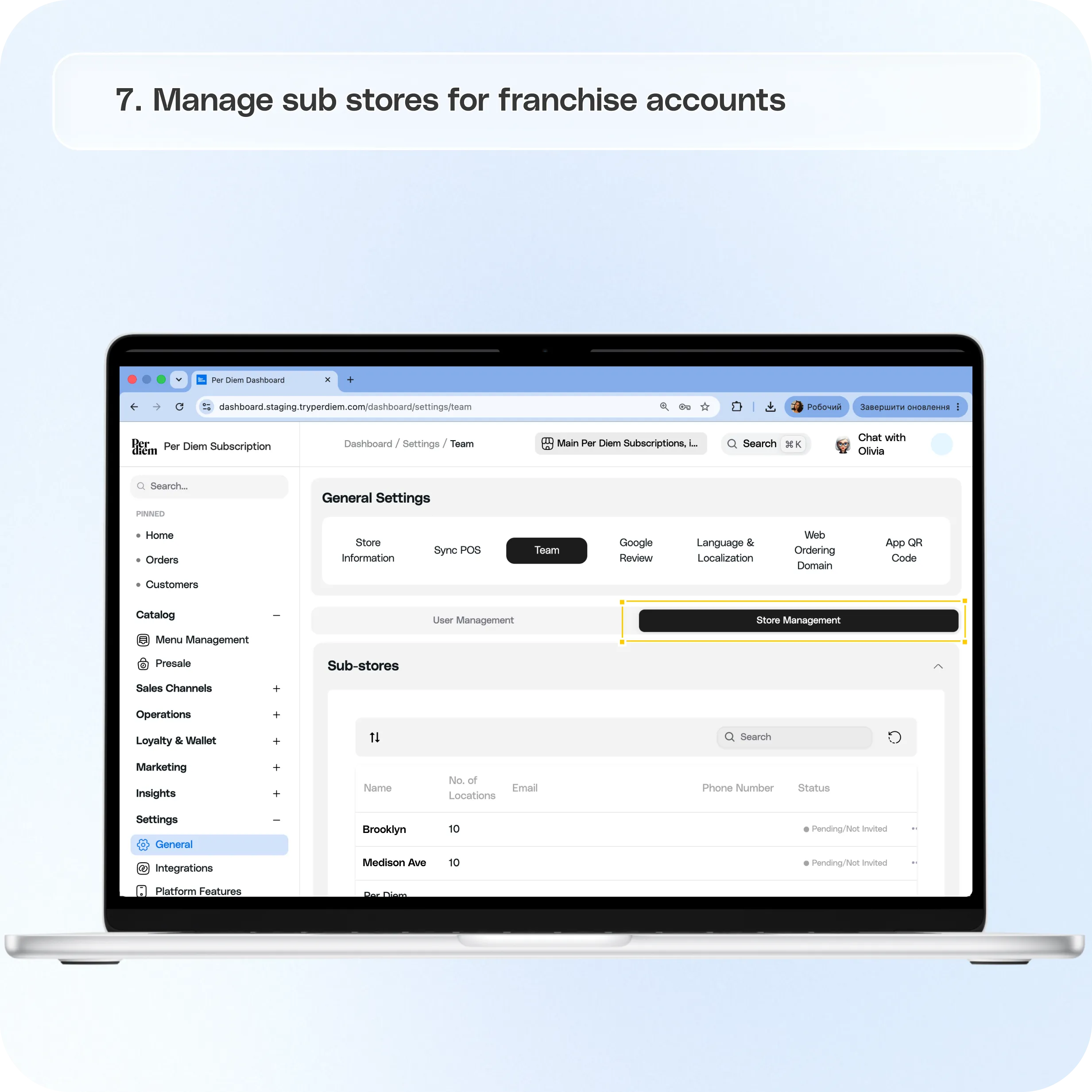
Manage sub stores for franchise accounts
If your account manages multiple business entities or franchise stores, open the Store Management tab.
Here you'll see the sub stores connected to your account, including their number of locations, contact information, and invitation status.
Use the ••• menu beside a sub store to manage its access or send or resend an invitation.
Keep track of important account changes
Team Settings works alongside the Audit Log to give owners more visibility and control.
Team Settings determines who has permission to make changes, while the Audit Log helps you see actions taken within supported areas of the dashboard.
You can find it under:
Operations → Audit Log
Together, these tools make it easier to manage dashboard access across larger teams while keeping control at the owner or corporate level.
Still have questions?Contact us
Ask anything or just say hi